Keywords: cancel scheduled send, send later, triggers, pros and cons
Overview
This article discusses the differences between a scheduled send and a triggered send and sets out the advantages of using these functions while also describing the restrictions on both.
Contents
Scheduled Send or Send Later (no triggers)
In the Email module it is possible to set up a mailing to go out at some point in the future. This feature is available from the Send Email screen here:
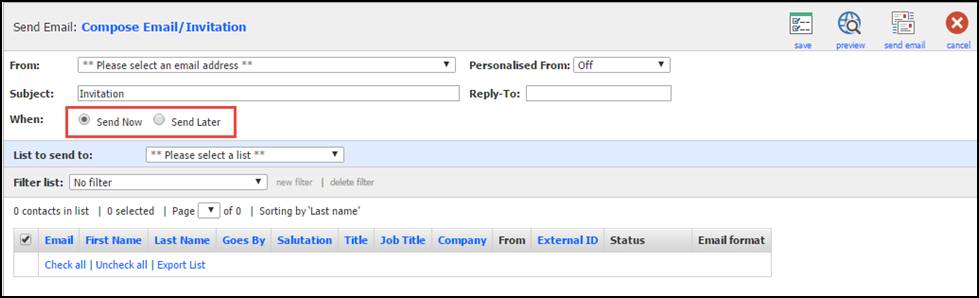
Choosing Send Later allows you to set the date, time and time zone in the future for the mailing to go out:
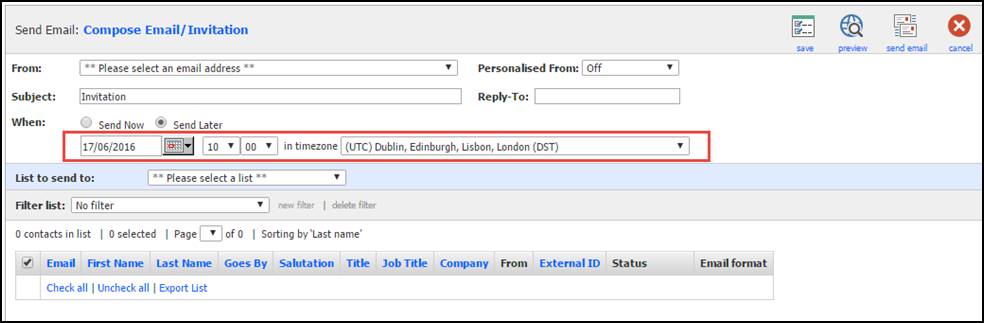
You would then continue to set up the mailing by choosing the mailing list, plus any filter and then clicking on Send Email.
Vuture will then process the mail as if the send is happening immediately, by identifying the recipients, excluding any who are suppressed and excluding duplicates. It will apply the activity note of Email Sent to InterAction now, but dated for when the send is due to go out. It will then wait to do the actual send until the date and time you have set.
At the point of send, Vuture will not re-process the list; it will not check again for any suppressed contacts nor will it check again for any contacts who may have since been removed from the mailing list. Vuture will send to the original list of contacts that it made when you set up the mailing.
For this reason, Scheduled Send or Send Later is a very useful function to use when the delay between the set up and the actual send is brief. An ideal example of this brief delay would be – set up on Friday, send out on Monday.
Advantages of using Scheduled Send or Send Later
There is no need to be present when the mailing goes out.
It is possible to “set it and forget it”, that is, set it up in advance and know that it will happen on the assigned day.
You can schedule a Send Later to multiple mailing lists by selecting more than one list at the point of set up. Vuture will de-duplicate the contacts on the several lists and ensure that each person only gets the mailing once.
If you need something to go out as soon as possible at a certain time then all the pre-processing and list downloading has already happened and all the emails are ready to go with just the final delivery to the recipient, which is very quick.
Risks in Scheduled Send or Send Later
There is a risk, when using Send Later, that a person will unsubscribe after the mailing has been set up. Since Vuture does not reprocess the list at the point of sending, that unsubscribe will be ignored and the contact will receive the mailing anyway.
Other individuals may move employment or change their email address on your database. Again, Vuture will not take these changes into account because it creates the mailing list that it is going to send to, at the set up stage.
One way to mitigate the risks in using Send Later is to keep the time interval short between mailing set up and the date of the actual send. A Friday to Monday is ideal, or any other brief period of a day or two. If you make the interval longer you will increase the risk that a person who has unsubscribed will still get the mailing.
Cancelling a scheduled send
Once the send email button has been clicked the email Scheduled Send processing is started.
A Scheduled Send can be cancelled whilst this processing is happening or anytime before the scheduled delivery time of the email.
To be able to cancel a Scheduled Email Send you must have the following feature enabled for your role:
"Admin.Roles.Emails.Delete Sent" which your Customer Success Manager can do for you.
To cancel a Scheduled Send click on the cancel send button below the sent email in the left panel. As long as you cancel before the scheduled delivery time the complete send will be cancelled.
If the scheduled send was cancelled while still processing, the user that sent the email will receive a confirmation email to confirm that the send was cancelled. If the scheduled send is cancelled after the processing has completed but before the scheduled send date no cancellation will be sent.
When you cancel a scheduled send:
- The email won't send
- It will be removed from the compose folder
- The email history page will reflect that it was cancelled
- You will receive a cancellation email confirming that it was cancelled
- You will see it in the monthly statistics page under "status" as cancelled.
- If a Scheduled Send was a Send More, and it has been cancelled, then the above will still occur. However, the email history will reflect those who received the email before the "Send More" was scheduled.
Triggered Send
Email automation (or Triggers) is a premium function which is available via your Customer Success Manager for an additional cost.
Using Triggers it is possible to set up an email to be sent out to a specified list on a specified date in the future. However, unlike Send Later, the trigger will act only at the day/time of the specified send.
Advantages of using Triggered Send
Triggers can send to a filtered list. You can set up every aspect of the send, potentially weeks in advance, and know that Vuture will process the mailing list at the point of sending. This means that you could continue to work on improving the mailing list in the meantime. Vuture will process the mailing list only at the point of sending, taking all unsubscribes and other suppression's into account.
Triggers additionally have the capability to move contacts in and out of lists on InterAction, “sweep” a list daily or hourly, or as you define the frequency, send an email to contacts who match your criteria, or redirect contacts to a new site.
Summary
Use Scheduled Send freely when the time interval is short (ideally no longer than a day or two). For longer periods of delay between the set up and the actual send, use Triggers. Triggers could potentially be set up weeks or even months in advance with no risk that intervening suppression's would be ignored.
Further information on Triggers is available here, or from your Customer Success Manager.
