There is a Vuture Only article here for Vuture Support
Introduction
In order to maintain high security for all our Vuture clients and their contacts, we are introducing Two Factor Authentication, also called 2FA or Multifactor Authentication (MFA), for all clients in the coming quarter of 2024.
Many of our clients already use Single Sign On, (also called SSO) to access their Vuture platform. This additional functionality is to increase security, keeping every firm’s data even safer, and will be mandatory for all our clients. However, although we are introducing 2FA for every client, those using SSO will not notice it because their users do not visit the login page.
The Process
When a user (working where SSO has not been implemented) visits the login page and attempts to log into Vuture, we will generate a unique link or Token that will be sent to that user via email. The link will be valid for a set period of minutes, which is configurable. When the user opens the email and clicks the link, they will be taken to the Vuture platform where the link will be validated. If the link is validated correctly, the user will be logged directly into the platform.
Prerequisites
Your CSM or Vuture Support will enable:
- Admin.System.Membership.Enable Two-Factor Authentication
- Enter a Token Expiry time, in minutes The expiry time will be defaulted to 5 minutes, to allow users to click on to their emails. However, this time is configurable by your Customer Success Manager if you wish to extend it.
Important: You should ask your IT team to ensure that emails from no-reply@vuture.co.uk are not being blocked. This is where the token link will be emailed from. The list of sending IPs you should ask your IT team to whitelist is as follows:
The IP address is 193.5.144.64/28
This represents the following IP addresses:
- 193.5.144.64
- 193.5.144.65
- 193.5.144.66
- 193.5.144.67
- 193.5.144.68
- 193.5.144.69
- 193.5.144.70
- 193.5.144.71
- 193.5.144.72
- 193.5.144.73
- 193.5.144.74
- 193.5.144.75
- 193.5.144.76
- 193.5.144.77
- 193.5.144.78
- 193.5.144.79
Step by Step - for Instances With Single Sign On
Nothing changes for these users. Users will continue to use Single Sign On exactly as before. The 2FA will be enabled, (behind the scenes) but users will not see the login page unless the firm decides to remove Single Sign On at some point in the future. If this happens, 2FA will take over and help with security.
Step by Step - for Instances Without Single Sign On
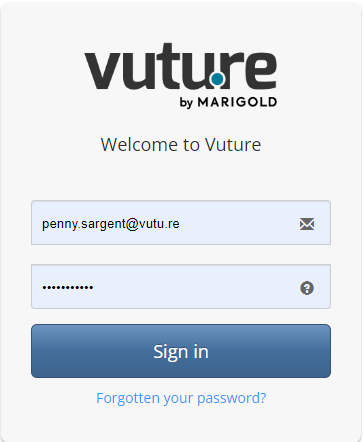
For those instances without Single Sign On, users will visit the instance login page and enter
their email address and password:
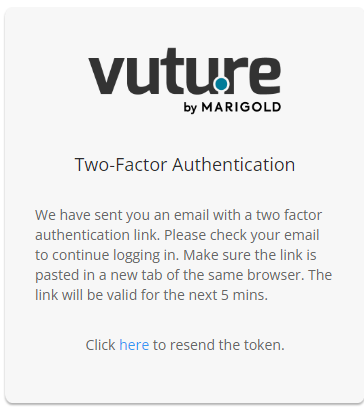
Once 2FA has been enabled, the user will be taken to a holding page which says that a token has been emailed to them. There will be a link to resend a new token if they miss the time deadline.
The user should check their email for the message containing the link:
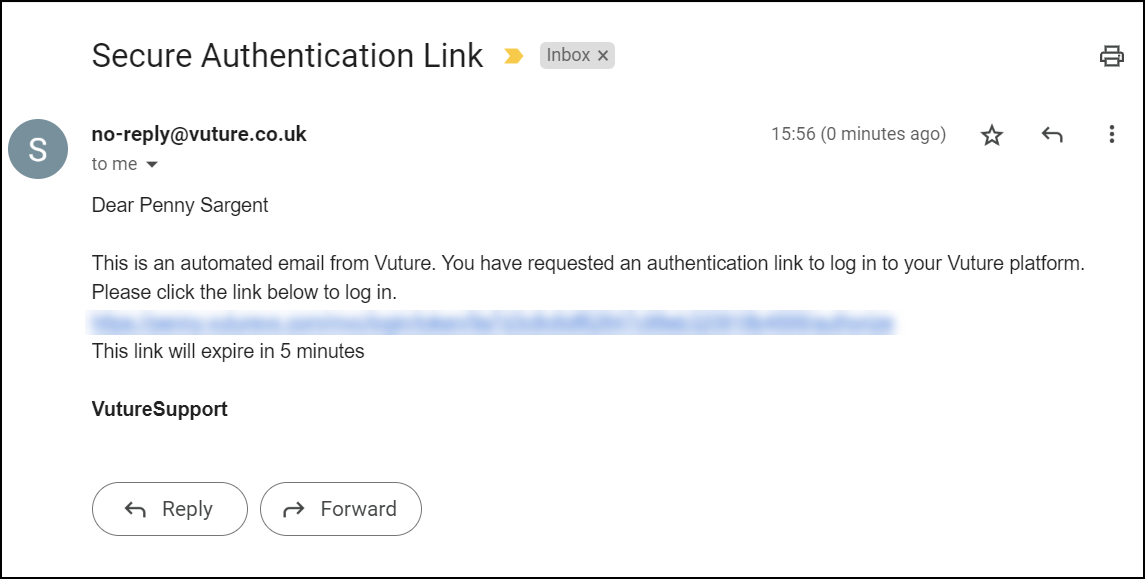
The email will come from noreply@vuture.co.uk. The user’s IT team should make sure emails from that address are not being blocked. It is the same From: address as the normal password reset messages.
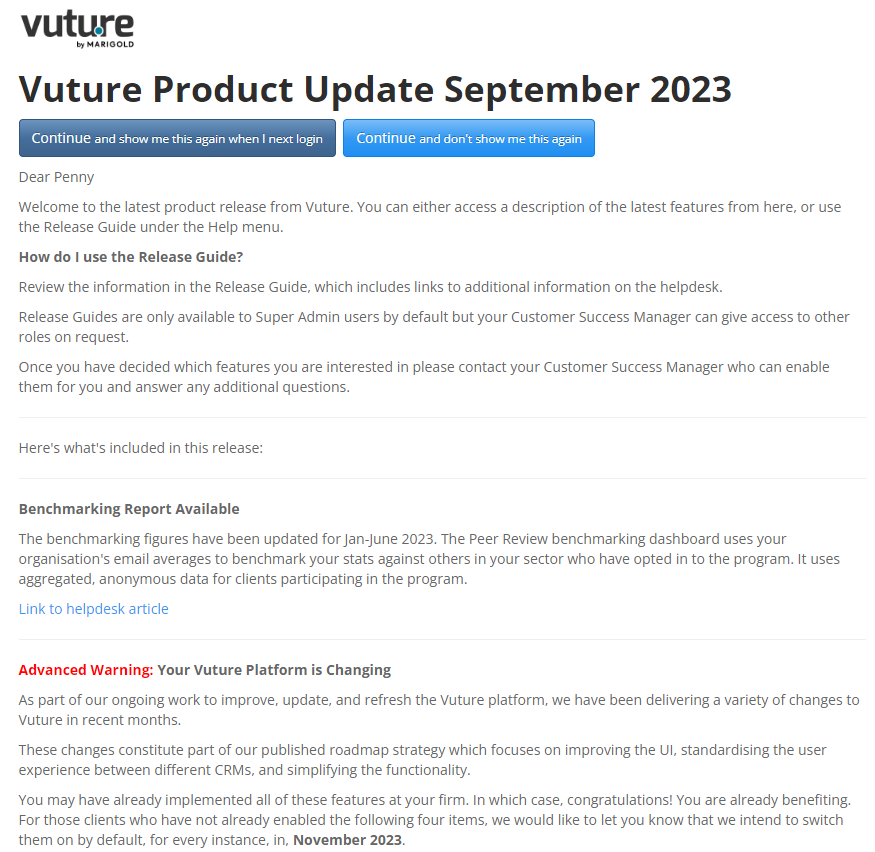
Clicking on the link in the email will take the user to the Vuture platform. The user will see the welcoming “splash screen” with latest release information (illustrated below), or their Home Screen if they have clicked the option to not show this page.
Troubleshooting and FAQs
Q. My authorization email has not arrived in my inbox. What should I do?
A. Check your Spam folder and your Junk folder first. If the email has not arrived in your Inbox or either of these folders after 5 minutes, click on the link to resend the token and if the email doesn’t arrive in another 5 minutes, contact Support.
Q. Who am I expecting to receive the email from?
A. The email will come from noreply@vuture.co.uk. You can check with your IT team to make sure emails from that address are not being blocked. It is the same From: address as the normal password reset messages. The IP address is 193.5.144.64/28
This represents the following IP addresses:
- 193.5.144.64
- 193.5.144.65
- 193.5.144.66
- 193.5.144.67
- 193.5.144.68
- 193.5.144.69
- 193.5.144.70
- 193.5.144.71
- 193.5.144.72
- 193.5.144.73
- 193.5.144.74
- 193.5.144.75
- 193.5.144.76
- 193.5.144.77
- 193.5.144.78
- 193.5.144.79
Q. After I clicked on the resend token, I received two emails, which one should I use?
A. Sometimes, if there is a delay in sending, you might receive two emails (the first one and the resend token email) if so, always use the latest link, that is the one in the last email that you receive.
Q. I see a message that I need to use the same browser when I click on the authorization link in the email?
A. Yes, you need to be using the same browser. Copy and paste the link to a new tab in the original browser where you initiated the login. This is an additional security feature.
Q. What will happen if I don’t click the link in 5 minutes?
A. The link will expire and you will need to regenerate a new token.
Q. Do I have to use Two-Factor Authentication every time I login?
A. Yes, whenever you login using the login screen, you will need to go through the Two-Factor Authentication process.
Q. So this “click a link in an email” will be required every time I want to access Vuture?
A. Every time your system logs you out, you will need to log back in using the Two-Factor Authentication process. Your login may, however, persist for hours or days, depending on your firm’s browser settings.
Q. The time period 5 minutes is not long enough for my users to navigate back to their emails and click the link. Can we set it to 10 minutes or longer?
A. Yes. The default will be 5 minutes but you can ask your Customer Success Manager to increase the time available before the link expires. They will do this at Admin.System.Membership.Token Expiry Time (in minutes).
