Overview
This article explains how to manually sync contacts that have been added to the Alumni Folder(s) in InterAction or have had changes made to their contact information (i.e. Name, Company, etc.) in InterAction. That way, this information will be updated in the Vuture Alumni site now, rather than waiting for the nightly sync to happen. For more information on the synchronization between Vuture's Alumni site and InterAction, please click here.
The following is covered:
Note, if you have made a change to the contact's folder-specific email address in InterAction and wish for it to sync with the Alumni Site, please click here for further instructions.
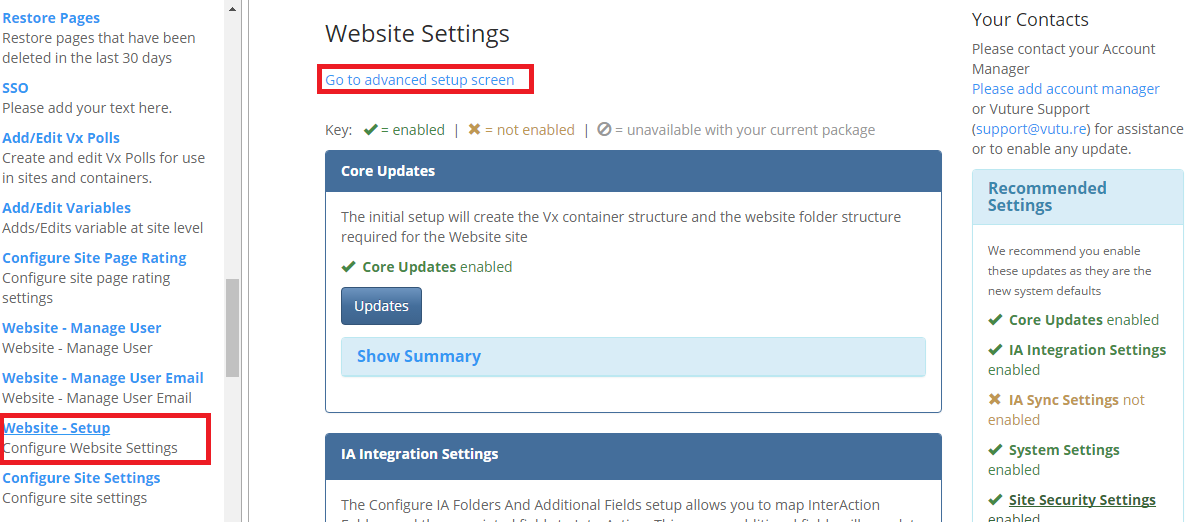
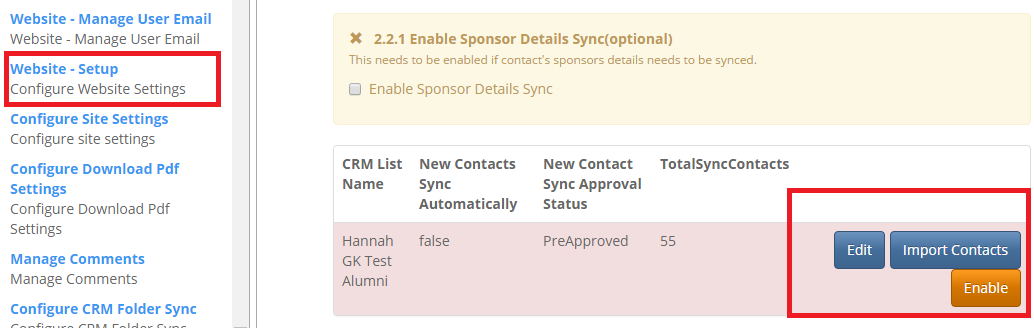
To manually sync contacts within a secure website, please go to "Options" > "Website - Setup" and click on “Go to advanced setup screen”. Once there, scroll down to your CRM list and click on “Import contacts”.
That should allow the manual sync to work correctly and allow you to select which status you want the auto import to work with e.g. Pre-Approved.
If you've updated contact information for an individual in InterAction and the nightly sync has yet to happen, you can manually sync an individual so that the changes made in InterAction will flow into the Vuture Alumni site.
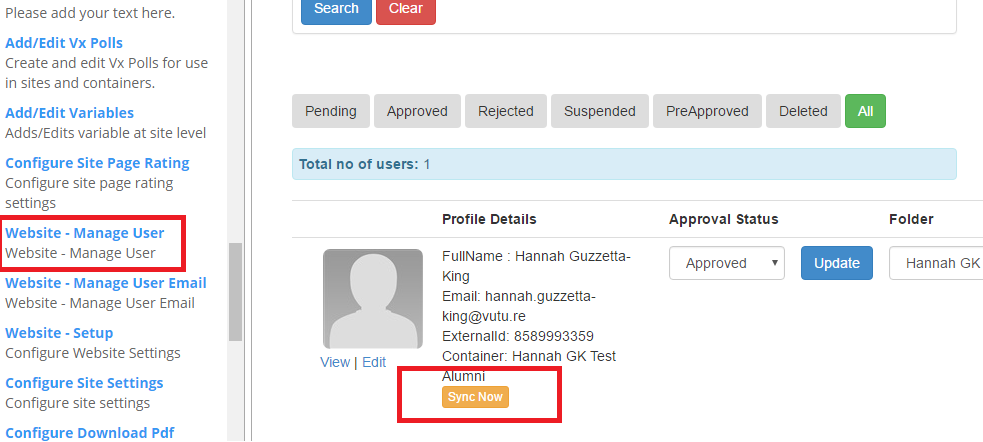
To do this, navigate to "Options" > "Website - Manage User", find the contact you wish to sync, and click on "Sync now" (see screenshot below for example).