Overview
There are three ways to change an email address for an alumnus:
- The Vuture Alumnus can change the address themselves via the Alumni Microsite
- The Alumni Admin can change the address on behalf of the alumnus on the backend of the Alumni Microsite
- The Alumni Admin can change the address on behalf of the alumnus in InterAction first, then the Alumni Site*
* Please note: If you change the email address of someone in InterAction without updating the Vuture system, the connection between both accounts will be broken. It is recommended to change the email address in the Vuture Alumni site, rather than InterAction.
1. The user changes the email address themselves:
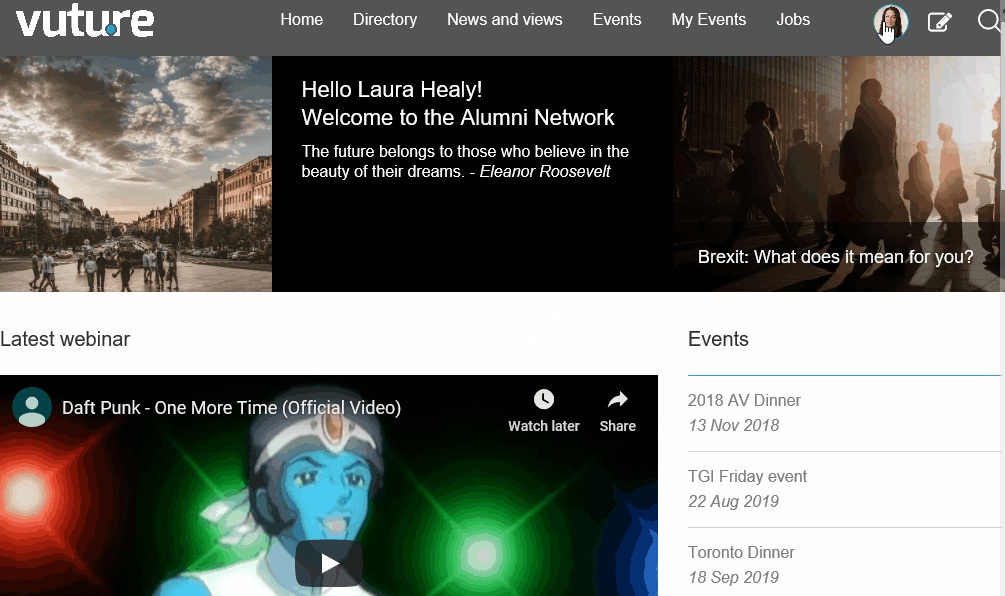
For the alumnus to change their email address, they will first need to sign-in to the Alumni site, click into their Profile, and select the "Change Email" menu item (see gif below for an example). They can then update their email address and click on "Change Email". The alumnus will then receive an email notification to the new email address, asking them to click on a link to verify this new email address.
Because this affects the login process, this field change will need to be approved by the Alumni Administrator before it is pushed back into InterAction. The Alumni Administrator will receive a mail stating [Alumnus Name] has requested to change their email.
For the Alumni Administrator to approve the amended email and make the change both in InterAction and the Alumni site, they will need to log-in to the back end of the Alumni Site. Go to "Options" > then "Manage User Email" - here the Alumni Admin will be able to see if the alumnus has verified their email address. If the email address is in red, this indicates that the new email address has not yet been verified by the alumnus. If the email address is in green, this indicates the new email address was verified by the alumnus. The Alumni Admin may then reject or approve the change.
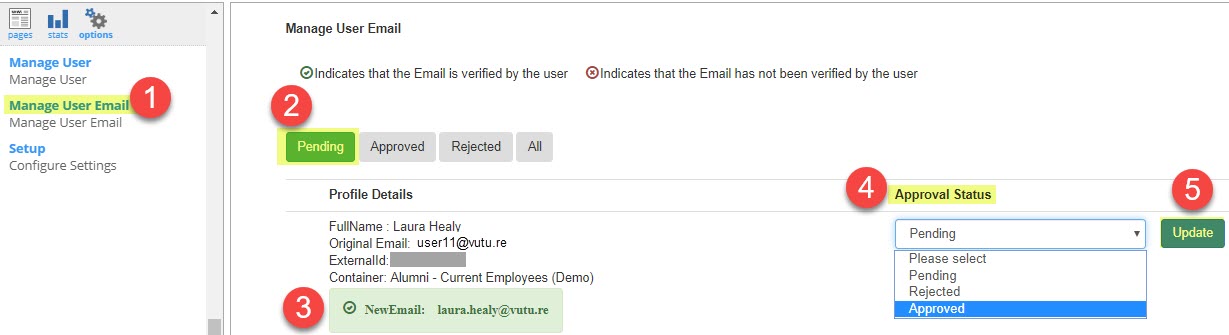
If approved, the alumnus will receive an email that it is approved and that they will now be able to login with the new email address. If rejected, the alumnus will receive an email that is rejected.
2. The Alumni Admin changes the email address on behalf of the user via the Alumni Site
There are a number of reasons as to why an Alumni Administrator may need to change the email address on behalf of a user. A couple of examples include:
- A current employee is leaving the firm and wish to use their personal email address moving forward.
- A user has reached out to you personally asking you to update it on their behalf.
To change their email address, you'll need to make sure you are logged into the front-end of the Alumni Site as the Alumni Admin and the back-end of the site. Then navigate to "Options" > "Manage User" > "Manager Users" Tab > search for the user, and click on "Edit" under their name.
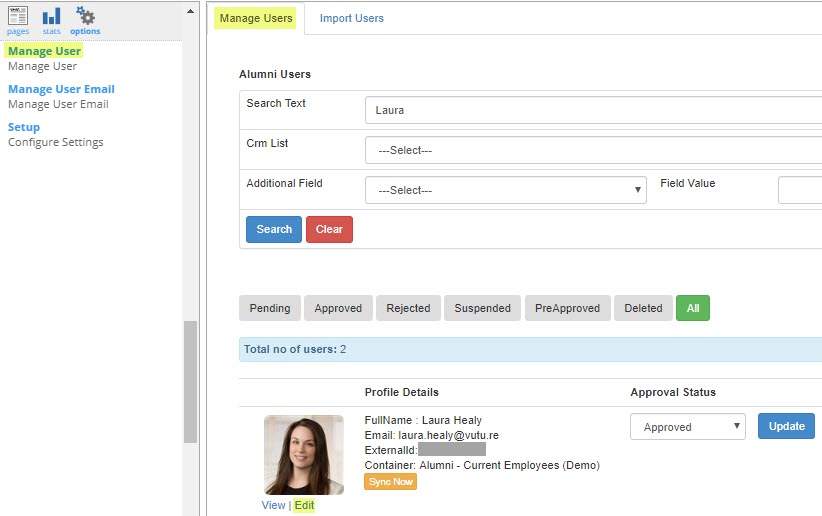
You will now be editing their profile as if you are that person. When you change their email address, the alumnus will receive a verification email asking them to verify their email address. Once they click on the link to verify their email address, the alumnus can now login to the Alumni Site with the updated email address.
3. The Alumni Admin can change the address on behalf of the alumnus in InterAction first, then the Alumni Site
* Please note: If you change the email address of someone in InterAction without updating the Vuture system, the connection between both accounts will be broken. It is recommended to change the email address in the Vuture Alumni site, rather than InterAction, or follow the below steps.
After you have updated the folder-specific email address in InterAction, please follow the below steps in the Vuture Alumni Site.
- Navigate to "Admin" > "Containers and Users"
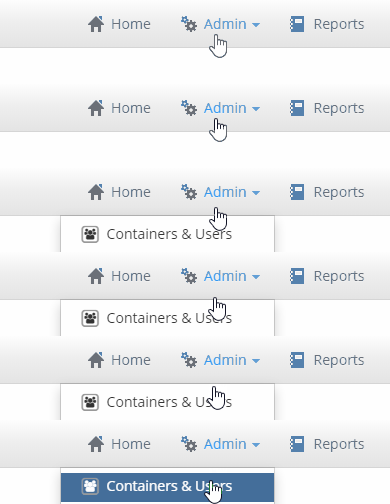
- Find the Container where the Alumni Site is located
- Click into the Container
- Search for the contact you wish to update their email address for.
- Make sure the "Contact ID" under "External Systems" on the user account page is the same as the ID for the contact in InterAction to verify you have the correct contact selected before changing the email address.
- Change the "email" field to the new email address.

- Click "Save".
Now, both the user account in Vuture and the folder-specific email address in InterAction are in sync. Changing the email address this way will not send an email notification to the alumnus alerting them of this change.
