When a folder or additional field is updated in an InterAction there is usually a delay before the change is reflected in the InterAction Web Client, which is what Vuture uses to pull back data.
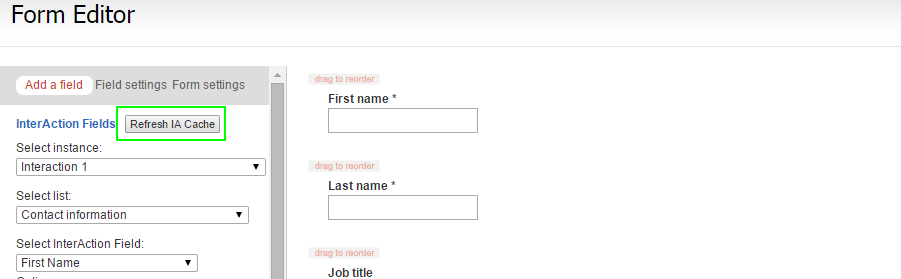
This delay can be avoided by refreshing the IA Application Server cache in the IA Web Client but you need to have IA administrator rights to do this. In most cases, the day-to-day Vuture users do not have admin rights in InterAction so we have created a "Refresh IA cache" button in Vuture.
The steps required to enable this feature are:
- Verify if the IA User account Vuture uses has permissions to refresh the cache
- Configure InterAction to allow Vuture to configure the cache
- Update Vuture Roles and enable the feature, ideally for a limited number of Vuture users
Verify Vuture's IA Permissions
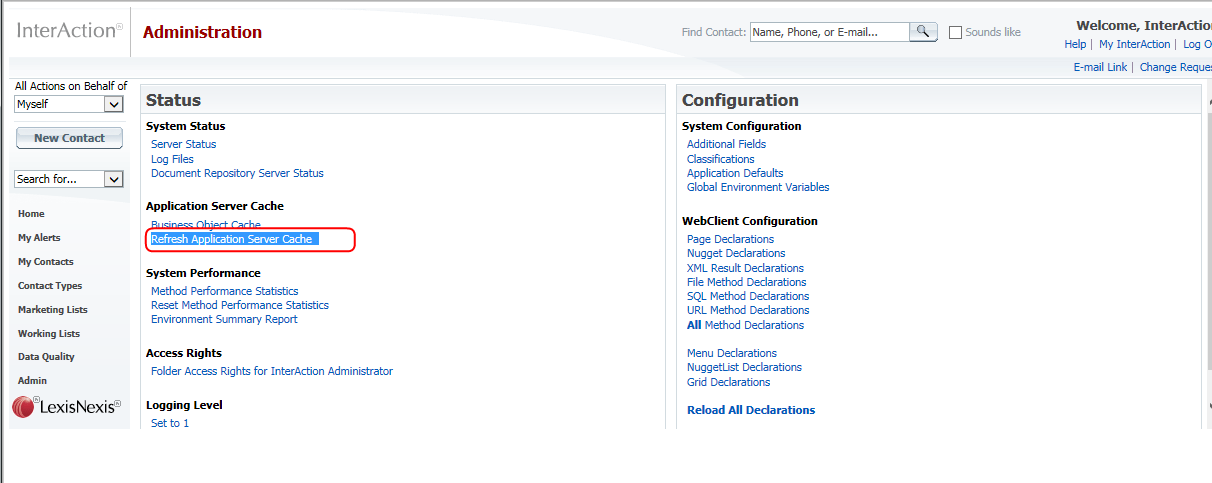
The InterAction user account Vuture is configured to use must have permissions to refresh the IA cache on the Application server that Vuture connects to. You can verify this by logging into the IA Web Client clicking on "Admin" and checking that the option "Refresh Application Server Cache" is available under the "Application Server Cache" section:
How to configure InterAction for Vuture to refresh the cache
The ability for a user to perform an InterAction cache refresh is controlled by a setting found in InterAction.cfg file. To allow Vuture to refresh the cache, the config file on the InterAction Application server that Vuture connects to will need to be updated.
- Log on to the InterAction Application Server that Vuture connects to (this may be different from the server that your users connect to internally)
- Navigate to the InterAction install folder, usually located in "\Program Files\LexisNexis\InterAction\AppServer\iahome"
- Edit InterAction.cfg in notepad
- Search for "adminUsers", the section you are looking for is:
# adminUsers: contains the list of Account Names that are allowed to
# execute methods that have declared <restrictedAccess>admin</restrictedAccess>
# Use a semi-colon ';' as a delimeter.
adminUsers          = IAADMIN
- edit the last line from above to read as
adminUsers = IAADMIN;{VutureUserAccountName}
- Please enter your Vuture InterAction account name in place of {VutureUserAccountName} after IAADMIN, separated by a ;
- Save and close the configuration file
- Login to InterAction and refresh the cache
The Vuture user should now be able to refresh the InterAction Cache.
Updating Roles and Features
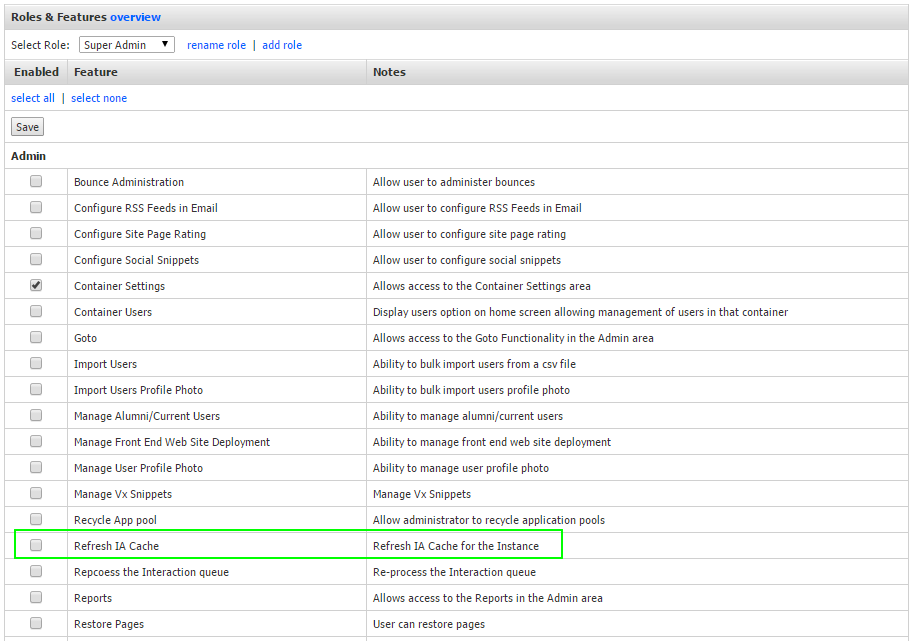
This feature is role specific so you can choose which users have access to this function. To turn this on for specific roles, enable the feature "Admin.Roles.Admin.Refresh IA Cache".
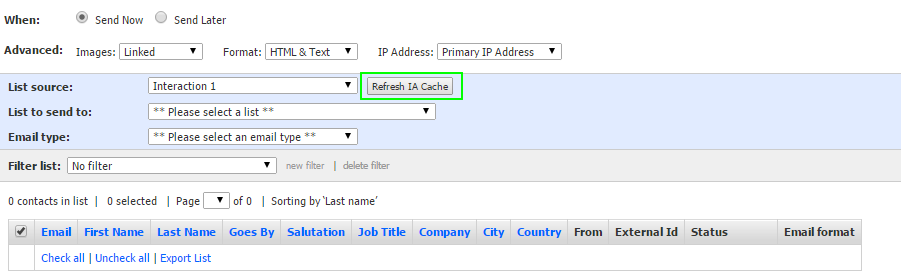
You will now find a "Refresh IA Cache" button on both the email send screen and the form editor screen.
Finding the Refresh IA Cache Button
Once the feature is enabled for a Role, any user logged into Vuture with is role will see the button on the Send Screen and the Form Editor Screen
Send Screen
Form Editor Screen