Keywords: GDPR, CASL, Consent
You can filter any standalone list based on the values entered in a different (global) list. This could be used to filter for RSVP responses before an event, or to identify contacts interested in a chosen value, or for mailing only contacts who have given their consent to be mailed.
Best Practice Example: Using Filters to manage Consent
Your Requirement:
You want to be able to offer your clients the opportunity to give or refuse their Consent to receive your mailings. You then want to be able to filter your subsequent mailings to ensure that only consenting clients receive the email.
Step by Step Instructions:
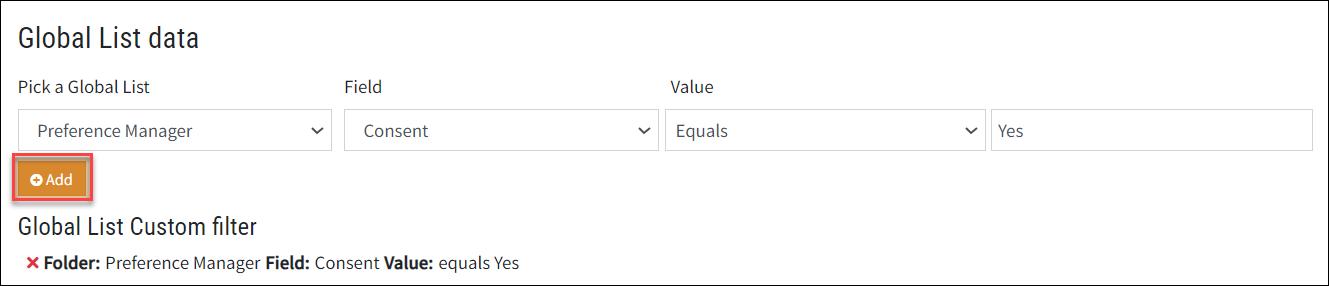
- Create a global list of all contacts (click on the link for a Help Desk article on creating Global Lists). The list should have an additional field for Consent with field values of Yes and No.
- Gather your Yes or No responses to the Consent question by sending out an email with a form which is linked to this list. You will then have Consent = Yes or = No for your contacts.
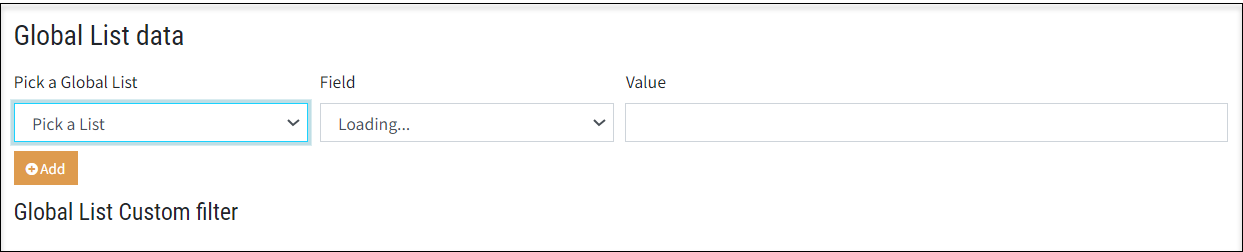
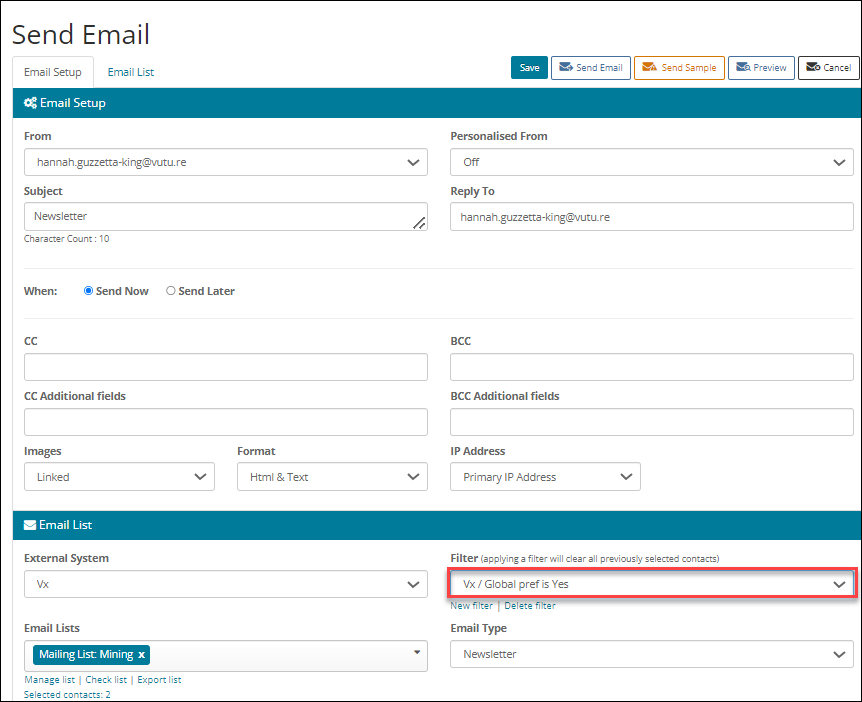
- Next time you want to send an email you should first identify the list of contacts you want to use (any standalone list) but before you hit Send on the email you should create a filter.
Creating a filter:
Selecting the additional field and value:
The resulting Send Screen:
FAQ
Can I record the date Consent was given? Not directly. The update of an additional field records no Date element currently. However, the Form Submission Report will show the date when a contact submitted the form with Consent = Yes.
Download the Word Document Version of this article below.
