To set up an account for the Vuture integration, you will need to:
- Create a new contact record in IA Windows to link the user account to
- Create one new user account in IA Admin
- Set up the permissions to allow the new user account to have Read/Write/Update access to List folders and Additional information fields
Creating a new contact record
The standard process of creating new InterAction user accounts requires that each account is linked to a Contact record. Setting this connection between the user account and the contact record controls the data that is displayed to other users when they view any data added and edited by a particular user.
Creating a Contact record in InterAction
- Create a new contact record in the Windows Client, using the new contact wizard
- Enter a suitable, easily identifiable and business friendly name for the client (see details below)
- Associate the contact to your firm Company record, by entering your Firm name for "company"
- Link the contact into the "Our Personnel" folder
- Click Finish
Naming the contact record
The first and last names for this "contact" should be meaningful and allow you to easily identify records that are created or updated via the integration with Vuture. The contact record should have a generic email address that is available to your InterAction or Marketing teams, in case any of your InterAction users wish to communicate with the "user" that made a change to a contact they are interested in. Four different examples or options you could choose from are given below:
| First Name | Last Name | Email Address | Displayed As in InterAction |
|---|
| Comms | <your Firm name>
e.g. MasonSmith | A generic email address for the marketing/comms team e.g.
comms@firmname.com | MasonSmith, Comms |
| e-Marketing | <your Firm name>
e.g. MasonSmith | e-marketing@masonsmith.com | MasonSmith, e-Marketing |
| Admin | Vuture | A generic email address for the marketing/comms team e.g.
comms@firmname.com | Vuture, Admin |
| Integration | Vuture | A generic email address for the marketing/comms team e.g.
comms@firmname.com | Vuture, Integration |
You only need to choose one of the above.
Creating a New User Account
To create a new user account for Vuture in InterAction you will need access to the InterAction Administrator Client. (This is usually restricted to one or two users in any firm so you may have to ask an Admin user to do this for you.)
In the Admin Client, choose "User Accounts and Group Configuration":
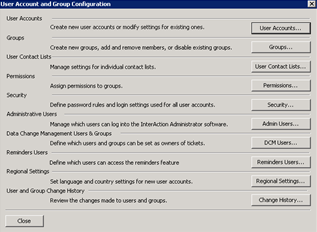
Choose the option "User Accounts" and then "New":
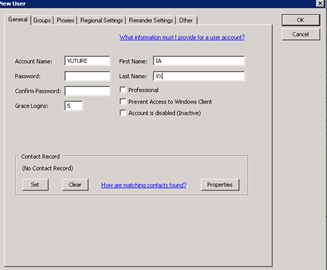
- On the General Tab
- Give the account a name such as Vuture, or VutureAdmin, or VxIntegration
- Enter the First & Last Name as Admin Vuture, Integration Vuture, Emarketing Vuture, to match the contact record you created
- Tick the box for "Professional" (this allows the Vuture login account to sponsor contacts onto lists)
-
Do not
- Prevent access to the Windows Client
- Mark as Disabled
- Work through the tabs along the top. The Vuture login account should belong to all high-level access Groups (such as Marketing), giving it the rights to see lists and contacts as if it was IAADMIN
- The Vuture user account does not need proxy access to any other InterAction Users if the account has access to all the folders & fields required
- The Regional Settings can be set as the same as the IAADMIN account
- The Vuture user account does not need to have access to Reminders
- Return to the "General" Tab and select the "Set" button in lower section of the screen
- Select the matching contact and click on OK
- When you are done, click "OK" to save.
Note: You should not use the IAADMIN account itself because that would give Vuture some extra rights it does not need.
The Vuture platform controls the time and date settings for Vuture
Summary of required permissions
| Access Rights for Folders |
| These rights should be set for all folders that are to be made available in Vx. |
| Access Right | What it Allows |
| Read | Allows you to see contacts contained in the folder. Also allows you to see any folder-specific information for the folder, such as additional field values. |
| Add Contacts | Allows you to create a contact sourced in this folder. |
| Delete Contacts | Allows you to delete a contact from this folder (if the folder sources the contact) or remove a contact from this folder (if the contact is linked into the folder). |
| Link Contacts FROM this Folder | Allows you to link a contact that is sourced in this folder into another folder. |
| Link Contacts INTO this Folder | Allows you to link a contact that is sourced in another folder into this folder. |
| Contact Data |
| Add | Add all types of folder-specific data to contacts:
- Addresses, phones, and e-addresses
- Related contacts
- Activities
- Classifications
|
| Edit | Edit all types of folder-specific contact data:
- Name
- Company Association
- Addresses, phones, and e-addresses
- Related contacts
- Notes
- Additional fields
- Activities
|
| Delete | Delete all types of data to contacts
- Addresses, phones, and e-addresses
- Related contacts
- Activities
- Classifications
|
