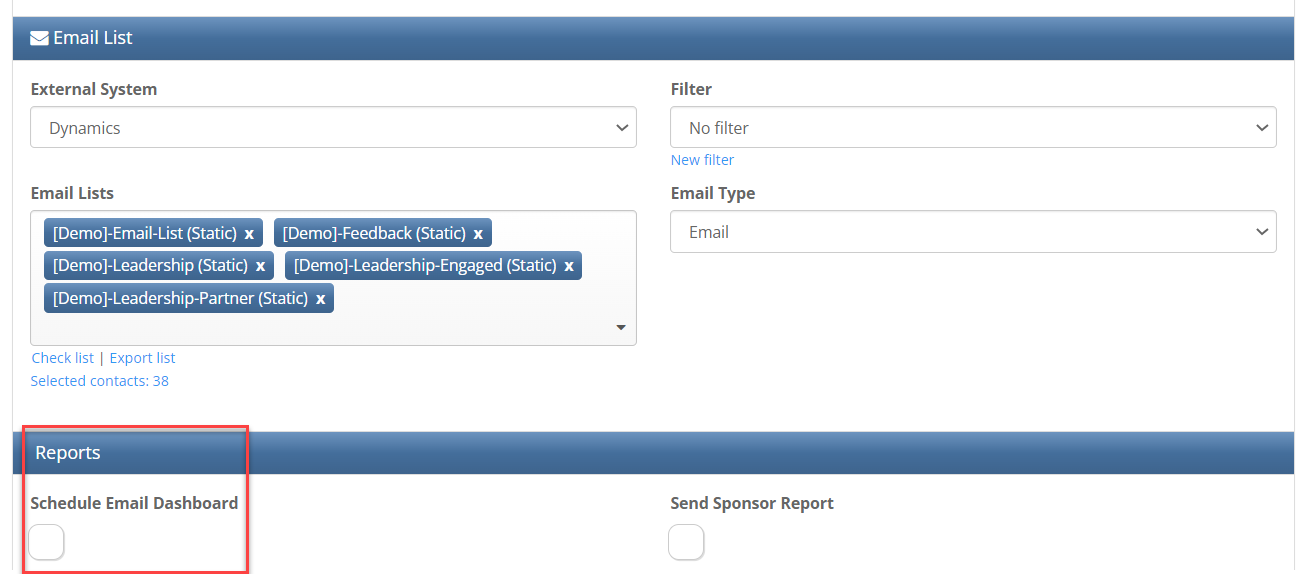
The "Email Dashboard" can be scheduled to be sent at a specific time after an email has been sent, through the Send Email Screen.
To use this feature, your account manager must enable it at “Admin.System.Email.ScheduleEmailDashboard”. And you should have Admin.Roles.NewReporting enabled for your role. You will then see the option to Send the Email Dashboard on the Send Email Screen.
You must enter at least one email address in the "Send email dashboard to:" field. You can enter multiple email addresses separated by a comma. Click "send to myself" to add your email address automatically to the box without having to type it.
Please note, if you want to add multiple addresses as well as yours you will have to first click on "send to myself" and then add the other recipients.
Enter the number of days after the email is sent that the dashboard should be scheduled. You can enter fractions of days. For example, to receive the dashboard 6 hours after the send enter 0.25 into the field.
Click Save to save these settings or Send to send the email.
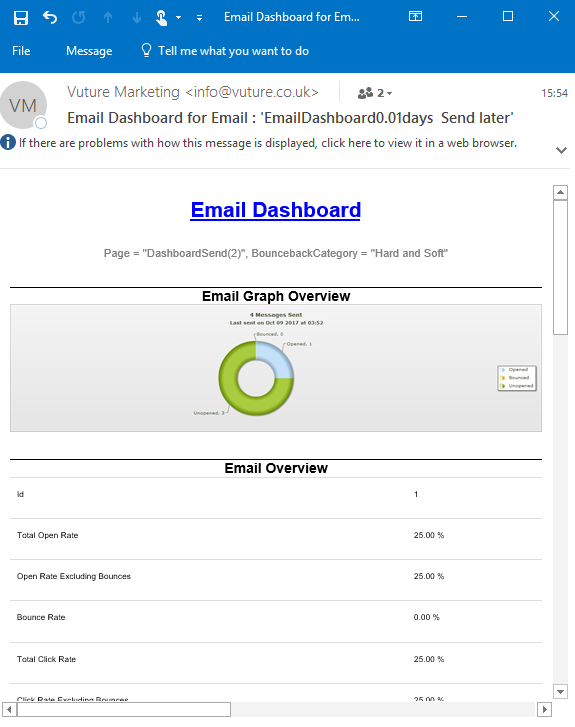
The recipient(s) will receive the dashboard in an email message at the scheduled time with the latest statistics at that time.
FAQs for the Scheduled Send of Email Dashboard
1. Does it work with Triggers?
At this moment, this functionality doesn't work with a triggered send.
2. Does it work with Scheduled Send?
Yes, the Dashboard is scheduled after the scheduled send time rather then when you click the send button.
3. What does it do for a Sample Send?
It will act as a normal send and send an Email Dashboard at the selected time.
