Overview
This dashboard gives you an overview of an individual contact's activity. It demonstrates how a key client or prospect engages with your email communications.
This dashboard will show you:
- All emails that were sent to this client or prospect in the time-frame that you set (i.e. last 6 months);
- How many of the emails they opened;
- How many clicks they generated;
- What percentage of emails that were sent to this contact came from what container and the total # sent from each container;
- The exact emails that were sent, what container they were sent from, the date sent, whether or not the contact opened that email (with date/time stamp), and what links were clicked (if any);
- The best time to send to this key client/prospect based on historic opens by the individual;
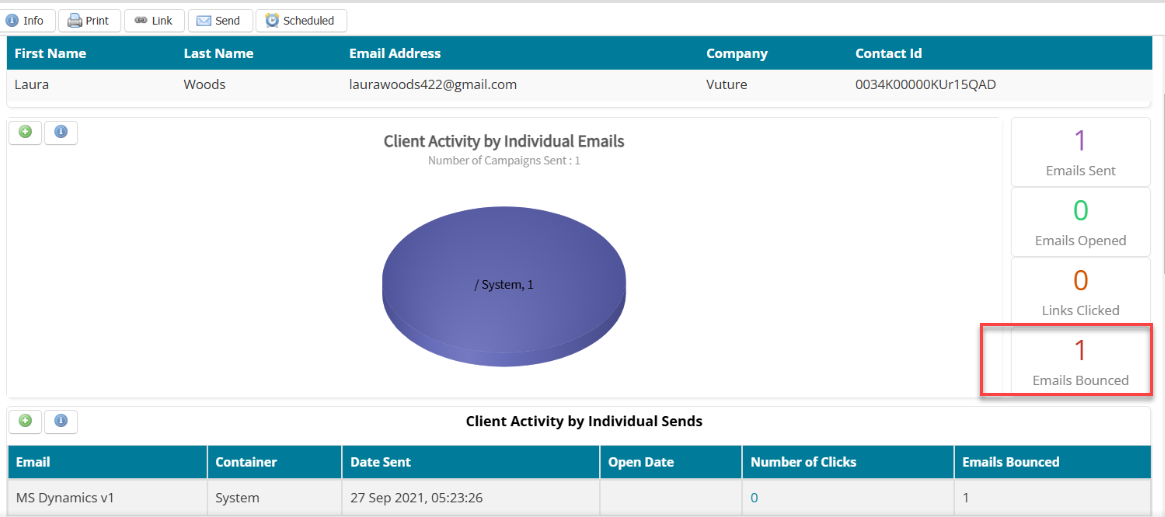
- New: The emails sent to them that bounced;
- Any forms that were completed by this key client/prospect in the time-frame set;
- New: The lists that the individual is on, in a new section called List Memberships.

Contents
How to use this Dashboard
To analyse how a key client or prospect is engaging with your email communications, please follow the below instructions:
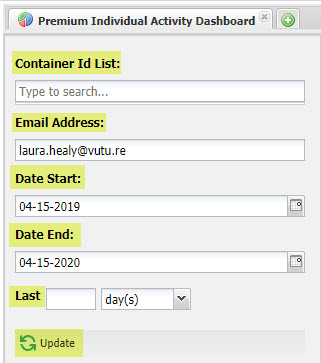
Container Id List: If you leave this blank, by default, the Dashboard will display the five most popular containers for this key client/prospect. 'Popular' is defined as, the total number of emails sent from those containers to this individual.
(Optional) - If you'd like to focus on specific containers for this key client/prospect, you can click into the 'Container Id List' field. This will open a pop-up where you can select up to five containers to analyse. If you select more than five, the additional containers (with less sent data to this individual), will be coupled together into one part of the pie chart within the 'Client Activity by Individual Emails' report (more on this below).
Email Address: Type in the client or prospect's email address into the 'Email Address' field.
Time/Date Options: By default, the 'Date Start' and 'Date End' will reflect the last year from today's date. You may click on the calendar icon to select a new 'Date Start' and 'Date End'.
Or, you may select the Last # of day(s) or month(s), instead of choosing a 'Date Start' and 'Date End', to select the date-range you wish to see data on for this client/prospect.
Once you have finished setting your parameters to view this Dashboard for your client/prospect, click 'Update'.
Reports in this dashboard
After you've clicked 'Update', you should see the full Dashboard load. This section of the Help Desk article will run through each section of the Individual Activity Dashboard from top to bottom.
Please note, throughout this Dashboard, you'll see little green '+' icons in the top left corner of each section. If you click on the green '+' icon, it will open up a detailed report for you to then be able to export to a CSV file. Within the detailed report, you will see 'Export as a CSV' on the left side of the screen.

Personal Details
(141: Personal Details Report)
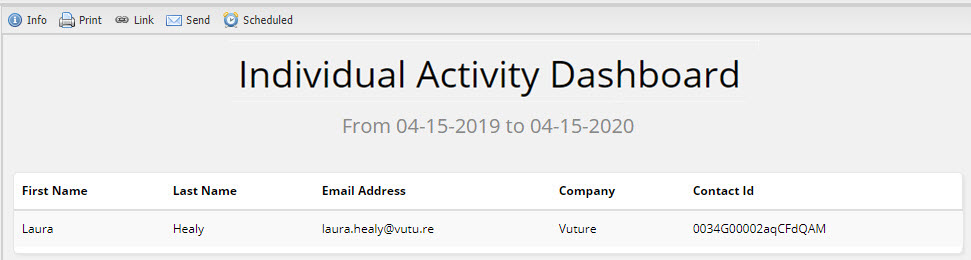
This section of the Individual Activity Dashboard shows the personal details for the selected key client/prospect, based on the email address you've entered.
Client Activity by individual emails
(52: Client Activity by Individual - Result Overview)
This section shows the total number of emails sent to that contact from each container in the time-frame that you set.
In the example below, we can see that 24 emails were sent to this individual in total. Of that total, 15 of the emails were opened and 15 links were clicked by the individual.
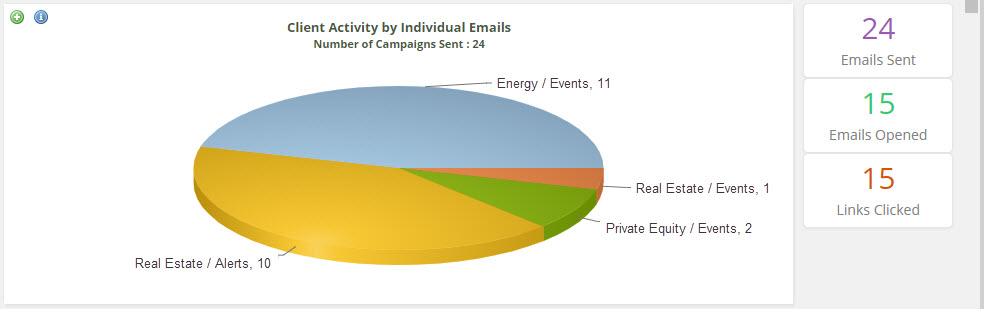
In the pie chart above, we can also see a break down of the types of emails that were sent to this individual, based on how you've setup your container structure.
Setting up your container structure by 'Practice Area' or 'Department' (i.e. Energy or Real Estate), as well as, 'type of Mailing' (i.e. Events or Alerts), gives you a better understanding of the individual's interests. It may also allow you to identify new business opportunities. For example, if you are targeting an individual on 'Private Equity', but you see that the individual is engaging more with 'Energy' related communications, you may wish to adjust your focus.
Please note, When you click on the green '+' icon to drill down into this report you go to the following report - 94: Client Activity by Individual - Campaigns by Container Full Results.
Client Activity by Individual Sends
(51: Client Activity by Individual - Individual Sends)
This section shows the exact emails that were sent to this contact in the time-frame that was set, which container the email was sent from, and the date sent. If you see a time/date stamp under the 'Open Date', this means the contact opened this email. If the 'Open Date' is blank, this indicates that the contact did not open this email. You can also see the # of clicks in each of the emails sent and click into the number to see exactly which link(s) were clicked.
Please note, When you click on the green '+' icon to drill down into this report you go to the following report - 100: Client Activity by Individual - Individual Sends Full Results.
Individual best time of the day to open
(132 Individual Best Time of the Day to Open)
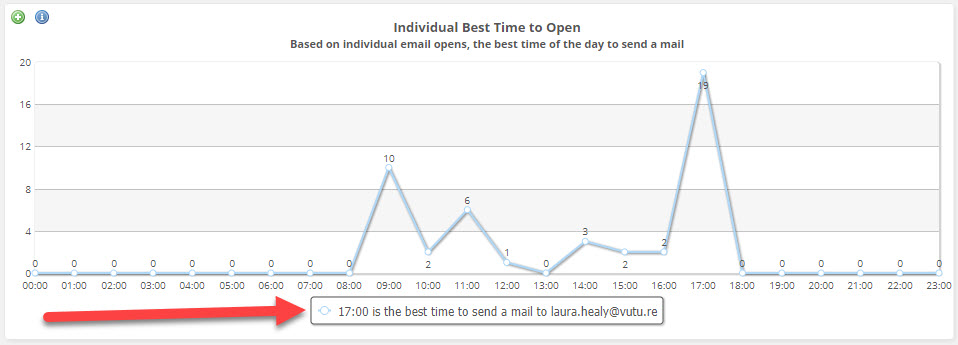
This section shows the best time of day for this contact based on the historical opens for that contact.
Forms filled
(142: Forms Filled Report)
This section shows the forms (both pre-filled and blank) that this contact has completed in the time-frame that you set. This would also include any global forms (i.e. Forward to a Friend, Preferences, Unsubscribe, etc.).
Update: The new reporting UI came into force across 2024. The Individual Activity Dashboard now looks more like this (this image has only sample/test data):
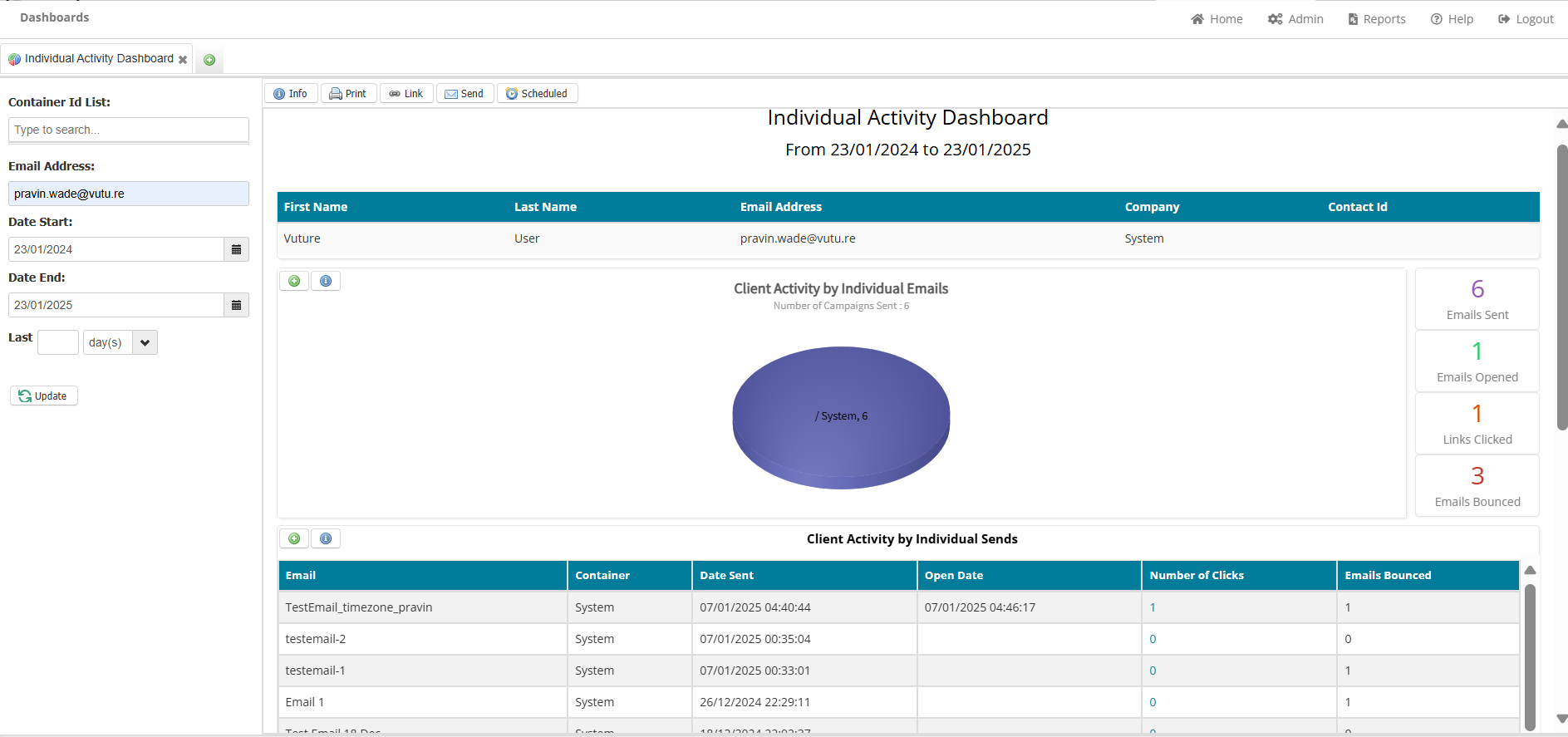
The new section called List Memberships contains the email address, the first date on which the contact was emailed from that list, the list name, and the external system that the list is on. For Vuture clients with one CRM integration, that will be the external system. If a client has more than one integration, the column will clarify which external system holds the list.

