This document explains how the Contacts module works with the new integration with Contactease through the connector (VXDEV-8928). Currently this is a separate integration and the old one still works and is in use.
Prerequisites:
- Add login details for ContactEase CRM in Admin.System.ContactEase
- Enable Contacts Module Admin.system.Modules
- Enable Send screen V2 Admin.System.Versions.Send Email Screen Version 2
- Admin.System.ContactEase.ContactEase Connector
Steps:
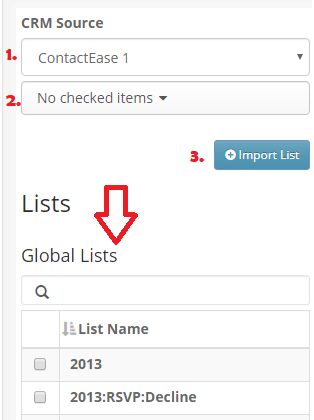
1. Select ContactEase from the CRM source dropdown.
2. Select one or more (you can select multiple lists) lists from the second dropdown.
3. Click “Import List”.
Result: The imported lists will appear on the left-hand side in the “Global Lists” section.
NOTE: There are NO container lists in the CE integration, all are treated as global lists.
4. Open a newly imported list
Result: You should see all the contacts from the CRM being imported in the Contacts module.
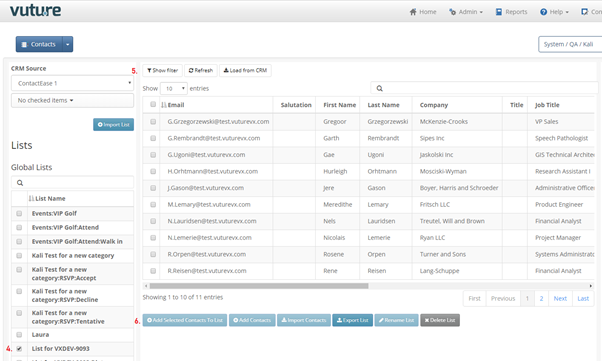
5. The following buttons should be available above the list:
- Show Filter
- Refresh – refreshes from the DB
- Refresh from CRM – pulls the data from the CRM
NOTE: Last synced date and time will not be available after the import of the list, only after the first sync
6. The following 6 buttons should be available below the list: Add Selected Contacts To List, Add Contacts, Import contacts, Export List, Rename List, Delete list. Out of the 6 buttons, only Export List should be enabled, the rest should be disabled.
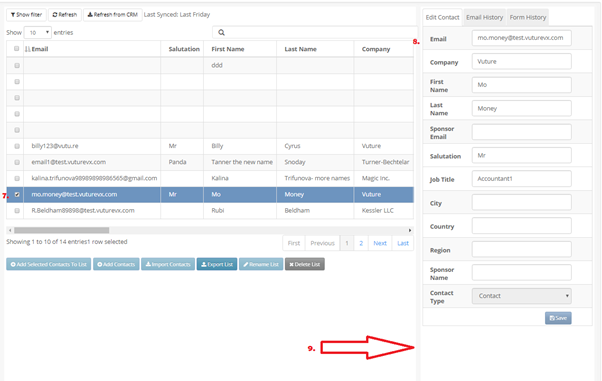
7. Select a contact from the list (the contact will load the details straight from the API And save into the DB)
Result: The contact’s details will be available in the right-hand side panel.
8. The fields available in the right-hand side panel are:
- Email – if this field gets updated then the field updated in ContactEase will be the field set in Admin.System.Contactease.EmailField. Also if you want to replace the primary email you need to enable Admin.System.Contactease.Replace Primary Email
- Company
- First Name
- Last Name
- Sponsor Email - does not work for CE, because there are no sponsors in the CRM
- Salutation
- Job Title
- City – there is an issue with the CE API and the addresses they return. There’s a difference between the response of getContacts (used for displaying the contacts list) and getContact (used for displaying a single contact’s data in the right-hand side panel), so when you open the list the City and Country will be available (if they are available in the CRM) but once you open the contact details the City and country disappear.
- Country – see the explanation about the City field above
- Region – does not work for CE, because there is no Region field in the CRM
- Sponsor Name – does not work for CE, because there are no sponsors in the CRM
- Contact Type – should be disabled and always showing “Contact”. The field is present there because of Fibre.
The values of the fields can be edited and updated by clicking the Save button.
NOTE: The Title field has been removed only for the CE integration through the connector, the title field is still there for Deal Cloud, Fibre and Standalone.
9. Notice that there is not a Custom fields section below the core fields (it is the same for Deal Cloud and Fibre)
10. The Status column in the list view shows:
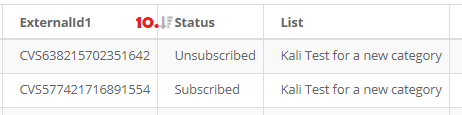
Unsubscribed for global unsubscribes and Subscribed for contacts which are subscribed globally even if they have unsubscribed from an email type.
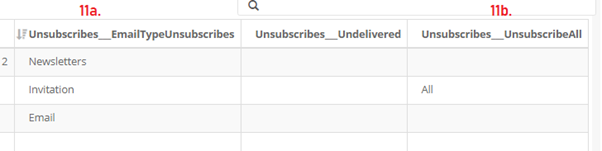
11. Email Type Unsubscribes and Global unsubscribes can also be found in two separate columns in the list view.
a. In the Email Type unsubscribes the type of unsubscribes will be displayed, e.g.: Newsletters, Emails, etc.
b. In the Global Unsubscribes column whenever a contact has unsubscribed globally “All” will be displayed. This is the only value that this column can have except for being blank.
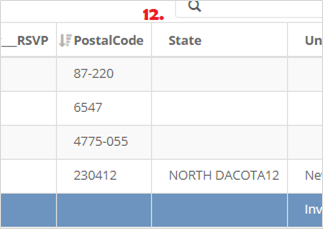
12. Two new columns – PostalCode and State - have been added in the list view (Only for CE lists, other lists from other CRM sources will not have those columns). They display the corresponding value from the CRM. These two fields are NOT displayed in the contact’s details on the right-hand side. They are a kind of additional field, the way they were introduced provides a way of adding more fields in the future.
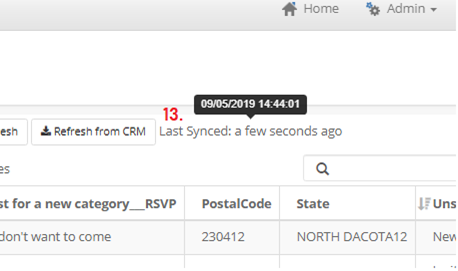
13. Last Synced date and time – it will be shown only after the user has clicked the “Refresh from CRM” button at least once. It will not be shown after the list is imported from the CRM for the first time. If you hover over the value you will see the exact time and date when the sync happened (in the black balloon from the screenshot).
NOTE: The displayed date and time is the date and time of the DB, not the user.