Keywords: View Stats, Spacelab
Overview
The View Stats page has been updated to use the Spacelab look and feel for an improved user experience. It includes updated date pickers, and added 'Last x Days' (e.g. show me the report for the last 30 days).
Prerequisites
The Clickthrough Report is on a config. Ask your CSM to enable Admin.System.EditOptions.Show Click Through Report
The 5 reports available are the same as previously. You no longer need to download the reports to see them - you can read them on the screen. The download option is still available should you choose to Export to Excel.
Contents
Review of the new View Stats Page
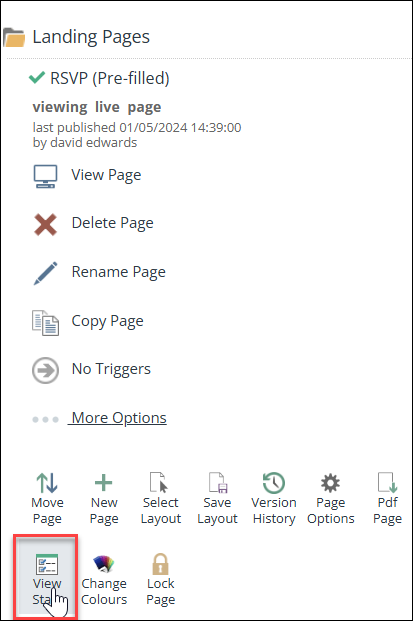
On the Registration form, for example RSVP Prefill, select More Options and click the view stats icon.
The new-look page will appear:
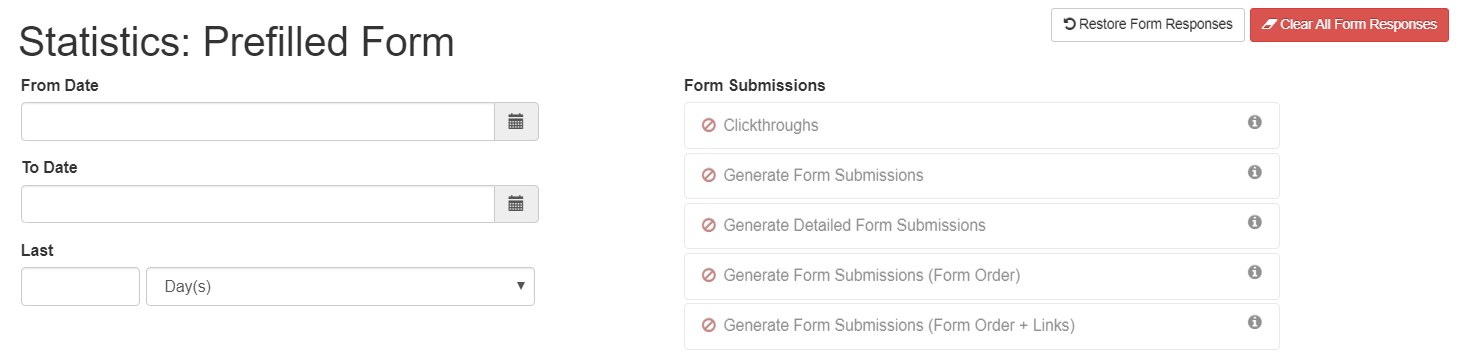 In the image above, Clear All Form Responses has been enabled. This is an optional setting. You can read more about it here.
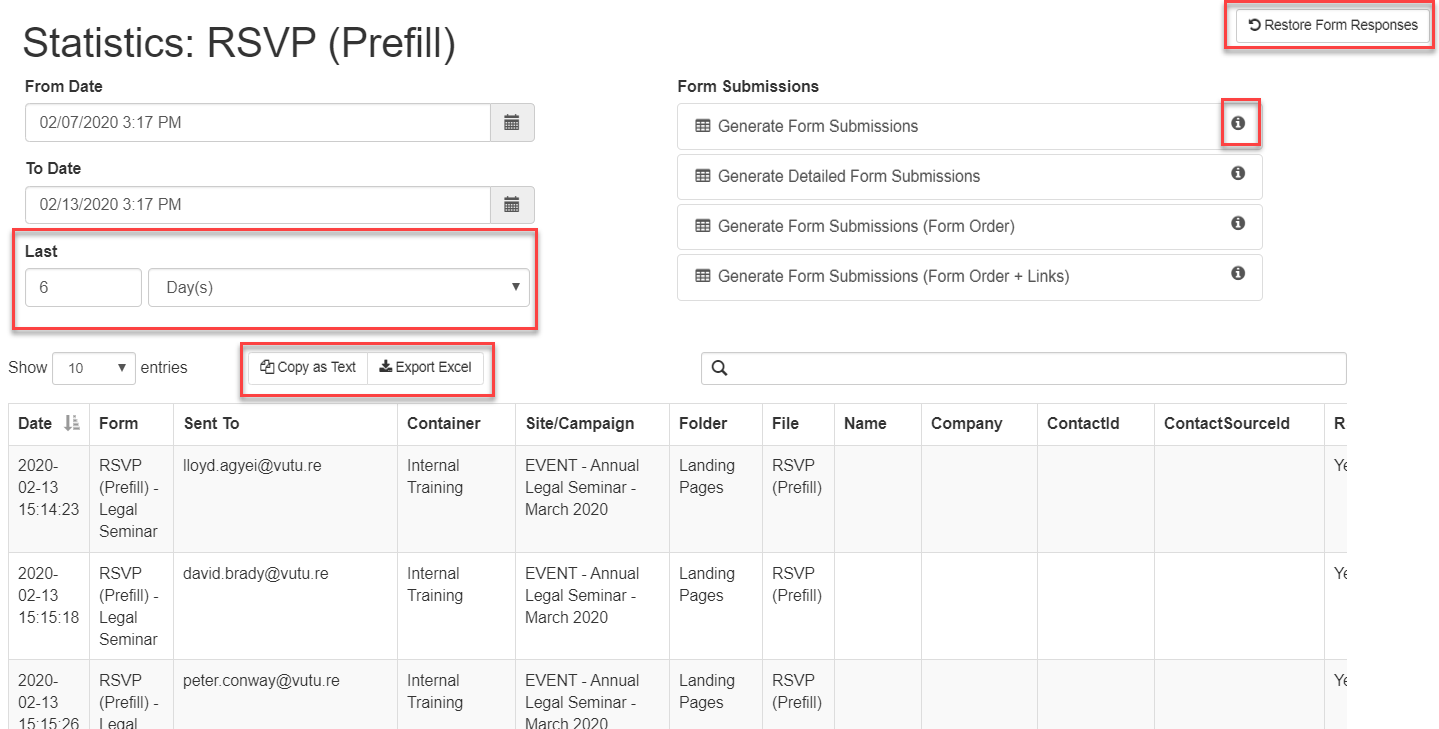
- You can either enter dates for the report to start and finish, or select Days or Months and a number. You need to choose Days or Months if entering a number.
- Click the Form Submissions report type you choose to see the data.
- Hover over the i next to each report name to get information about the data columns included in each report.
How can I get this Spacelab view?
To enable this view, you will need to ask your Customer Success Manager to check "Admin.Roles.Pre-release.Enable updated Spacelab pages automatically".
Please note, this setting will enable all updated Spacelab pages as they are released. You may therefore wish to enable this for one Role at a time and evaluate before enabling for all users.
