Overview
This brief description explains how Vuture can help you to deal with the process of managing unsubscribes within InterAction CRM and the methodology for minimising manual data management.
Contents
Managing the unsubscribe process
By default, InterAction has a folder called *Send no marketing communications. Whilst this list is useful for managing clients that do not wish to receive any marketing communications, most firms require a more sophisticated opt-out process.
Please note: Vuture uses the IA ContactId for unsubscribes/global suppressions.
While we are able to adapt to an unsubscribe process which matches the firm’s requirements, we typically encourage clients to automate 3 types of unsubscribes:
- Unsubscribes from types of communications
- Unsubscribes from a specific list
- Unsubscribes from all communications
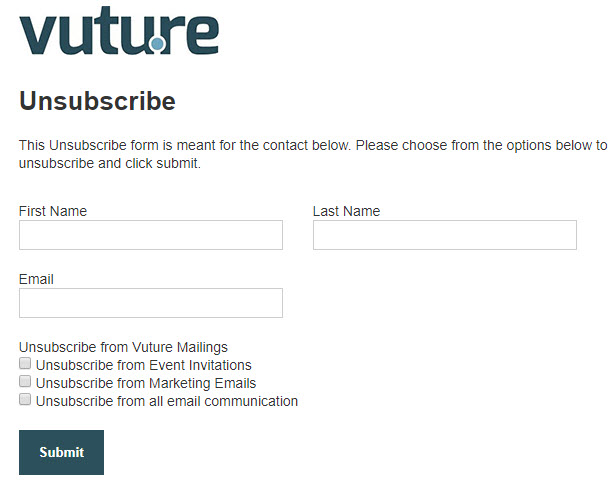
Unsubscribes from types of communications
Most emails can be categorized by type (e.g. Newsletters, Invitations etc.). In order to allow users to opt out of this type of mailing we advise you to set up folders which correspond with the mailing type. Typically this will be in the format *Send no event invitations.
If a recipient clicks on the opt-out form they will be able to choose from a check box list which type of mailing they no longer wish to receive. They may also choose to be added to a list, which will write them into a corresponding list in InterAction. Vuture will automatically add or remove the recipient from the appropriate folder in IA.
Want to learn more or need help setting this up? Check out this article.
Unsubscribes from specific lists
Some recipients may wish to remain on a type of communication (for instance Events) but wish to be removed from a list-specific mailing (for instance golf events). With every mailing the firm may therefore offer the option of not receiving any more communications from that particular list.
Note that the Unsubscribes from specific lists function does not work with "send to multiple lists", you must send to a single list.
In InterAction the process would be to set up a corresponding anti-list that must be named in the format Anti - EXACT name_of_list. If the recipient chooses to opt-out of a list they will be automatically added to the corresponding anti-folder like this:
Recipient clicks on a preference form. If they have Real Estates already checked and they uncheck it, Vuture will remove them from the real Estates opt in list and add them to the anti list.
Vuture does not run a check against the anti-list at the time of sending a mail. To keep mailing lists populated with only contacts who want to be there, firms should set up an FDA, working to remove anybody who is in the anti-list from the main list. Typically FDAs will run overnight. Ask your InterAction Client Adviser for assistance in setting up FDAs.
Unsubscribes from all communications
If a recipient chooses to be removed from all communications they will be added to the * Send no marketing communications folder.
Sending the mail
At the point of sending the mail, a Vuture user will be prompted to select the type of mailing they are sending and which list they are sending from.
Vuture will automatically pull in the list directly from InterAction. When the send button is hit, the system will first automatically check the appropriate unsubscribe folders:
- Send no marketing
- Send no type of mails
- (It will normally also check the Vuture Bounced folder depending on your configuration)
Opted-out users on any of these lists will automatically be excluded from the mailing.
How To Set Up Unsubscribes Using InterAction
To set up a form within your platform that unsubscribes contacts from your InterAction you will need to follow the steps listed below.
First step is to create a form either within your Global Forms campaign or within the specific campaign you are working on.
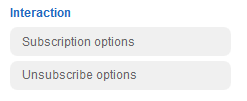
Your next step is to add the unsubscribe option within the form editor. It will look like the image below.
When you click this option you will see a screen like the below.
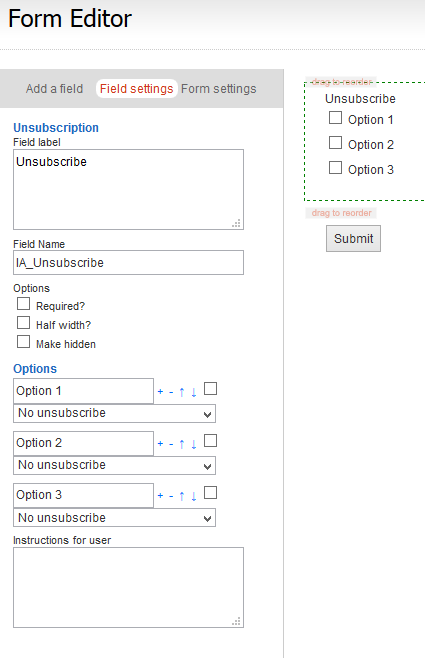
You can then replace the text on each option with the name of the list the user will unsubscribe from, then on the drop down box you need to choose the folder you would like them to unsubscribe from.
Want to learn more about how to set this up for unsubscribing from? Check out this article.
3 Things to Check When Unsubscribes Are Not Updating
After setting up your Preferences and Unsubscribes (using the corresponding setup documents in the Helpdesk) and if your CRM and Vuture are experiencing issues updating, use the steps below to verify/fix common issues.
Check these values
-
Verify you have Enabled the checkbox at the following screen in Vuture: “Admin.System.Interaction1 (or Interaction 2,3 etc) "Always unsubscribe when removing from a list”
-
Verify the number at the following screen in Vuture mirrors the value in Interaction “Admin.System.InterActionUnsubscribe Folder Type Id” – This number needs to reflect the Folder Type Id in Interaction for the created anti-lists.
- The naming convention in Interaction for their Anti-lists needs to be very specific. It should be:
- Anti - FOLDERNAME (that is Anti space hyphen space foldername).
- For example, “PREFERENCES - Pacific” should be typed “Anti - PREFERENCES - Pacific”. This needs to be changed in the folder names in IA.
- While you're in these screens in InterAction, double check the permissions on the anti-lists folders. We need to make sure we have rights to add and remove contacts from marketing lists (from Vuture).
