Spacelab is the new responsive Vuture interface.
With the Spacelab interface you are able to create a theme which customises the following items:
- Logo on login screen, main menu and create new material waiting screen
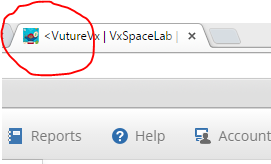
- Favicon that appears in the browser tab and when saving the Vuture URL to your desktop
- iOS icon that is used when saving the Vuture URL to your iDevice
- Login background that allows the background for the login and create new material waiting screens to be customised with between 1 and 4 rotating images. The images are automatically stretched to fit the screen size.
Note: Image upload has a limit of 4MB per file. We recommend you optimise image files before uploading and reduced the file size as much as possible to ensure good loading times.
How do I access the themes admin page?
To upload a new Image please contact your Account Manager to assist with this, as only Vuture Admins are able to do the below. Please provide us with a jpeg of the image. We can take care of the rest.
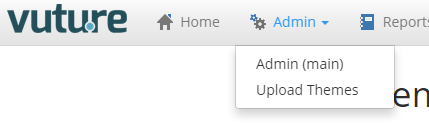
The Theme Image Upload screen can be accessed from the SpaceLab menu bar:
Available Actions
-
Upload : Upload the image file of your choice based on the file restrictions given below. This will overwrite any existing images, so save them first if you need to.
-
View : View your image in a separate browser tab.
-
Delete : Delete an image. Most useful for Login Background files when you don’t want to use all 4 possible images.
-
Navigational Spinner : Preview your background and logo images on the Navigational spinner.
-
Login Page : Preview your background and logo images on the Login Page
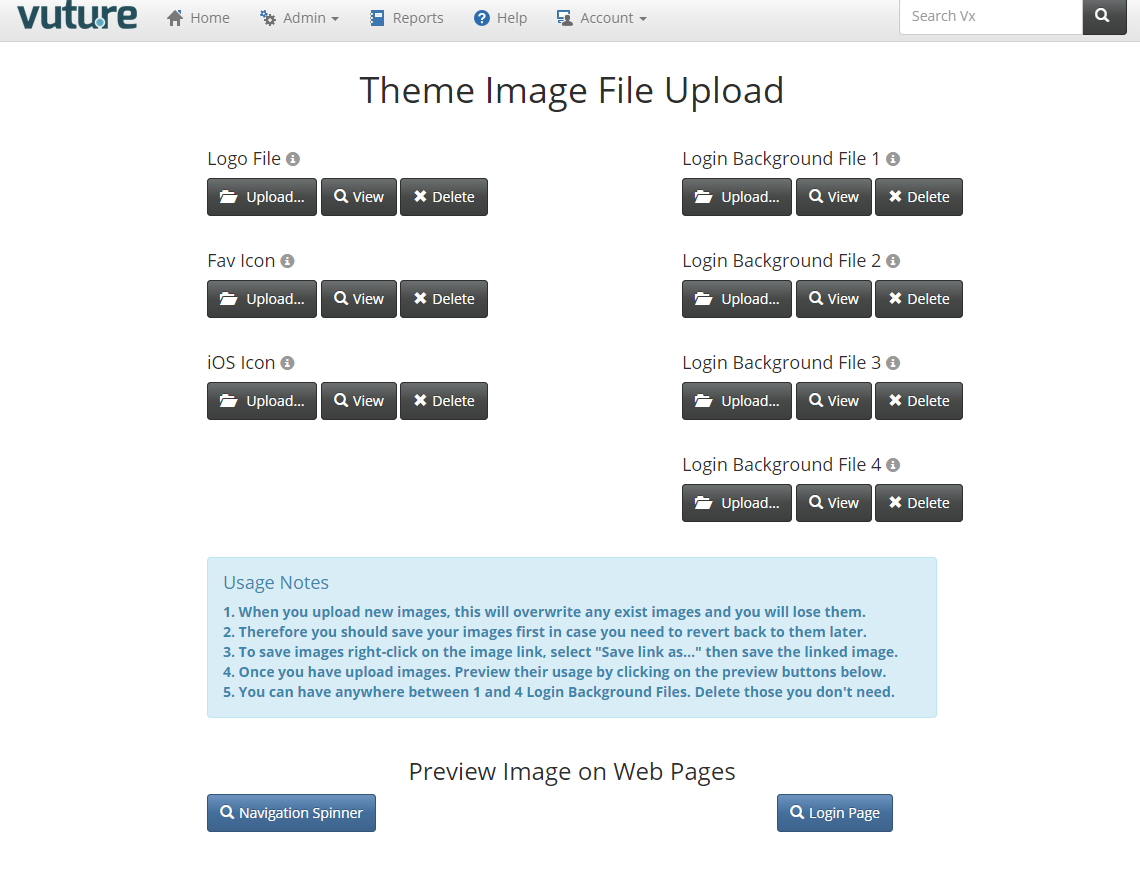
Available images you can modify through the theme
Logo File
- Allows you to upload an image to use as the main Logo displayed used in the system including the login page and the menu bar (see above).
- Restrictions: only valid PNG images. Images more than 420px wide will be reduced by ratio to 420px. Other images more than 210px in width will be reduced by ratio to 210px.
FavIcon
- Allows you to change the FavIcon used throughout vx (see below)
- Restrictions: only 32px square PNG images. Square images more than 32px wide will be reduced by ratio to 32px.
iOS Icon
- Allows you to upload images that will be used as iOS Icons.
- Restrictions: only 196px square PNG images. Will create images of 196, 152, 144, 128, 120, 114, 76, 72, 57 and 32 pixels square by ratio to the uploaded image.
Login Background Files 1..4
- These files allow you to upload jpg files that are used as the background on the login pages and on the navigation spinner displayed when you are creating new items such as web pages. These will be displayed in order. You don’t need to have all 4, SpaceLab will simply look for each of the files and display them if they exist.
- Restrictions: should be a valid image, JPG format.
Further Usage Notes
- When you upload new images, this will overwrite any exist images and you will lose them.
- Therefore you should save your images first in case you need to revert back to them later.
- To save images right-click on the view image button, select "Save link as..." then save the image.
- Once you have uploaded images preview their usage by clicking on the preview buttons below.
- You can have anywhere between 1 and 4 Login Background Files. Delete those you don't need.
How do specify the new login interface automatically for all system users?
Note: you will need your Account Manager or Vuture Support to enable this for you.
On the Admin “System” screen select the Membership section. On the section there is an option for setting the Spacelab login for all users. Tick this setting to switch on this option and display the new login (see below):

