Vuture allows personalisation fields to be used in email subject lines and the body of emails and landing pages.
The following are personalisation fields available for Salesforce CRM users. They can be selected from the text editor (or manually typed) and will feed from the Salesforce instance.
{Email}
{First Name}
{Last Name}
{Company}
{Job Title}
{From Name}
{From Email}
{From Job Title}
{Date}
{Salutation}
{DateISO} (e.g. 2018-07-06)
{DateTimeISO} (e.g. 2018-07-06 10:23)
Personalised Variables
Personalised variables allow you to personalise the content of emails or landing pages. It works by dynamically displaying the value of any Salesforce contact field.
To use this functionality please contact your account manager. You will need to provide them with the Salesforce field name (e.g. Organization) and label (e.g. OrganizationName__c) which they will add in "Admin.System.Salesforce.Personalisecontactandleadfields" as well as enable "Admin.System.Salesforce.Replacementoncustomfields"
Please note, the Field name should only contain alphanumeric characters.
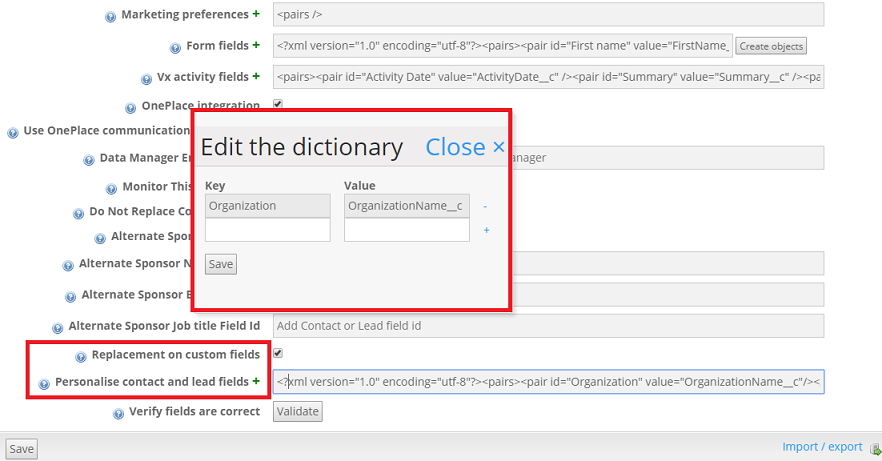
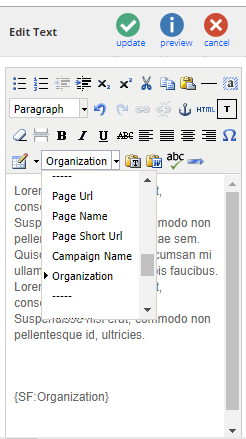
Once set up, you will be able to add the field into your email through the text editor or manually, using the "Key" as the placeholder text prefixed by "SF:" (e.g. {SF: Organization})
Adding default values for personalisation fields
It is possible to format the values of an additional field placeholder in an email. The following options are available:
Formatting option | Expected output |
capitalise:'uppercase'
| Fully capitalised
|
capitalise:'lowercase'
| Fully lowercase
|
capitalise:'words'
| Sentence case
|
default:'value'
| If no value, the default should be written
|
To use this functionality, you must add the “formatting option” inside your placeholder when you are editing the text of the email. As seen in the example below:
Dear {GoesBy | default: 'Colleague' },
Which would say Dear Colleague, if the GoesBy field in IA didn't have a value.
Please note, there shouldn't be any space breaks between words in the default value.