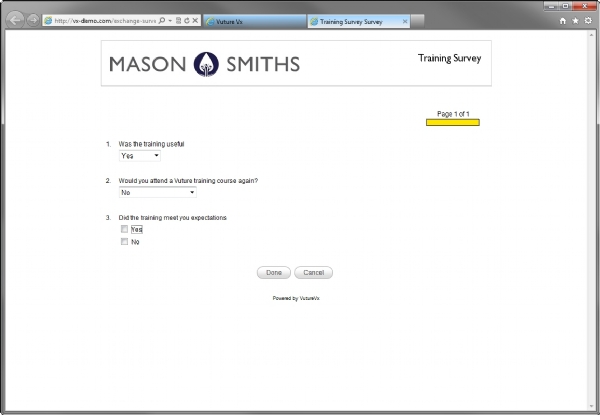
All surveys with one or more items can be "previewed" by actually taking the survey. After taking the survey, simply click the "Clear" link on the Edit Survey page to delete the response, and you may continue modifying the survey as desired. Survey testing and previewing is done by taking the actual survey to ensure that you are testing the exact same survey that your end users will be taking.
There are three ways a user may "preview" a survey. The first is to click on the “preview” icon in the top left corner of the Edit Survey page, this will open the survey as a user will view it. The second is on the Home page of surveys, click "preview survey" located under the title of the survey, which will display the survey in a new window. The third way is to click on the "Deploy" link in the launched survey, which will give several options for how to deploy the surveys. You may use any of these links to test the survey.
After previewing a survey, the response is written to the database. When attempting to modify a survey with responses, a message is displayed at the top of the page for modifying surveys indicating that the survey has at least one response, and therefore is subject to only limited modifications. Along with this message is a link that you can use to clear the responses to this survey, which will then allow full modifications.