One click registration is a Premium snippet (incurring an extra charge) that allows you to create simple accept and decline options, either as buttons or as image links, in an email, without the recipient having to click through to an RSVP form first.
This is a premium feature - please speak to your Customer Success Manager to discuss having this snippet added to your templates.
Best practice note:
We no longer recommend using this snippet. The reason is because the email industry has evolved over recent years in security and filtering. As such, many organisations now deploy security systems that can inadvertently record click activities when emails are received. Whilst Vuture has enhanced filtering options to block as much bot activity as possible from your engagement data, there is still a risk that this activity can register a one-click response and therefore provide false positives or negatives that feed into CRM. As such, we recommend using RSVP forms with Accept and Decline fields to mitigate the risk of bot generated responses.
We are maintaining this article for customers that still have the snippet available.
There are two versions of the one click registration snippet:
- Text link
- Image link
1. One Click Registration with Text Link
To use one click registration you require the accept and decline snippets added to your templates. There are separate snippets for accept and decline.
Registration text link editor
When you click on a text link one click registration snippet from the email editing screen you are presented with the following editor in either the Spacelab interface or the non-Spacelab interface, depending on your firm's settings. Please follow the appropriate instruction set below:
Non-Spacelab Interface
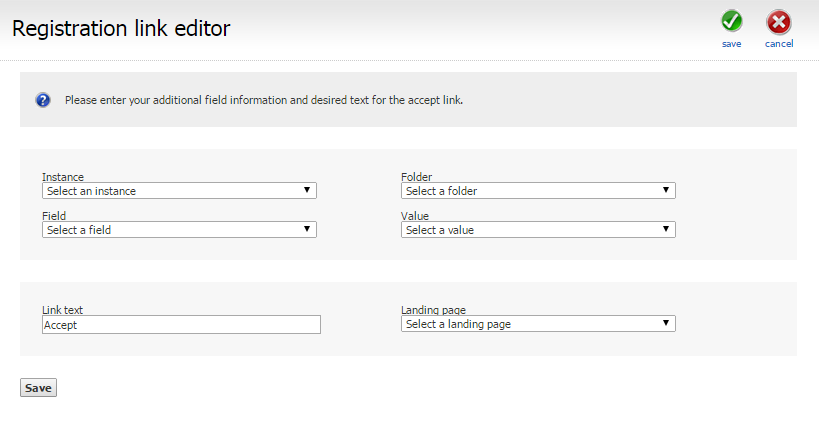
For instances that do not have the Spacelab interface, where the screen appears as in the image above, choose the required options:
- Instance: your CRM instance
- Folder: the CRM folder that contains the accept or decline field
- Field: the accept/decline field
- Value: the required value for this field
- Link text: the text to be displayed in the link
- Landing page: the page that the recipient will be taken to after clicking the link
Spacelab Interface
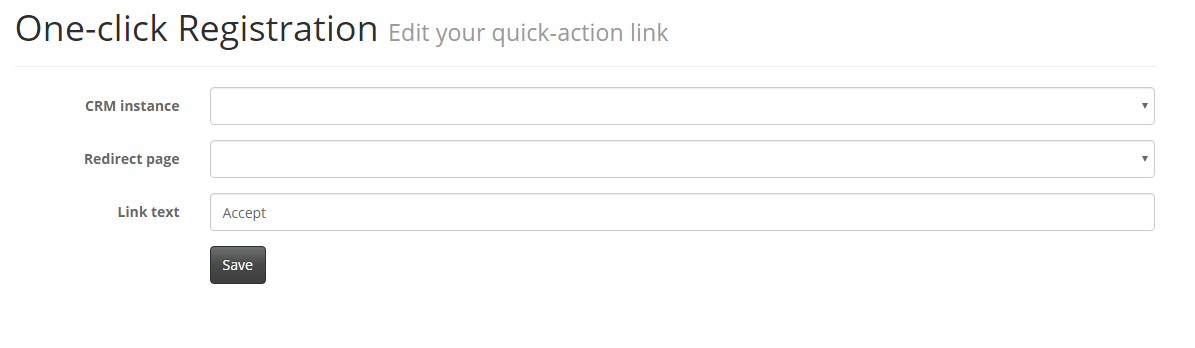
The Spacelab interface has fewer fields in the editor, but the operation is exactly the same. If you place the one click button in an email that is sent to a list, it will update that person's record in the list OnePlace. Vuture knows from the list you choose on the send screen where to write the information back to.
- Enter your CRM instance using the drop down list.
- Choose the page to which you want your users to be redirected.
- If required, edit the text which appears on the button (for example, Accept, as in the image above)
2. One Click Registration with Image Link
To use one click registration with an image link you require the accept and decline image snippets added to your templates. There are separate snippets for accept and decline.
Registration link editor
When you click on an image link one click registration snippet from the email editing screen you are presented with the following editor in either the Spacelab interface or the non-Spacelab interface, depending on your firm's settings. Follow the appropriate instruction set below:
Non-Spacelab Interface
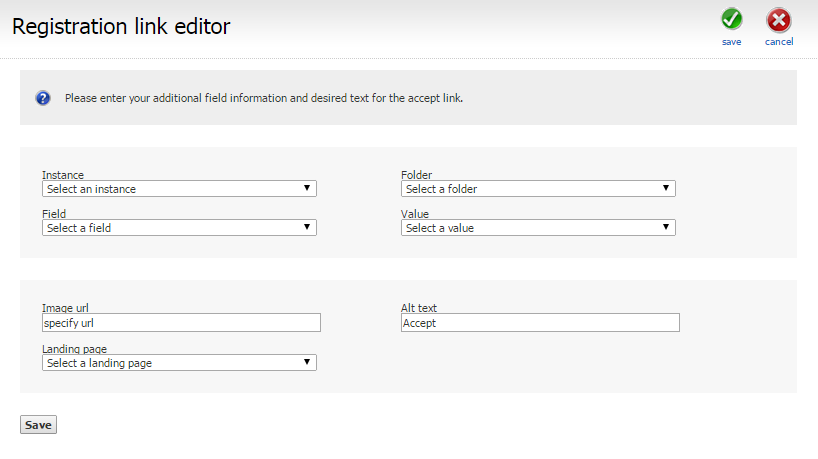
Choose the required options:
- Instance: Your CRM
- Folder: the CRM folder that contains the accept or decline field
- Field: the accept/decline field
- Value: the required value for this field
- Image url: the full URL of the image to be displayed including http:// or https://
- Alt text: the alternative text for the image
- Landing page: the page that the recipient will be taken to after clicking the link
Accept Field Value: The field value must contain one of the following values (case insensitive):
- "accept"
- "yes"
- "ja takk"
- "akkseptert"
or exactly equal "deltar"
Decline Field Value: The field value must contain one of the following values (case insensitive):
- "decline"
- "no"
- "nei takk"
- "avvist"
or exactly equal "deltar ikke"
Spacelab Interface
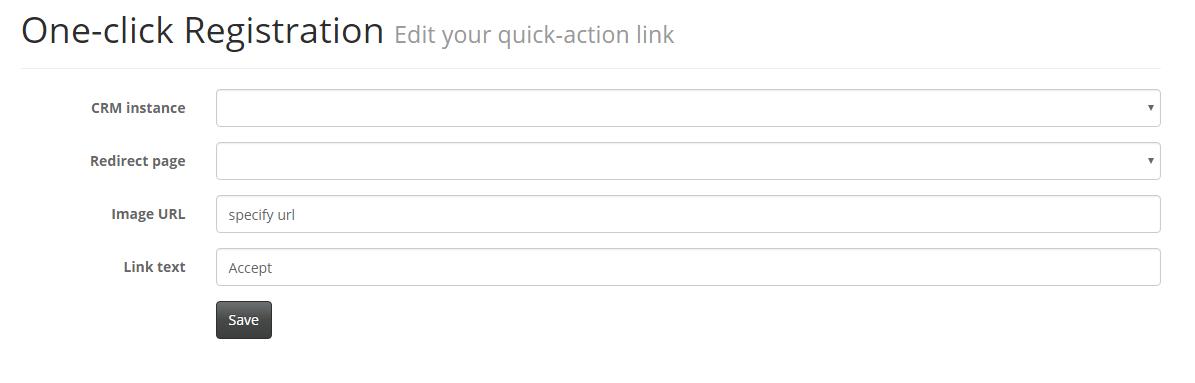
- Instance: Your CRM
- Image url: the full URL of the image to be displayed including http:// or https://
- Link text: the alternative text for the image
- Redirect page: the page that the recipient will be taken to after clicking the link
What happens when I click accept or decline?
When clicking one of the links we look up this link against a database of the CRM's additional fields and follow a three-step process:
- Write the additional field value against the contact
- Write an activity against the contact. This will show in the Email Opened activity as a link clicked, the link will contain the option (e.g. either accept or decline) selected by the contact
- Redirect the user to the destination landing page
Accept Field Value: The field value must contain one of the following values (case insensitive):
- "accept"
- "yes"
- "ja takk"
- "akkseptert"
or exactly equal "deltar"
Decline Field Value: The field value must contain one of the following values (case insensitive):
- "decline"
- "no"
- "nei takk"
- "avvist"
or exactly equal "deltar ikke"
Considerations on using this snippet
The one click registration functionality is a useful and convenient way to allow your contacts to Accept or Decline an event invitation directly in the email invitation itself. However, if a contact forwards the email to a colleague and the colleague clicks Accept, the RSVP field for the original contact will be updated in the CRM - incorrectly - to indicate that the original contact plans to attend. Your CRM will not record the colleague's intentions at all.
We suggest that you can reduce the likelihood of this happening by adding some text to your invitation email along the following lines:
This invitation is intended for you only. Please do not forward to friends or colleagues. If you have a colleague who wishes to attend this event please email [email name and address here].
Or, you could use a blank form and link to it from the sentence above, with - "Please enter your colleague's details on the form here".
This will allow colleagues to sign up without affecting the RSVP status of your original invitees.