There are two areas in the Vuture system where you can find form submission reports.
1. Homepage 'Reports'

These reports allow you to view submissions made to a Preference Form for example. The reports require the analysed form to include Name and Email fields so that you can identify the records.
The following reports are found in "Reports.System"
-
Form Submission - Details: This report provides a record of all submissions to a form, including subscription options. If a contact submits a form more than once, all records show on the form. The report contains the following fields:
- Submission Date: Date and Time when Form was submitted.
- Fist Name
- Last Name
- Job Title
- Company
- Email Address
- ContactId
- Container: Vuture container
- Site Page/Campaign: Name of the campaign associated with the form
- EmailHistoryId
- Form: Form Name
- Form Fields: One Column per each field in the selected form, the column header will match the form field
-
Form Submission - Latest: This report provides a record of the latest form submission for each contact who has submitted the form. If a contact submits a form more than once, only the latest submission shows on the form. The report contains the following fields:
- Last Submission Date: Date and Time when Form was last submitted.
- Fist Name
- Last Name
- Job Title
- Company
- Email Address
- ContactId
- Container: Vuture container
- Site Page/Campaign: Name of the campaign associated with the form
- EmailHistoryId
- Form: Form Name
- Form Fields: One Column per each field in the selected form, the column header will match the form field
2. Landing Page 'View Stats'
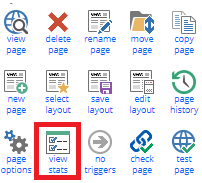
You will find five reports in this area:
-
Form submissions: Contains all the fields in the form
-
Form submission details: Contains all the fields in the form and includes: Container, Site/Campaign, Folder Name and File Name.
-
Form Submission (form order): Contains all the fields in the form, in the order they appear on the page
-
Form Submission (form order + links) (Beta)*: Contains all the fields in the form, in the order they appear on the page, and includes a link to the form as it was submitted, and to the referrer email (when available)**
-
Clickthroughs (see this article): Contains the links clicked to the specific landing page.
* You will need to have Beta features enabled for your role to see this report.
** This new report allows you to view the email from which the form was accessed. For example, viewing the Unsubscribe form will show you from which email the contact unsubscribed.
