Clients may provide profile images for their alumni to be bulk uploaded to their Alumni site. They should name the images the same as the email addresses used by the alumni Vuture account and place them in a file accessible to the Vuture System Admin.
Uploading Images
When you upload images the system creates smaller versions of the profile image at the sizes specified in:
https://{MyVutureURL}/admin/system.aspx#Category.UserUpload
Allowed Thumbnail Profile Image Sizes
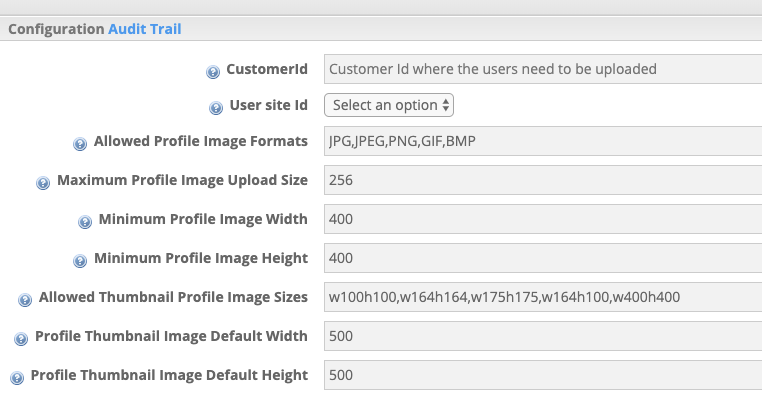
so in this example: w100h100, w164h164, w175h175, w164h100, w400h400
This means you will have available to you the profile images at the different sizes. For example,
https://alumni.[firm name].com/API/ProfileImage/c83d9b14-b56e-4915-a8ac-e0b5e88acf9d.jpg?width=175&height=175
https://alumni.[firm name].com/API/ProfileImage/c83d9b14-b56e-4915-a8ac-e0b5e88acf9d.jpg?width=400&height=400
but only in the sizes specified.
Viewing Images in the Site
On the view profile page the:
_inc-alumni\view-profile.aspx
file will load this image:
<img src="/API/ProfileImage/<%# Container["profileguid"] %>.jpg?width=175&height=175" alt="Image not found" />
so you can see it is going to load in the 175 pixel version.
If you Require Images to Display in a Larger Size
The next largest size, in this example, is the 400. Change the width and height parameters to 400 and that will load the larger image. Or change the config and re-upload to generate the images at whatever exact size you need.
For example:
<img src="/API/ProfileImage/<%# Container["profileguid"] %>.jpg?width=400&height=400" alt="Image not found" />
