When sending an email you can choose to personalise the From Address that is displayed in the recipient's email client.
By default, all emails are sent using the From Address you select from the drop-down on the Send Email screen. This will result in every recipient having the same From name.
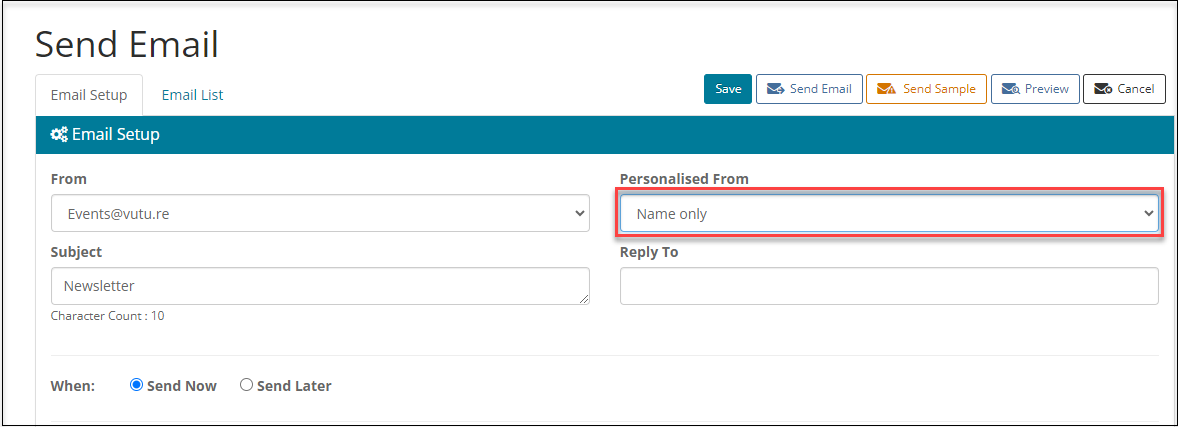
Now, you can choose to vary this. Next to the From Address is a drop-down field called "Personalised From".
In order to see the Personalised From dropdown your Vuture Administrator will need to enable "Admin.Roles.Emails.Personalise on From Name" for your role.
You must enter MS Dynamics field IDs for the sponsor fields: Name, Email and Job Title in "Admin.System.MsDynamics", these will be picked up when the email is sent.
You need to create a custom field to hold the sponsor value in your CRM. Here is how to do it in MS Dynamics:
Creating the primary sponsor field in MS Dynamics
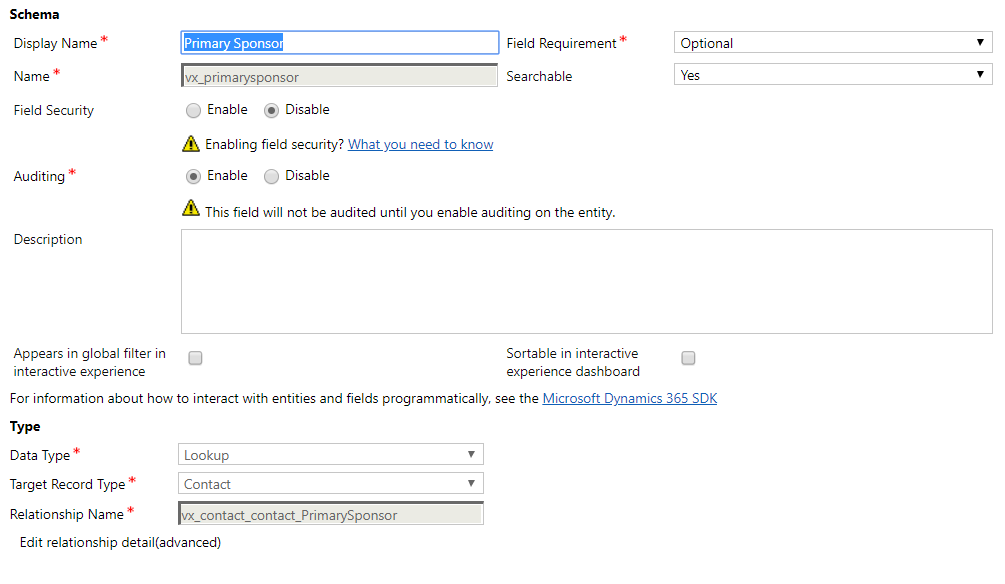
In order to get personalised emails, you first need to specify/create a Primary Sponsor field in the contact entity. This field needs to be a lookup field. The lookup field should ideally point to a contact entity but can technically point to any type of entity that you use for holding sponsor data e.g. lead, account or a custom entity. The screenshot below shows an example of this. Note the name of the entity as you will need it later. For this example we are assuming the name of the field to be vx_primarysponsor. We will also assume that vx_primarysponsor is a lookup field which has a target record type of Contact.
Adding the correct settings for the sponsor fields in your Vuture instance
Now that you have added the Primary Sponsor field, you need to configure Vuture to read data from the correct fields for the sponsor entity. For this you need to find the names of the fields in the entity that is specified in Target Record Type. For our example this is Contact. Note that this might be different for your setup but the method of finding the names of the fields is still the same. We need to find the names for the fields that hold the data for full name, email and job title.
In Dynamics CRM, go to Settings > Customizations > Customize the System. This will open up the customisations window. In this window, in the left column under Components, expand Entities then:
- Scroll to find the entity specified in Target Record Type. This is Contact in our example.
- Expand this entity and click on Fields
- In the right hand pane, scroll to find the fields that hold the date for name, email and job title. In our case these fields are fullname, emailaddress1 and jobtitle.
- You can find the field name under the Name column:
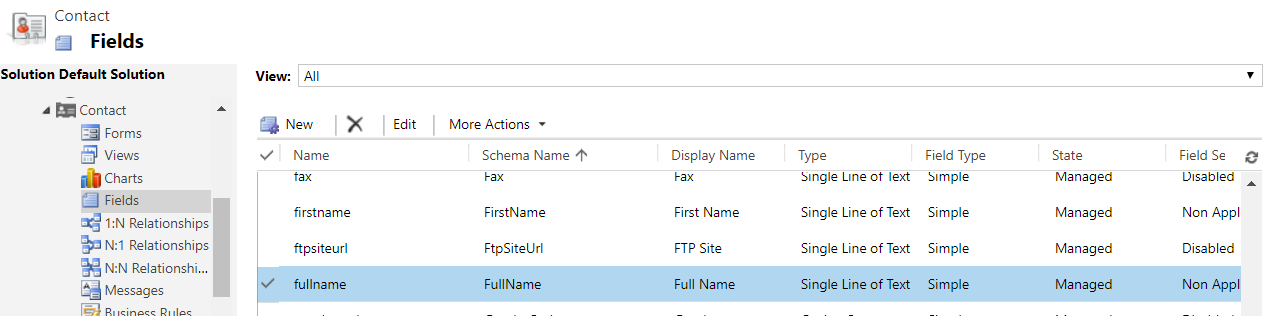
- Note down the name for each of the three fields:
| Data | Target Field Name |
|---|
| Name | fullname |
| Email | emailaddress1 |
| Job Title | jobtitle |
- The final step is to combine the Primary Sponsor field name with the Target Field Names to get the final values that will be input in Vuture:
| Data | Target Field Name | Vuture Config Value |
|---|
| Name | fullname | vx_primarysponsor.fullname |
| Email | emailaddress1 | vx_primarysponsor.emailaddress1 |
| Job Title | jobtitle | vx_primarysponsor.jobtitle |
The values in the Vuture Config Value column are the ones that you will have to provide to your Customer Success Manager so that they can update them in Vuture. In Admin > System > Microsoft Dynamics they will enter the values as follows:

Personalised FROM options
- None
This option does not personalise the From Address - each email is sent using the same name - the From Address selected in the From field.
- Name and email
This option personalises the From Address for each contact using the Email Address and Name of the Dynamics contact field as defined in the Dynamics sponsor fields: Name, Email and Job Title.
- Name only
This option personalises the From Address for each contact using the Email Address selected in the From Address drop-down but uses the Name of the Dynamics contact field as defined previously. The advantage of this option is that you can avoid Out of Office messages going back to a partner or fee-earner, but their name will be displayed in the From Address that the recipient sees.
Why is this feature important?
When sending an email it has been shown that the recipient is more likely to open the mail if they recognise the name of the sender. If you record the sponsor for each recipient in Dynamics, and then choose Personalised From, then that is the name the recipient will see in their inbox.
What is the best practice around this feature?
It is our recommendation that you enable this feature and use it where appropriate. A general information mailing might be better coming from a generic address, while a specific invitation to an event, where the topic is relevant to both invitee and sponsor, might be better coming from a personalised From.
