This is a premium feature, please contact your Customer Success Manager if you are interested in it.
What is engagement scoring
Create an engagement tracker
Adding scores
Adding special scores
Filtering an engagement tracker
Creating an action
Understanding the engagement score reporting
What is engagement scoring?
Engagement scoring, or lead scoring, is a way of ranking your contacts' engagement level. It helps you to identify those contacts who are the most engaged as well as those who are not engaging with your firm. Engagement scoring can help you to prioritise who to focus your efforts on.
Engagement scoring allows you to build a set of rules. These rules are based on who the contact is and on their behaviour. For example, you can score a contact on their job title or their company, and whether they visit certain web pages. It is the combination of these rules that helps you to identify whether a contact is engaged.
You can find the engagement scoring dashboard under dashboards.
Prerequisites
- Marketing Activities Report data populated (Vuture Only article describing the process here)
- Web Tracking on your website
- Engagement Scoring dashboard enabled for your Role
To Create a new Engagement Tracker
Go to dashboards>engagement scoring dashboard
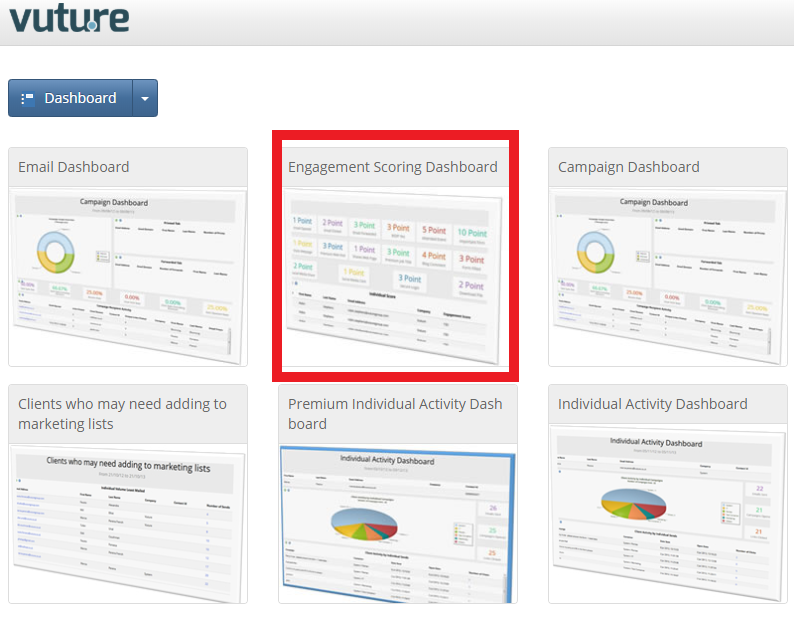
To create a new engagement tracker.
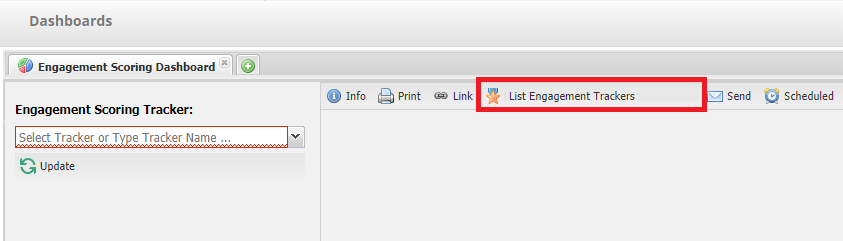
- Click on the List Engagement Trackers button
- Click on Create New Tracker
Adding scores
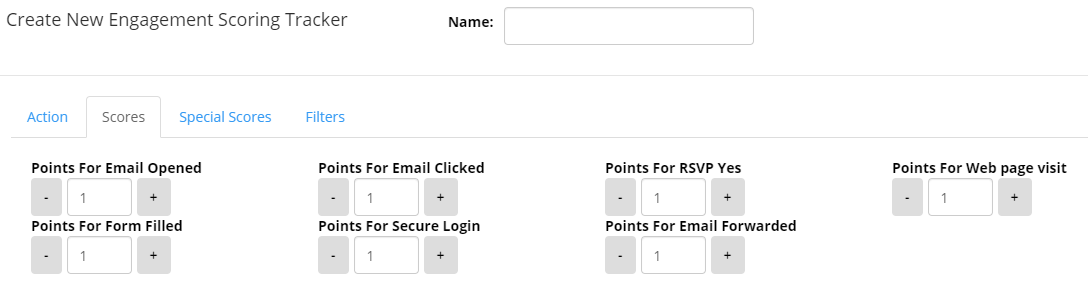
Click scores
Using the plus and minus buttons, select the points you want to add for the standard behavioural scores. You can add negative numbers if you choose.
Adding special scores
Special scores give you the opportunity to specify a higher score for demographic data you have on the contact.
You can add a score on job title, domain, specific URLs and specific email address.
Click special scores
Adding a score to a job title
Type in a job title and a score and click Add
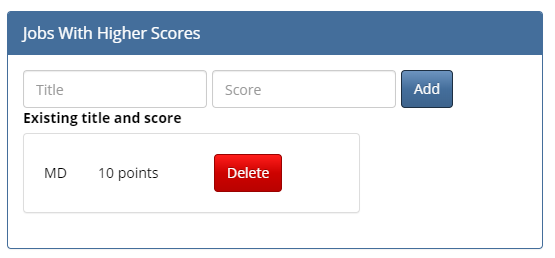
You can delete a job title score by clicking delete
Adding a web page
Copy and paste the entire URL you want to add a score to and click Add
Note: you cannot currently use 'contains' or 'starts with' logic. You must use the whole URL.
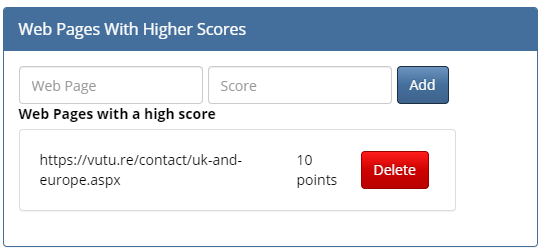
You can delete any URL by clicking delete
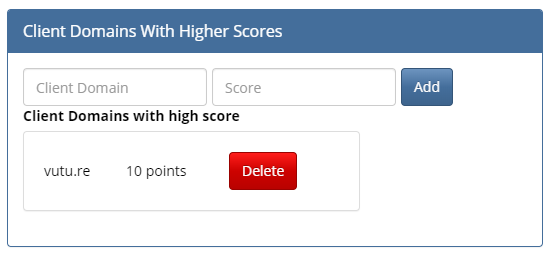
Adding a client's domain
Type the domain and the score you want and click Add. For example, you'll need to type out the full domain for the client, such as 'bankofamerica.com' or 'vutu.re' to add a special score.
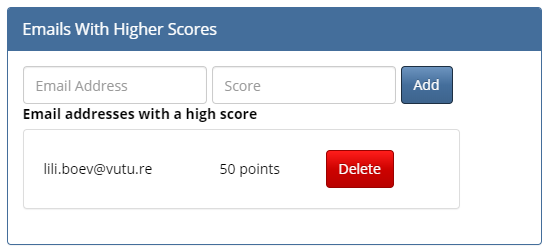
Adding an email address
Type in the email address and score you want and click Add
Filtering an engagement tracker
There will be times where you need to filter the scores in your tracker.
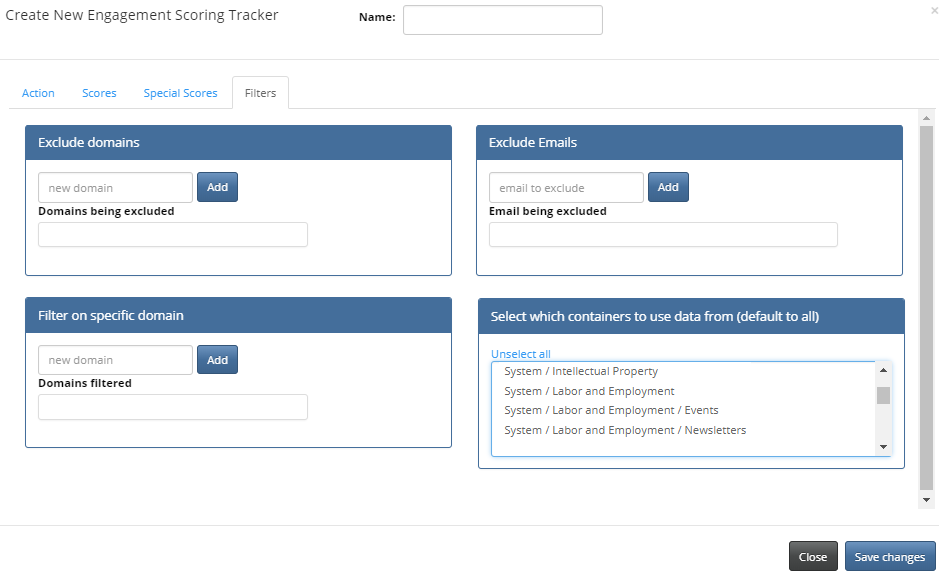
You can exclude domains from the engagement tracker. For example if you wanted to exclude internal contacts.
Type in the domain under Exclude domains and click Add
You can exclude specific email addresses
Type in the email address under Exclude Emails and click Add
You can filter the scores to only show specific domains. To do this, type in the domain you wish to filter under Filter on specific domain and click Add
You can filter the containers you want the engagement tracker to reference by selecting the containers in the bottom right hand box.
Creating an action
When a contact reaches a certain points threshold you may want to notify someone in your company. You can also automatically add that contact to a list (if you are using InterAction or Standalone) and then potentially send them further communications.
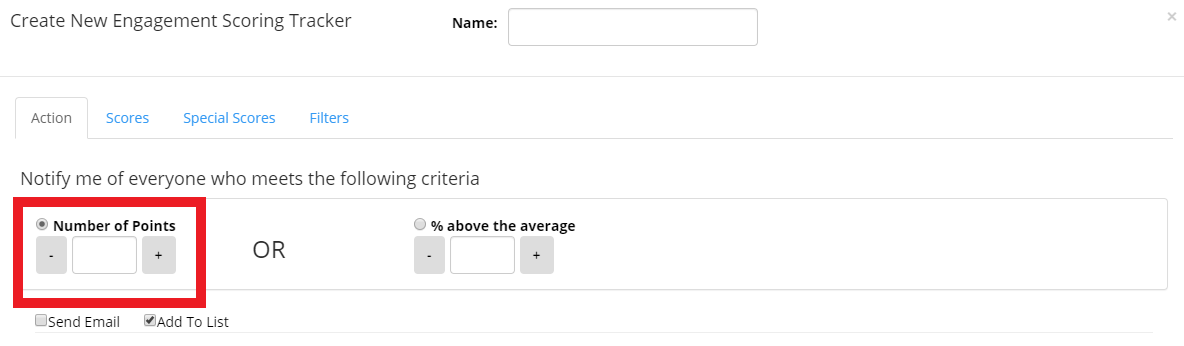
- Click Action
- Type the engagement threshold under number of points.
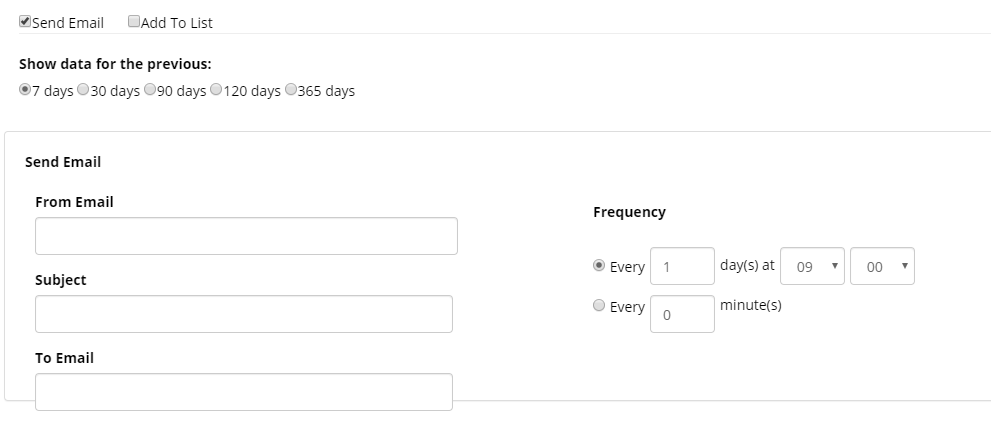
- Select the number of days you want the engagement tracker to include. You can select 7, 30, 90, 120, 365 days. This means that any scores outside of that range will not be included.
If you want to send an email to an internal contact select send email.
In the To: email box you can add multiple emails separated by a comma.
You can select the frequency with which the emails are sent.
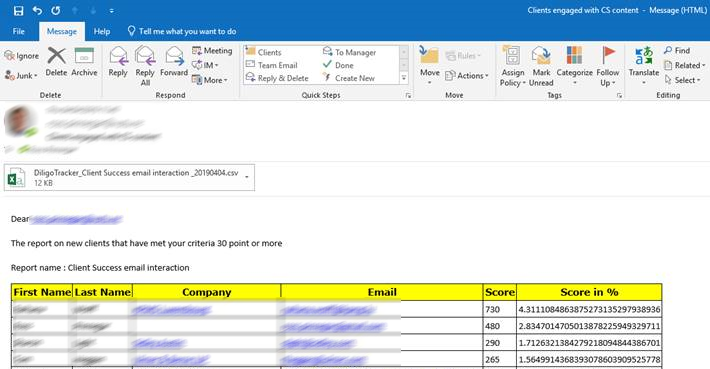
The emails sent looks like the below, and include a CSV of all the contacts that meet the criteria you specify.
If you are using InterAction or standalone you can add a contact to a list.
Select Add to List
Select the source and the list
You may also decide against selecting either action if you just wish to create a dashboard report.
Type in a name for your tracker
Click Save changes
Managing Engagement Trackers
You can edit, copy, select and disable any engagement trackers you have

Understanding the engagement score reporting
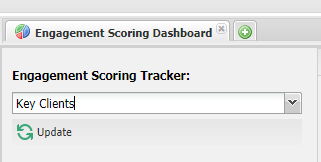
Once you've created your engagement scoring tracker you can view the results by clicking on the dropdown on the left and clicking update
The scores on the top left show you the standard scores you've set for this tracker.
The scores on the top right show you any special scores you've added.
The Individual Score shows you the top 10 contacts
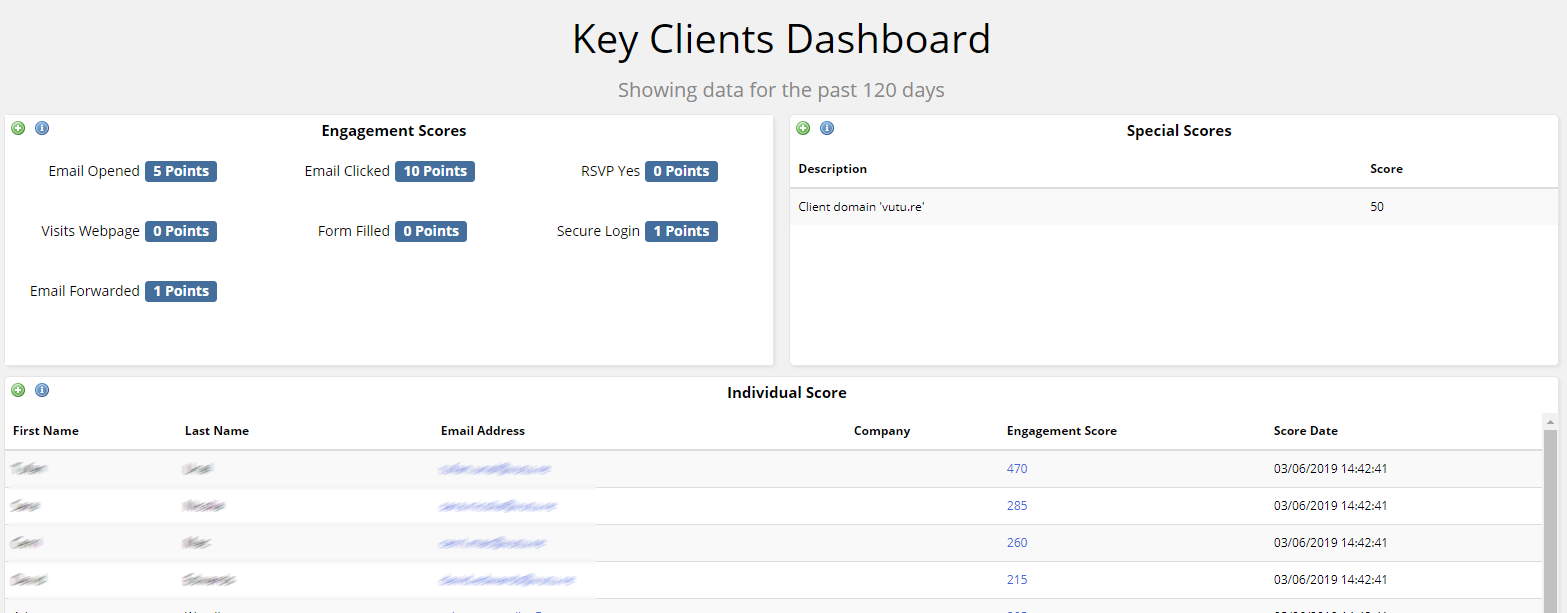
If you want to view all the contacts, click on the plus button on the left of the Individual Score box.
If you want to view the engagement of an individual you should click on their score. The report shows you a breakdown of each and every interaction and score that contact received in that period of time.
You can export this list by clicking on export as csv.

Note: if you are running a report over 30 days this will take some time to load. You can open another tab and continue working in Vuture whilst it loads.
(Note: You can set up these engagement trackers at any time and they will measure the engagement levels of your contacts, depending on the date range you set. This is different from measuring engagement with Campaign Types and InterAction. With Campaign Types there are pre-set values for certain actions, but you can change the numbers by setting them up in Campaign Types, before the send. The results of these engagement levels are displayed in three dashboards. There is an article about measuring engagement with Campaign Types here: https://support.vutu.re/hc/en-us/articles/360020700958-Campaign-Types-for-users-of-InterAction )
