Keywords: ON24, InterAction Integration, write back webinar attendance
Overview
As well as automatically registering contacts for ON24 webinars using Vuture forms, it is also possible to write back attendee information to InterAction. This works through a Vuture scheduled task that once a day (schedule can be varied) completes the following:
- Marks contacts who attend the webinar as 'Attended' in InterAction using an 'Attended' Additional Field in the list for the event
- Writes an 'Attended' Activity against the contact to indicate the event they attended
- Includes any written questions the contact added in the activity
This functionality also supports blank forms. A new contact will be created in InterAction and then their details submitted to ON24 thus allowing the attended activity and additional field to be added to the contact.

Contents
How to setup
If you already have the ON24 integration setup, but would like to add this functionality, please touch base with your Account Manager on next steps. You will also need to provide the InterAction specific requirements to your Account Manager. They can find instructions on this additional setup here.
If you do not yet have the ON24 integration setup, please touch base with your Account Manager and reference this article.
How to use
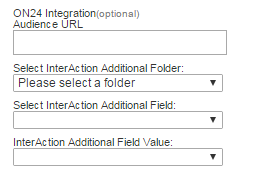
On each ON24 Vuture form make sure you choose the "Attended" Additional Field to be used for that event. This can be done by choosing the InterAction folder, the 'Attended' additional field and the 'Attended' additional field value that will be used to mark each contact as attended. Both 'boolean' and 'enumeration (list)' additional fields can be used. This is in addition to the ON24 Audience URL which must be entered for the event:
When the contact registers for the event we record their InterAction Contact Id against their contact registration record in ON24. When the Vuture Scheduled Task* runs it pulls an attendee feed from ON24 and writes back any new attendees to InterAction. This is done by recording an activity using the defined Attended Activity Type Id and sets the Attended additional field to the specified value.
* Please note: This Vuture Scheduled Task is run once daily by default, which is why you will not see the 'Attended' activity or additional field write back immediately when a contact joins the ON24 webinar.
Testing
The attendee feed is accessed from ON24 using the following URL:
https://event.on24.com/utilApp/syndication/rss.jsp?clientid={ClientId}&key={Key}&config=partner30 (this feed goes 30 days back)
IMPORTANT: Please make sure this feed (partner30) has been enabled by ON24
where {ClientId} and {Key} are the values provided to you by ON24 and entered in the Setup stage above.
To get the details for a specific event you can use:
https://event.on24.com/utilApp/syndication/rss.jsp?clientid={ClientId}&key={Key}&config=vuture&eventid={EventId} where {EventId} is the ON24 Id for the event you are testing.
Check in your browser that accessing this URL returns an XML data feed that shows your events and their attendees. If not then the Vuture scheduled task will not work correctly.
If you get the message "Access to this feed has been disabled. Please contact your ON24 Account Manager for more information." then please contact ON24 and ask them to enable your Vuture Attendee Feed.
FAQ
1. Do webinar No Shows write back to the Attendance field in InterAction as a No Show?
No, currently this does not happen.
2. Does the system mark a contact as 'Attended' in InterAction if they viewed the recorded webinar (i.e. On Demand Version) after the event?
Yes, the feed includes attendees that only viewed it live, only viewed the on-demand version, or watched both.
It is worth considering, when adding a webinar in advance of an email campaign, the time lapse that will occur before your invitees actually attend the webinar. We have a 120 days threshold to write back attendees for performance reasons. This means that if the time between the webinar creation date and the event date is longer than 120 days, the attendance will not write back at all.
You should therefore not add a webinar several months in advance of the email campaign and the webinar attendance date. If you need to delay or postpone a webinar that you have already added to an RSVP form, just remove and re-add the webinar to the form. This will reset the webinar creation date to the current date.
This 120 day threshold is not configurable.
3. What if the Attendee write back is not working in InterAction?
Please check that the partner30 feed has been enabled by ON24. To test, try to access the URL https://event.on24.com/utilApp/syndication/rss.jsp?clientid={ClientId}&key={Key}&config=partner30 in your browser and you should see XML data. If you see the message "Access to this feed has been disabled. Please contact your ON24 Account Manager for more information." then please contact your ON24 account manager.
4. What happens if a registrant used the ON24 registration form and not the Vuture registration form? Will their attendee information still write back to InterAction?
If a contact does not use the Vuture registration form to register to your ON24 webinar, and instead uses the ON24 registration form, their attendee information will not write back to InterAction. This is because there is no way for Vuture to identify who these contacts are if registering through ON24, instead of Vuture.
5. What happens if a contact registered through a Vuture form, but then used a different email address from what they used to register to sign-in to the ON24 webinar? Will their attendee information still write back to InterAction?
No, their attendee information will not write back to InterAction. The registrant must use the same email address they registered with on the Vuture form to sign-in to the ON24 webinar to have this information write back correctly.
6. Are questions asked during the ON24 webinar recording in the Attended Activity?
Yes.
7. How quickly does Vuture sync with ON24? For example, if someone registered 10 minutes or less before the Webinar (through a Vuture form), will ON24 receive the information that the person registered?
Vuture posts the registration directly to ON24 when the Vuture form is submitted. As long as there isn't any processing delay by ON24, then the registration from Vuture to ON24 will be very quick.
