You can access a payments report for any payments page by clicking "page options", selecting the "payments" link and clicking on "Export payments report"
This will render an Excel file containing all payments for this page, including payments that have not completed. Completed payments are highlighted green, and "Pay on the day" payments are in yellow.
Glossary
Confirmation code
This will be one of three values:
1.blank means the payment has not been completed. Either the contact is still submitting the form, or they have abandoned the process.
2.Invoice means the contact selected "Pay by invoice" and should be charged manually.
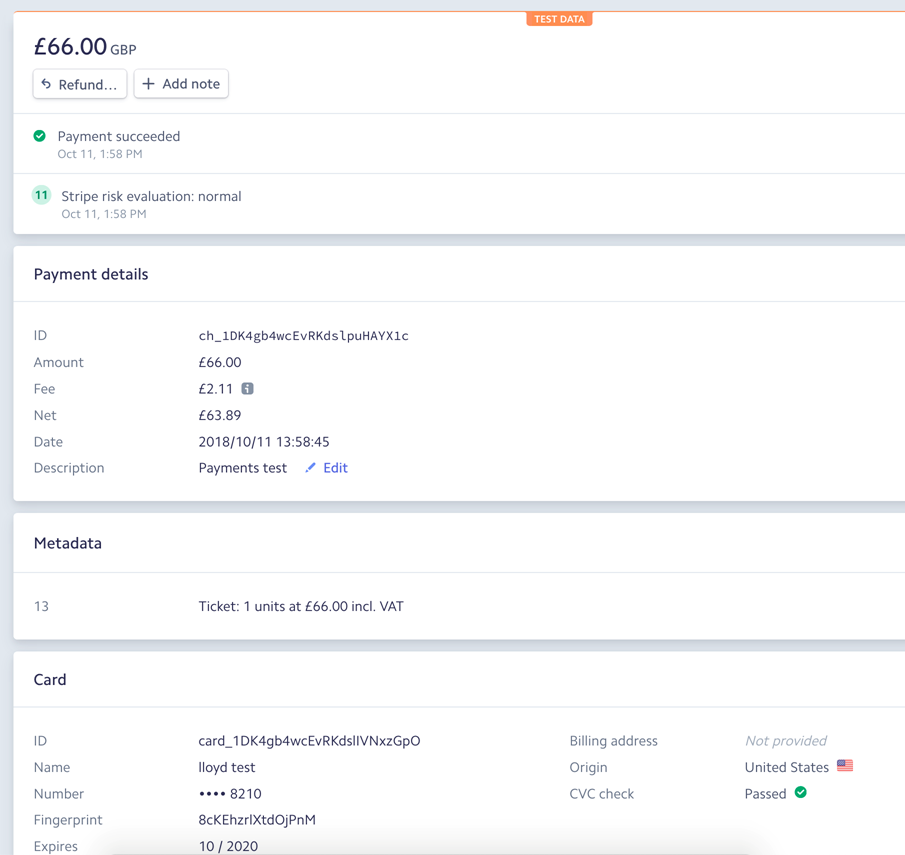
3.A code beginning ch_ is the Stripe confirmation code, and can be used to find information in the Stripe system.
Discount code
If a discount code was entered it will appear here. This column is only displayed if discounts are enabled in your system, so please speak to your Account Manager about enabling "Admin.System.Payments.Enable discount settings".
Tax location
This column is relevant to UK/EU-based companies who are using the automatic VAT calculation setting ("Admin.System.Payments.Enable VAT settings"). This column will only display if the automatic VAT calculations are enabled.
VAT number
When combined with the "Tax location" column, certain EU companies can be charged the total minus VAT. The criteria for a tax discount are:
- Payment location = UK – tax charged.
- Payment location = Within EU, individual – tax charged.
- Payment location = Within EU business, VAT registration code does not begin with "GB" – tax not charged.
- Payment location = Outside EU – tax not charged.
This column will only display if the automatic VAT calculations are enabled.
Here is a payment shown in Stripe.