If you are using InterAction, for each email send, you can choose to send a copy of the email to the primary sponsor, with a list of their contacts who received the mailing.
Note: If your firm already uses "Marketing List with Sponsorship" type of mailing lists, it is likely that you will already have the Primary Sponsor field in Vuture completed. If not, you will need to ask your Client Success Manager or Support to enter the field value at Admin.System.InterAction1.InterAction Primary Sponsor Field ID
The value is usually 4294967295 You can check that in your own IA under any contact, Additional Information, Global Fields.
The list of the sponsor's contacts is inserted as a list at the top of the email.
How to enable the feature
Please contact Vuture Support or your Account Manager for assistance with this.
Your role must have the "Admin.Roles.Emails.Send Sponsor Report" feature enabled.
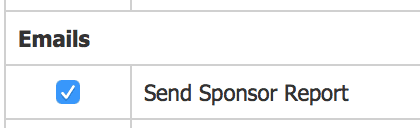
Configure the sponsorship reporting settings under the Emails section:
"Admin.System.Emails.Sponsor Report Subject Prefix" = Text that will be prefixed to the original email subject when it is sent to the sponsor
"Admin.System.Emails.Sponsor Report Message" = A message that will be inserted above the email content with a list of the sponsor's contacts that received the email.

Configure the Sponsorship Information settings under the Reports section:
"Admin.System.Reports.Display sponsorship information" = tick this box to enable

How to use the feature
The option to send the report will then appear on the send screen under Advanced.
Tick this option to send the report which will be sent to all primary sponsors when the send is complete. Note they will get only get one report email per send.

