This article explains how Vuture you can use the “Unsubscribe” functionality as a Salesforce OnePlace CRM user within Vx. This functionality is available for Email module users who work with Salesforce OnePlace CRM.
OnePlace provides the two following options for subscription preferences:
- Communication Preferences: A person or admin can select which communication types a person will or will not receive (e.g. Newsletters, Invitations, Christmas Cards)
- Unsubscribe All Communications: this option will unsubscribe a recipient from all communications
The form options presented in Vx will be linked to the fields which are established in your OnePlace CRM
How to include these unsubscribe fields
The option to Unsubscribe from all Communications is selected by default within Vx. To include the linked form for Communication Preferences within an email it must first be enabled in “Admin. System. Salesforce. Use OnePlace communication preferences”. Please contact your Account Manager if you would like this option enabled.

Editing the preference form
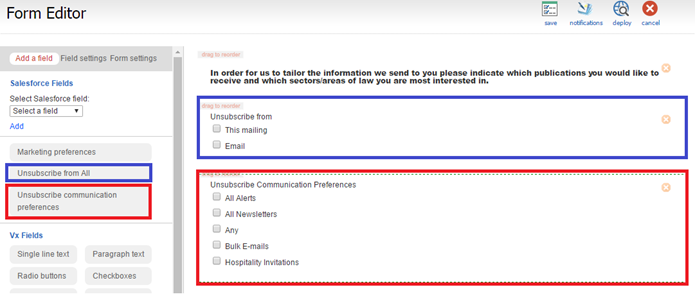
Once you are within the “Form Editor” under OnePlace you will find your preferences. Once you select “Unsubscribe from All” or “Communication preferences”, the options will appear in your form
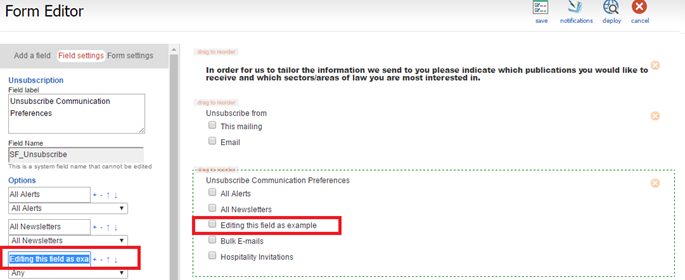
You may edit the wording on of the preferences to adapt them to your requirements on the form but the wording within OnePlace will remain as it is.
Unsubscribe from this mailing – Anti-lists
In OnePlace each Publication or Function has an anti-list associated with it. It will automatically use this anti-list to add an ‘Exclusion reason’ – ‘Added to AntiList’ to the list subscribers. Using the form editor, you can add an “Unsubscribe” field which will allow you to globally unsubscribe in OnePlace and now also unsubscribe only from the list that the email is associated to “this mailing”
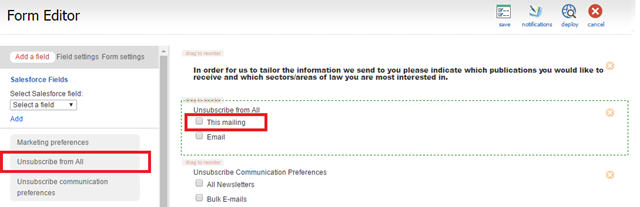
To add these options to the form, click on the landing page that contains the form you want to edit. Click on the form to get to the form editor and select the Unsubscribe from All button. This will give you the options as described earlier.
When a OnePlace contact wants to add themselves to the anti-list for a mailing. They need to click the This mailing checkbox and then click submit.
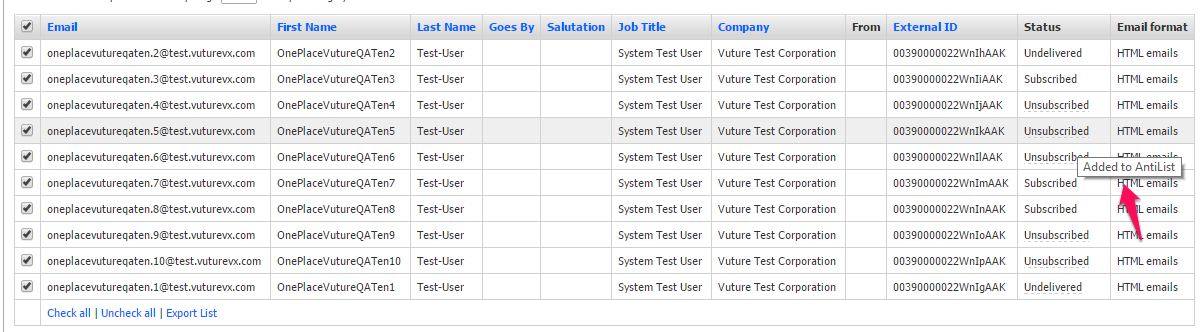
After the contact’s addition to the anti-list has been processed, if you go to the send email screen and look for that contact in the list, the status of the contact will be set as “Unsubscribed” with the exclusion reason – “Added to AntiList” (see image below). This will mean you will not be able to to send a Vuture mailing to that contact.