This page describes the Phase One functionality of the Fibre integration with Vuture’s platform. It will show how users of Fibre can select a list of Contacts and/or Leads in Fibre, load that list to the Contacts Module in the Vuture platform, and send out a Vuture email.
If recipients of the email accept an invitation to an event, their Accept Status in Fibre will be updated. If new recipients complete a Vuture Blank form and submit, they will be written back into Fibre as Leads. Existing contacts completing a Vuture Prefilled form will have their details updated in Fibre. A Lead will not be created for them (See paragraph below on Duplicate Checking). Unsubscribes will be written back into Fibre as Opted Out.
Please Note: Content Type-specific unsubscribes such as Send No Events or Send No Newsletters will be available in Phase Two of the integration project. In Phase One, only Unsubscribe from All Mailings will be available.
Process for Sending an Email
Forms in Vuture for Use with Fibre.
Event RSVPs.
Unsubscribes.
Form Settings Tab.
Updating Contacts and Duplicate Checking.
Sending an Email Using a Fibre List
This instruction is for Vuture users who have previously been trained to use the platform, either standalone or with another crm. It assumes previous knowledge of the Vx platform.
In Fibre, lists are held in Campaigns. Go to the Campaign tab and find the list you wish to use. You can select a list of Contacts, a list of Leads, or a list containing a mix of both. (Image of Fibre below).
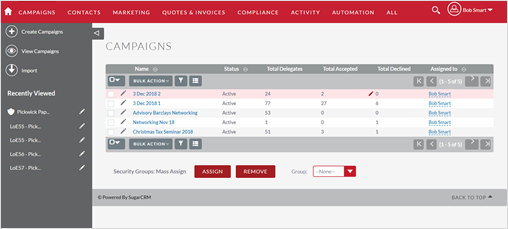
In this example I will use Christmas Tax Seminar 2018 list.
Log in to Vuture’s platform and select the correct container and then the Contacts module.
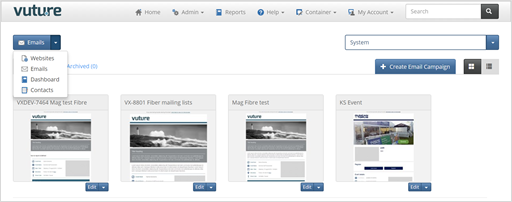
You will be asked to choose between Vx and Fibre as a data source. Select Fibre.
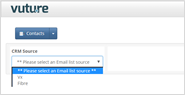
Under the Fibre selection there is another select box like this:
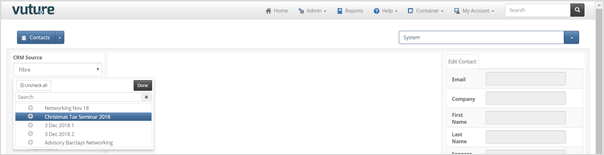
Choose the list you wish to use and click on Done, then Import List.

You will get a success message – Imported Lists, written in green, at the top right of your screen.
You can now select the list under the Global Lists and this will populate the screen with individuals.
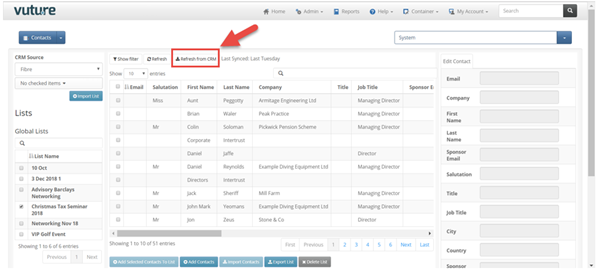
Before you do anything else, clicking on Refresh from CRM will ensure that the list you are seeing is the latest available.
You can now use this list to send an email from Vuture in the usual way.
When switching from using the Contacts Module as standalone to using Fibre CRM as your data source, you need to know that the functionality and the way the Forms operate is very similar, with only a few provisos. Prefilled and Blank forms are created in the same way as with the Contacts module.
The form fields you can use in the Fibre Phase One integration are limited to those shown in the screen shot below, in the list of Core Fields.
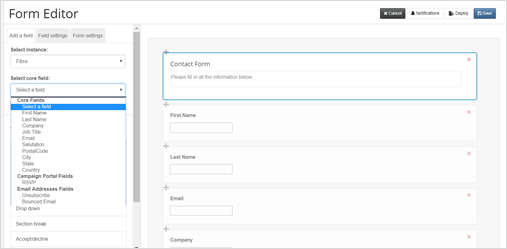
You cannot currently create custom fields in Fibre and connect to them with Vuture.
The Core Fields are:
First Name
Last Name
Company
Job Title (for Fibre Leads only. Job Title is only available in Fibre for Leads, as a Contact might be tied to multiple companies.)
Email
Salutation
PostalCode
City
State
Country
The integration also allows you to offer an RSVP for the Campaign.
Note: If there is a field you need to track, which is not available in the current integration, a workaround would be to create the field on your form as a Vx field only. Any information entered in that field by your contacts would not write back to Fibre but would be stored in the Vx database and made visible in the View Stats report.
You will see from the screen shot above that RSVPs are available for each Campaign. Adding the RSVP field will give you a Yes / No option to use on your form for Events.
In the Vuture form, in the Add a Field tab, click on the Select Instance drop down to select Fibre. Then select from the list of Core Fields in Fibre to build your form.
You will see the option to Unsubscribe given in the screen shot above. In Phase One of the integration, the only option available is to Unsubscribe from All Mailings. It is not currently possible to unsubscribe from only Invitations or Other Publications, or from other types of mailings.
Bounced Email is present in the integration and is a Yes/No checkbox in Fibre. It will be updated with Yes in Fibre when a contact’s email address has bounced three times from a Vuture send.
Under the Form Settings tab, you need to enter a form name (make this unique for each campaign, RSVP Prefilled and RSVP Blank is fine).
The Email Form To, the Thank You Page and the Form Data Options are as before, when using the Contacts module.
In the Contact Type drop down you should always choose Lead. This means that any new person created in the Fibre CRM by the form Submit will be a Lead, not a Contact.
In Add Contacts to Folder, at the bottom of the list, select the list you are planning to use.
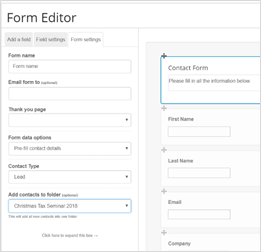
This will add any new Leads to the same list.
The Vuture Prefilled form will always update the contact.
The Vuture Blank form: When configuring a blank form please select the contact type that it should create – either Contacts or Leads. When the form is submitted it will create a new Contact or Lead, based on what you selected.
If you select Contact, Vuture will use the regular duplicate look up for a new contact’s surname and email address. If a match is found, Vuture will update the existing contact. If a match is not found, a new contact will be created in the database.
If the form is selected for Leads, Vuture will always create a new lead in Fibre. We will not use the duplicate look up for new leads. It will always create a new lead, even though there may be multiple leads with the same contact details.
Once all fields are added and the field settings and form settings are complete you can Save the form and Publish. Alternatively add Notifications as previously, before saving and publishing.
Sending an email using Fibre is slightly different to sending an email using a standalone list because the Fibre integration only works with the latest version of the Vuture Send Email screen.
In your campaign, once fully built and tested and ready to go, select Send Email. The new Send screen has two tabs – Email Setup and Email List.
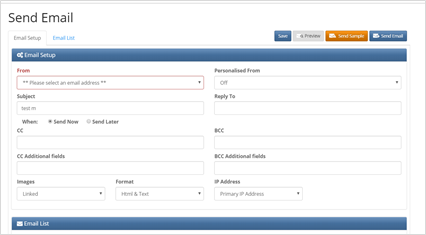
The content of the fields you need to complete are as before, only the layout is different. On the first tab at the top enter the From: address, the Subject, Reply To: address, and whether or not you are using cc or bcc.
(The Images, Format and IP Address fields are for Vuture Admins only.)
Scroll down to see further fields at the foot of the screen:
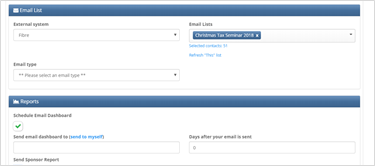
Select Fibre in the External System drop down. Find the list you are using in the Email Lists dropdown and click on the link to Refresh the List. This will give you the latest version of the data. Fibre does not currently have a concept of Email Type so leave it blank.
You can schedule reports to go out automatically, to yourself or others, after the email is sent. You can put your email address in the box or others’ and select the number of days to elapse before reporting.
The Sponsor Report should be ignored since it does not yet work with Fibre.
On the second tab:
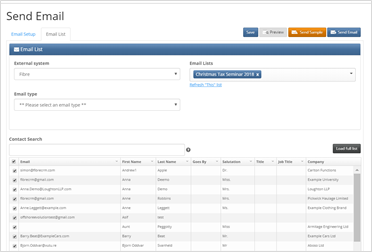
You will see the name of the system and of the list, repeated.
(Fibre does not currently have a concept of Email Type so ignore that field.)
The first 60 names on your list will be displayed by default. This is fast to load and will be quicker than waiting for the page to refresh if you had thousands of contacts in your list. If you choose to, you can click on Load Full List to see the full list. If you do not click on Load Full List, the complete list will still be emailed.
Click on Send Email to do the send, as before.
A document containing the above information is available for download below.
