Overview
Files such as PDF and Office files can be uploaded in your campaign. Each upload generates a unique link that can be used to download the file. These files can be linked to from emails and landing pages and will be tracked when your recipient clicks on them.
Note: Changed your mind? Need to correct a pdf that has already gone out? Click here to read how to "replace an asset".
Replace Asset is a feature that allows you to upload a new linked file. It keeps the same name and you don't need to edit the link. For a linked file or landing page you can update it at any time, even after the email is sent. Anyone clicking through will see the updated version. Here is the Replace Asset help article.
Contents
Note that linked files are not included in the email when it is sent. This is to keep the size of the email down and to allow you track recipients opening uploaded files, which is not possible if the file is attached to the email. It also allows you to change the file after the email has been sent.
How to upload files
Typically the Uploads folder is used to upload files to your campaign., however any folders except the Compose Email folder and Sent folder, may be used.
See below how to create an Uploads folder if this is not in your campaign.
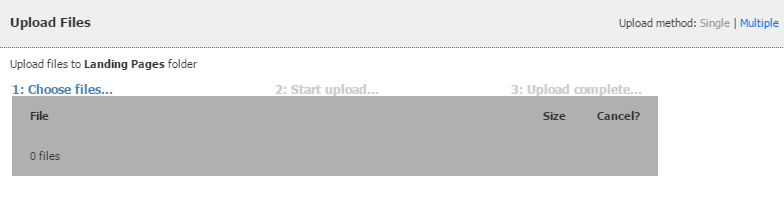
Click "Choose files..." to select one or more files you want to upload. Click "Start upload" to upload the files into the current folder. Once the files have uploaded they will appear as pages in the folder. Click the "view file" icon to get the URL of the file that can be used for linking. Uploaded files are also available in the link picker drop-down in the text editor.
File upload limits and restrictions
File Size
Each Vuture instance has a maximum file upload size for each individual file which defaults to 10MB. Contact your Client Success Manager or Vuture Support if you need this limit to be increased. This is controlled from "Admin.System.File Upload.Maximum File Upload Size".
The maximum file size we would permit is up to 100MB, as long as there are not large numbers of people (tens of thousands) going to be clicking through. If tens of thousands are expected to click through you should contact us so that we can look at other options e.g. using a Content Delivery Network (CDN).
Video Snippets - Is there a maximum size limit on videos?
For example, a client wishes to upload a video to use within the video snippet, but the video file is 70.5MB.
The maximum upload size we would want to host on Vuture is 100MB. However, Vuture is not a video streaming service. Their viewers will get a better experience hosting on Vimeo or YouTube, while still playing it through the video snippet on their Vuture pages. The client should only upload videos to Vuture for use in the Video snippet if they expect a small number of people to view it. This setting can be adjusted under 'Admin.System.File Upload.Maximum File Upload Size'
File Types
Each Vuture instance also has a set of allowed file types. The list defaults to: pdf,doc,docx,xls,xlsx,ppt,pptx,jpg,jpeg,png,gif,bmp,txt,ics,zip,vcf,xlsm,zipx,mpp,csv,swf,json. Contact your Client Success Manager or Vuture Support if you need to add additional allowed file upload types. This is controlled from "Admin.System.File Upload.Allowed File Types".
If any of your files don't meet the criteria above you will receive an error message telling you that the file is too large or not of a permitted type.
Note: We don’t have integrations with any third-party Digital Asset Management tools. It is possible to include third-party images but it's not recommended.
Linking to uploaded files
Any uploaded file can be linked to from an email or landing page by using the text editor link picker which shows lists all uploaded files. Links clicked from an email to an uploaded file are tracked in links clicked statistics.
You can also link externally to any uploaded file using the URL displayed when clicking "view file".
Create a text link to an uploaded file
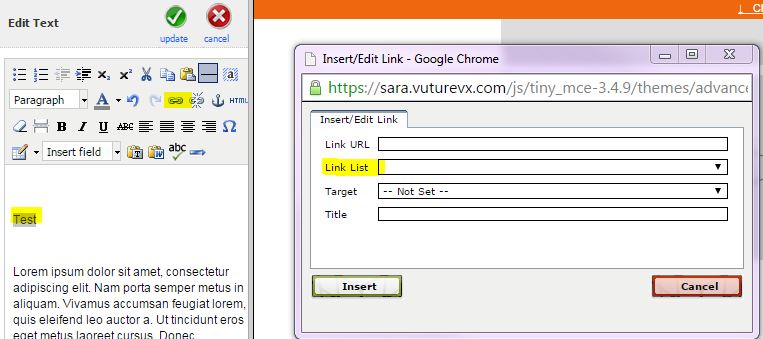
You can link specific text within your email to your uploaded files. You can do this in the text editor by selecting the text you would like to link, clicking on the link icon (which looks like a chain link) and then selecting the document from the Link List drop down:
Create an image link to an uploaded file
You can link an editable email to an uploaded file by clicking on the image which will load the image editor. Either click on the current image if you don't want to change the image, or select or upload a new image if you want to change the image. On the image cropping screen click on "create link" and select the uploaded file from the "link list" drop-down and click "done".
Creating a new folder for file uploads
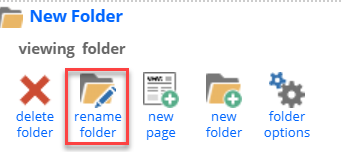
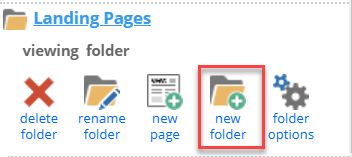
You can create new folders if your campaign doesn't contain an "Uploads" folder or you would like use additional folders to organise your file uploads. Click any folder in your campaign click the "new folder" button.
A new folder will be created below and you can rename it as required by clicking the "rename folder" button.