What is the From Address?
The From Address is the email address that is displayed to the recipient when they receive an email.
This is separate from the Bounce Address (sometimes called the Envelope From or Return Path) which is the email address that bounces are sent to and which is hidden from the recipient in the email headers.
Choosing a From Address for your mailing
When sending an email from Vuture, users can choose the From Address they wish to use from a drop-down of email address available in that container that have been pre-configured by an administrator.
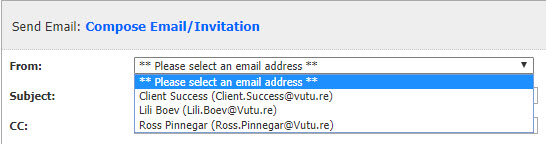
If the From Address you would like to use is not available in the drop-down and you are a Super Admin, please follow the steps below.
Modifying the list of available From Addresses
The list of From Addresses for a container can be managed from two places:
1. From the "settings" link on the container Home page
Step by Step Instructions:
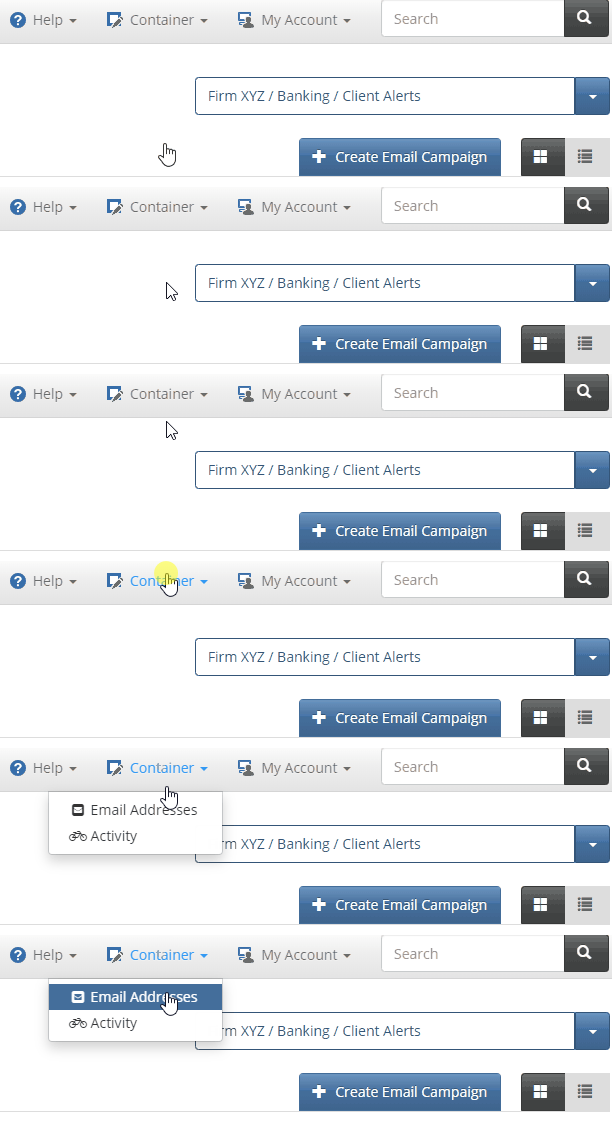
Navigate to the Container you wish to update the From Addresses for then click on "Container" > "Email Addresses".
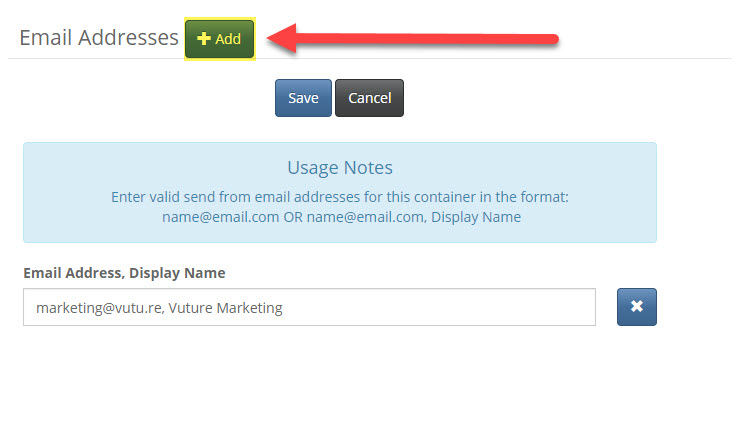
This link opens a pop-up window where you can see all From Addresses that are available in this Container. If you wish to add a new From Address, click on "Add". You can then enter in an email address on its own or combination of email address and display name separated by a comma, e.g. name@email.com, Display Name. Once you are finished, click "Save" to save your From Addresses. The new From Address(es) will now be available on the Send Email Screen in the "From" drop-down.
If you are a Super Admin and do not see this feature, please ask your Account Manager to enable it via "Admin.Roles.Containers.Edit Send From Emails".
2. From the "Container Settings" tab in the Admin area
If you have users that you only want to be able to administer From Addresses for a container, and no other container settings, then use option 1 above. If you have users that administer general container settings then they can manage From Addresses from the "Container Settings" tab under "Admin > Containers & Users". This requires the user to have the feature "Admin.Container Settings" enabled in their role for that container.
From the Home screen, click on "Admin", "Container and Users", then select the container you wish to manage from the tree in the left panel, and click on the "Container Settings" tab.
Scroll down to the "Send From Emails" section and edit the list of From Addresses one per line. Each line can either be an email address on its own or combination of email address and display name separated by a comma, e.g. name@email.com, Display Name
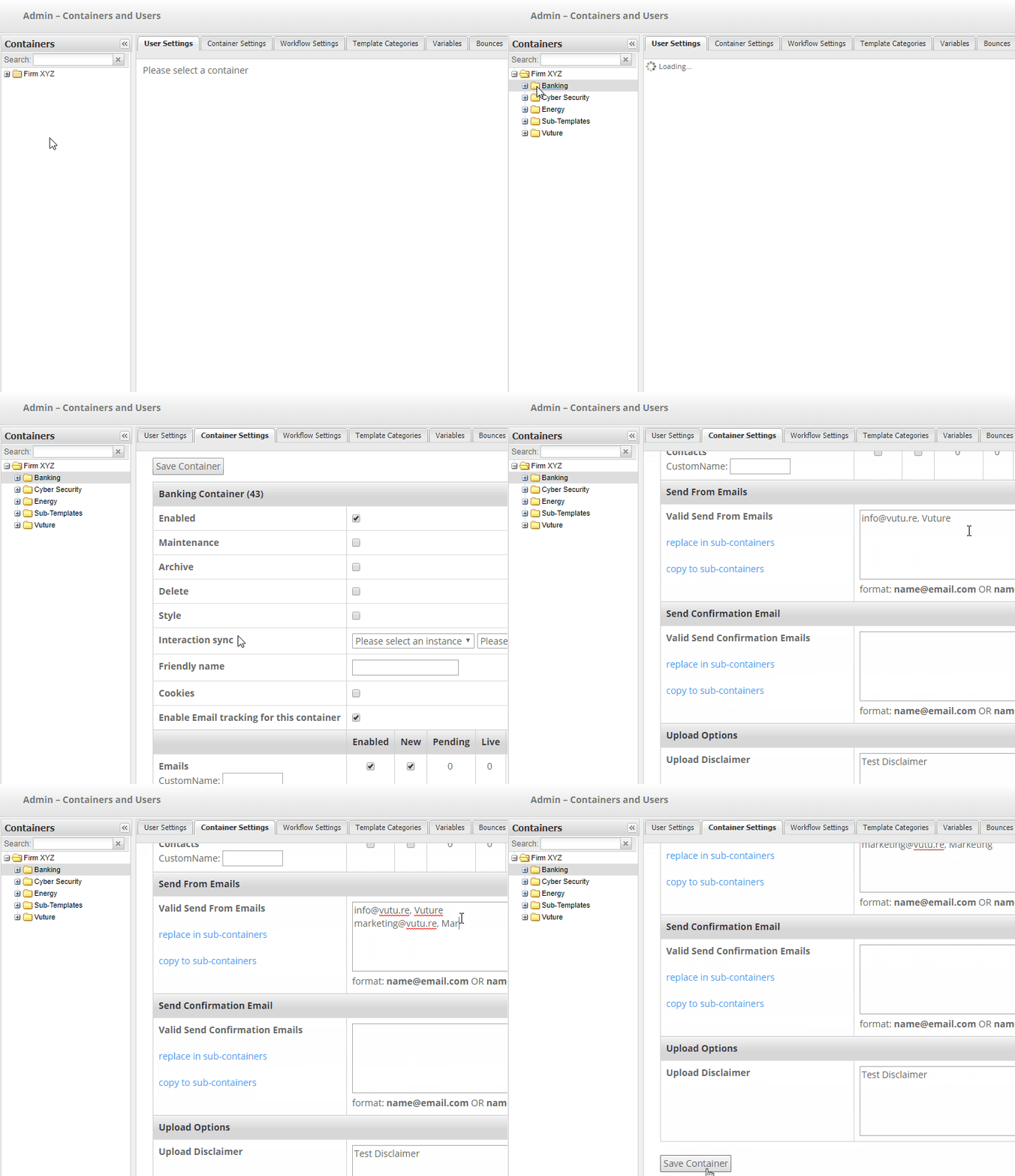
There are two additional options here to make it easier to update From Addresses in sub-containers:
"replace in sub-containers": This will update the From Addresses in all sub-containers to match this container removing any existing From Addresses.
"copy to sub-containers": This will update the From Addresses in all sub-containers by adding the From Addresses in this container to the existing From Addresses (duplicates are removed).
