Introduction
We wanted to provide Admin Users with a platform-wide view of all their Triggers and Filters across all containers. The Entity Dashboard will allow this platform-wide view, based on a new Role being enabled and users having access to the Admin.Containers & Users area of the platform. The Dashboard is intentionally very simple; a basic view of all Triggers and Filters plus the ability to delete.
Prerequisites
Admin.Roles.Reports.Entity Dashboard Tool Access should be enabled
(For Vuture Only, in the Configuration Manager this is called Entities_Dashboard_Tool_Access.)
You will also require access to the Admin.Containers & Users area and the Admin dropdown list in that area.
Note: The Admin dropdown list on the Home screen will not contain this option.
Step by Step
This tool was previously accessed via the Admin menu. The route to access it is now via Home>Help>Tooling and select Entity Dashboard (Triggers and Filters) from the Tooling menu.
The dashboard will open, but with no data showing.
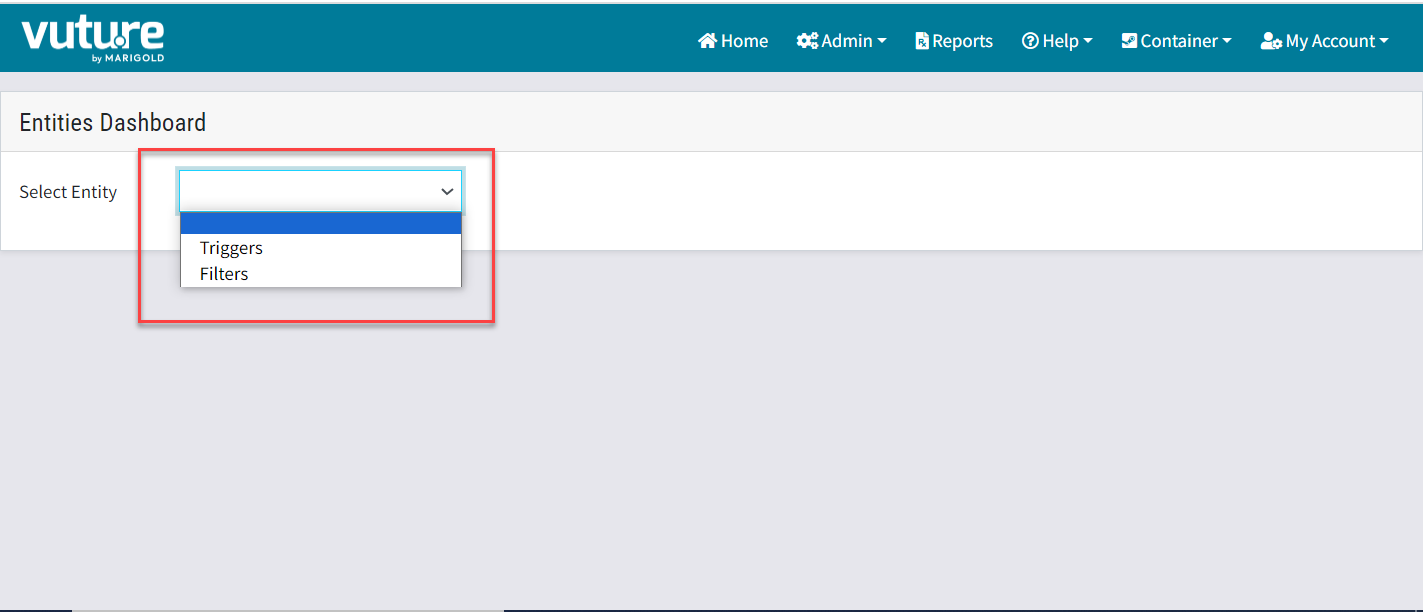
Click on the drop down arrow in the Select Entity box to choose either Triggers or Filters. There will be a pause while the data loads.
Note: If you have thousands of Triggers on your platform, the pause could be 5 or even 10 minutes.
Managing Triggers
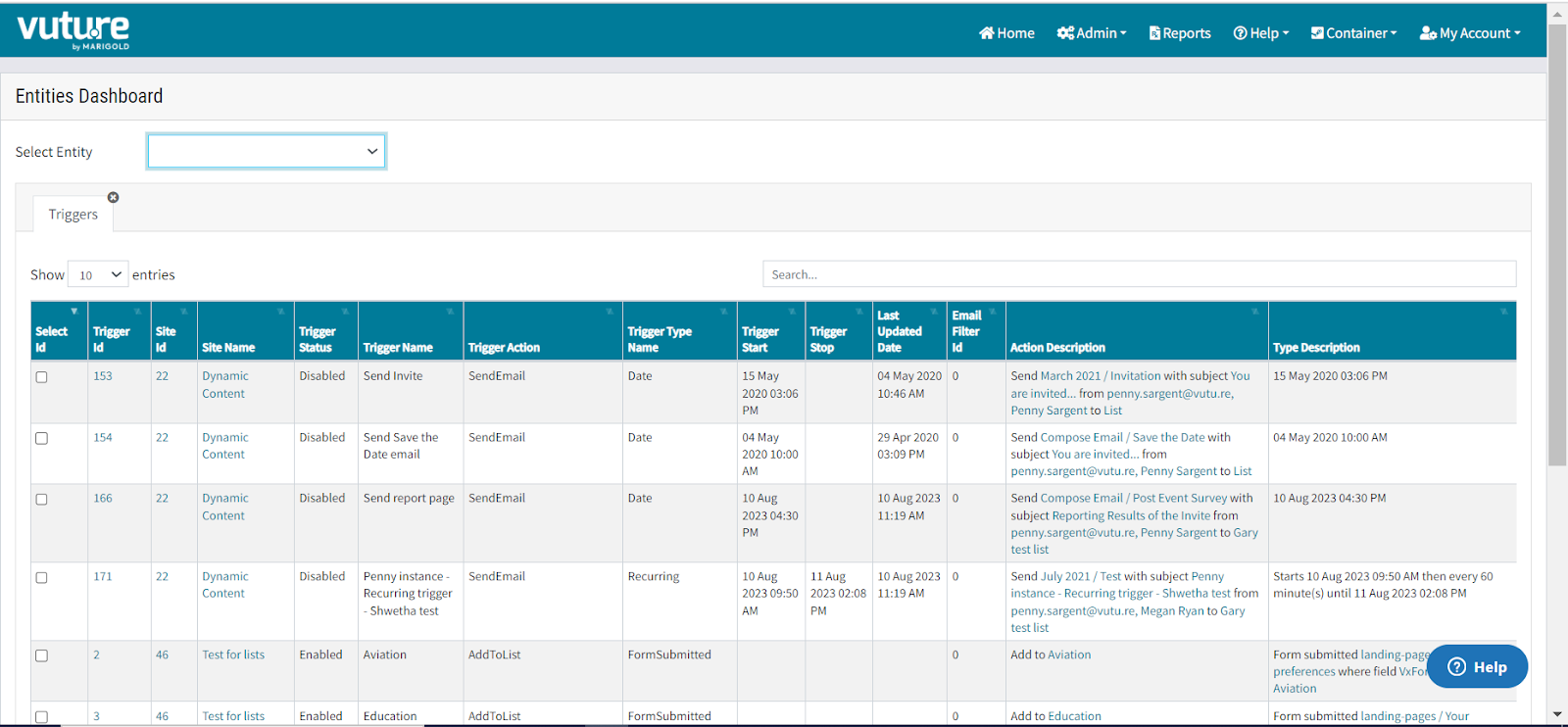
Select Triggers. After a short pause the screen will present all triggers currently on the platform, both Enabled and Disabled, with links to the campaign where the trigger sits.
Delete One or More Triggers
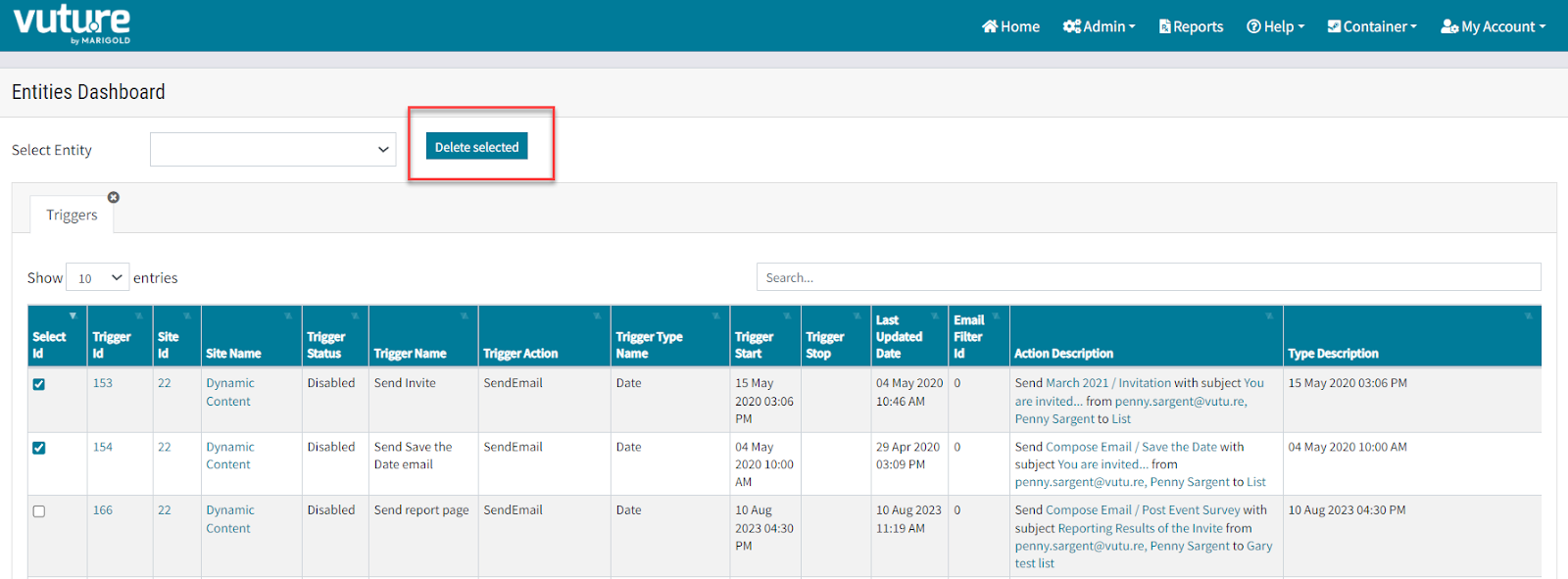
From this point, you can select one or more Triggers. Once at least one Trigger has been selected, the Delete button will appear, giving you the option to delete old Triggers from here.
Warning: If you decide to delete one or more triggers, you will get one message
“Are you sure you want to delete selected records?”
If you select Delete, your selected trigger(s) will be deleted and there is no Undo function.
Best Practice: Check the location of each trigger before selecting it to be deleted. The dashboard contains the following information to help you:
| Table Column Heading | Information |
| Select Id | This Checkbox allows single or multiple selection of Triggers - for performing bulk deletion for example. Take care! |
| Trigger Id |
Is a link. Every trigger is allocated an ID as it is created. This ID is unique across the platform. Lower numbers are likely to indicate an earlier creation date.
Click the arrow at the top of the column to sort the entire table by Trigger ID.
|
| Site Id | Is a link. Links to the campaign where the trigger is applied. |
| Site Name | Is a link. Links to the campaign where the trigger is applied. |
| Trigger Status | Can only be Enabled or Disabled. The entire table can be sorted by clicking the arrow at the top of this column. |
| Trigger Name | This is the user-specified name given as the trigger was created. |
| Trigger Action | The resulting action that should take place when the trigger is fired. The Actions are Add to List, Remove from List, Disable Triggers, Publish Page, Send Email, Send Email to Matches |
| Trigger Type Name | All triggers have a Type. The Types are Date, Email Not Opened, Email Opened, Form Not Submitted, Form Submitted, Link Not Clicked, Link Clicked, Recurring, Trigger Completed, URL Visit |
| Trigger Start | Date |
| Trigger Stop | Date |
| Last Updated Date | Date |
| Email Filter ID | Where a Filter is used in the Trigger, gives the Filter ID |
| Action Description | Description of what is going to happen when the trigger fires. For example: “Send Compose Email / Webinar reminder with subject The {{WbnrTopic}} is tomorrow. from ClientSuccess@vutu.re, The Training Team at Vuture to Cat's Training List filtered by TRG Webinar setting up triggers RSVP is YES” |
| Type Description | Describes the time when the trigger will fire. For example: “Starts 04 May 2020 21:20:57 then every 180 minute(s) until 15 May 2020 21:22:20” |
Managing Filters
The Filters dashboard is simpler than the Triggers dashboard.
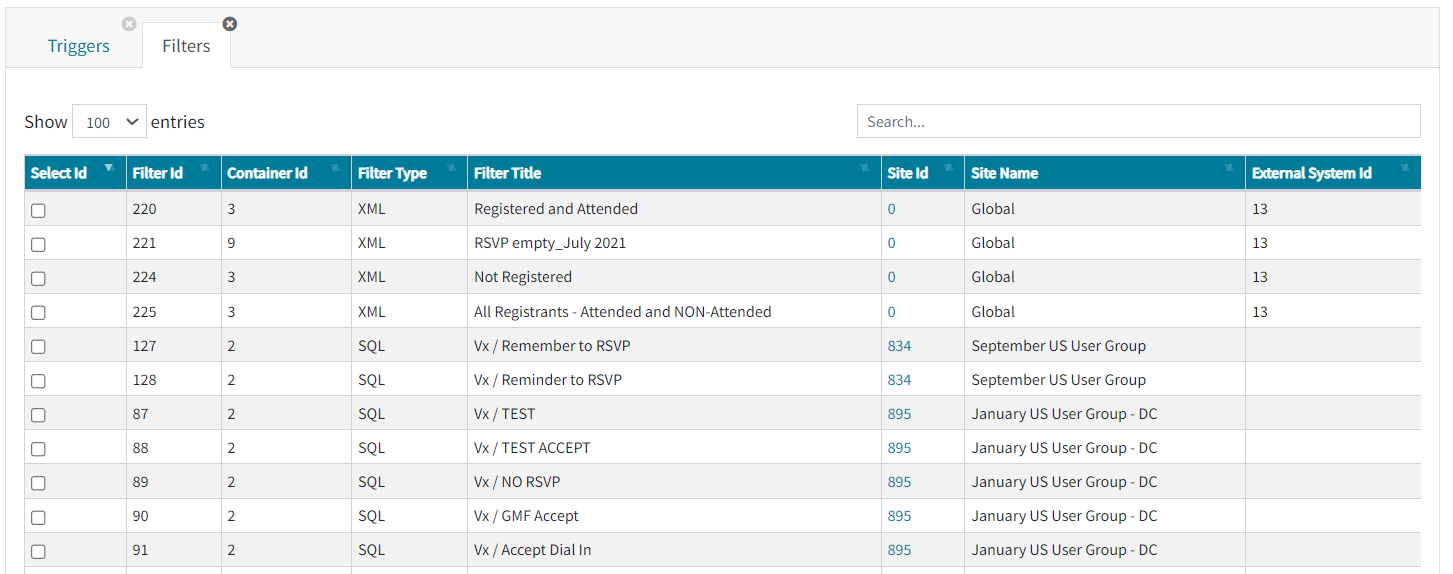
| Filter Id | Is the unique Id for each filter |
| Container Id | Is the Id of the Container where the filter is in use. |
| Filter Type |
The type of filter created, XML or SQL.
This depends on the CRM in use.
|
| Filter Title | The title given by the user when the filter was created. |
| Site Id | This is a link to the campaign where the filter was created. It will be a 0 for Global filters because Global filters do not relate to one campaign. |
| External System Id | This may be blank if the filter is an older one. If present, it indicates the external Id of the CRM in use. |
Admin users will be able to select and delete Filters which are no longer required. Selecting one or more Filters will cause the Delete button to appear.
Warning: It will be possible to delete multiple filters and there is no Undo feature so caution is advised.
In this Filters dashboard, only the Site Id is a link. Users can click the link to be taken to the campaign where the filter was created and may still be in use.
Users will only be able to visit containers or campaigns to which they have access.
FAQs
Q. Is it possible for one trigger to be applied in more than one campaign? “Create once, use twice”, for example?
A. No. A trigger may appear to be exactly the same as another trigger, but as each one is created they will receive a different, unique ID.
