Form Logic and the Count Variable
If you are new to Form Logic, please review the introductory articles available before embarking on this one. Try https://support.vutu.re/hc/en-us/articles/360020561297-Form-Logic-Start-Here-An-Introduction-to-Adding-Logic-to-Forms-and-FAQs
The Count Variable
Typically (but not exclusively) used for counting RSVP responses, a count variable in Form Logic can be used to keep track of how many RSVP = Yes you have received for your event.
It can be a simple count for information, or it can also be used in conjunction with a > greater than or < less than statement to show or hide the RSVP field, in order to Limit Form Submissions.
If you combine the count with knowing the capacity for your event, you could insert a line onto your RSVP form, or anywhere in your campaign, like this:
“This event has a capacity of X places. We have already received {count variable} responses.”
where you insert the number of places instead of X. The count variable number will update automatically each time a user refreshes the page.
The count variable can be constructed manually if you know the field IDs for each field you are counting, or if you know where to find the IDs, and there are multiple articles in our Knowledge Base on how to do that. It can also be copied from the Form Logic Wizard. However, to make really simple for you to build a count variable, we have built a Count Variable Generator.
Prerequisites
- Automatically available to all existing Form Logic users, the Count Variable Generator works with either the legacy campaign pages or with the newly released, updated UI pages.
- If you are not already a Form Logic user you will need to ask your CSM to enable Admin.Roles.Show generate form logic button for your Role
- To enable a count, first link a campaign to a list source. This will verify that the Generator can “see” the lists, and the additional fields associated with those lists which are available for counting. Otherwise, the count will always be 0. This means you will need to build your RSVP form as usual, insert your RSVP field as usual, (connecting the mailing list), save the form, and then generate the Count Variable.
Image 1 - Count Variable Generator in a legacy form
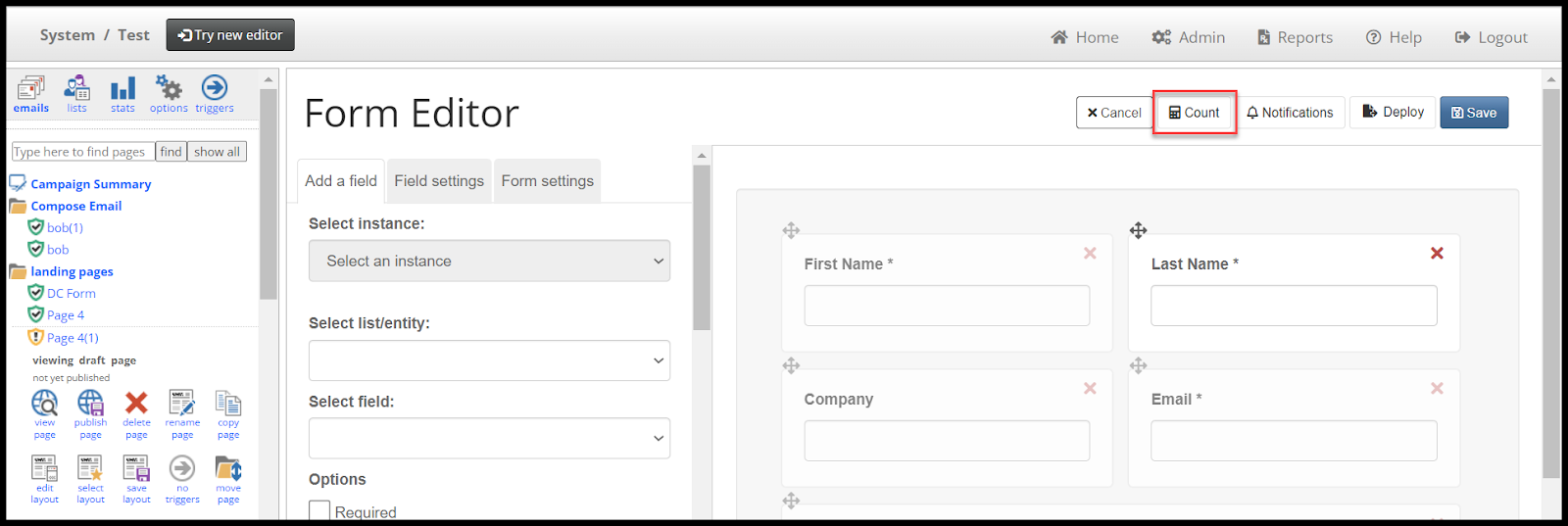
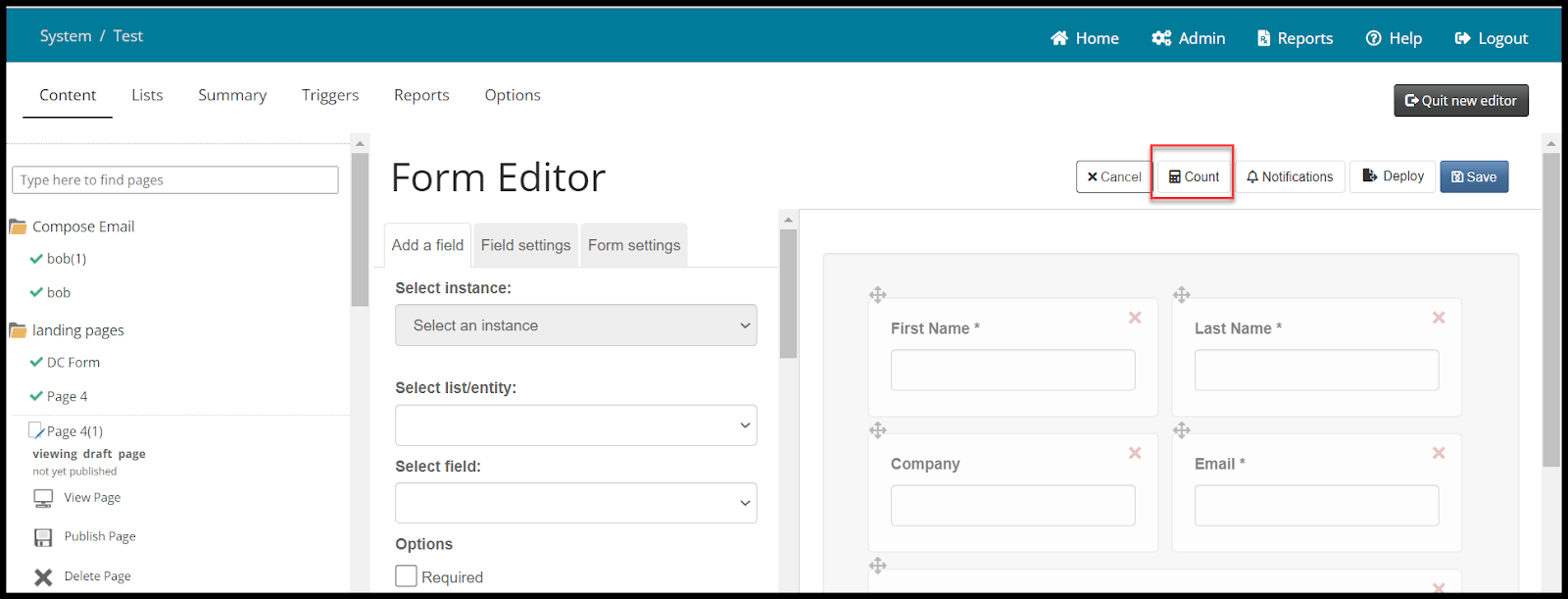
Image 2 - Count Variable Generator in a new UI form
How To Generate the Count
In the campaign, build your form, and connect the RSVP to a list in your list source.
Save the form.
Return to the form and click on Count (highlighted in the images above).
Image 3: The Generate Count screen
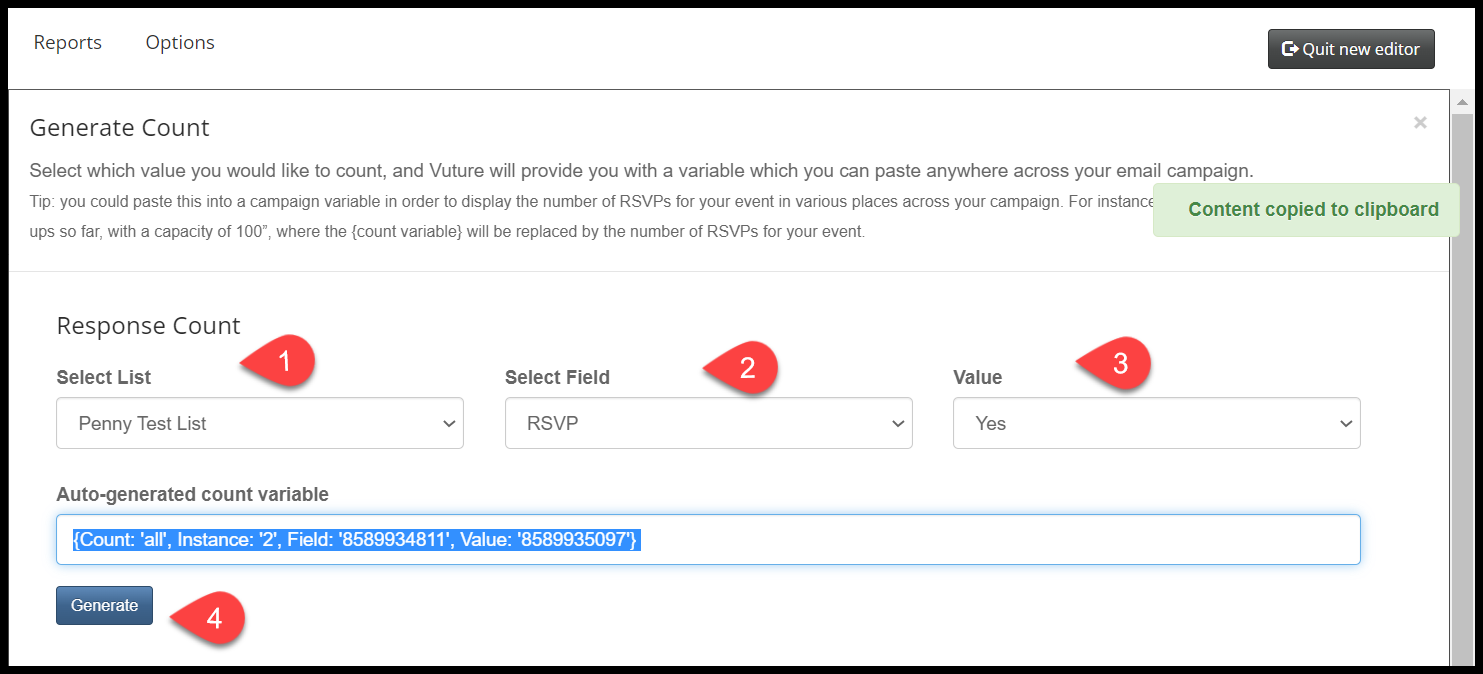
Select the List, the Field you want to count and the Value you are counting. This will typically be RSVP and Yes, but the Generator could be used for counting other field values too.
Click on Generate.
You will see the Count Variable appear, highlighted in blue because it has automatically copied to the clipboard (message is visible top right in green).
Navigate to the position where you want the number of registrants to appear and click on either Paste or Control V.
Image 4: Inserting the variable onto the invitation.
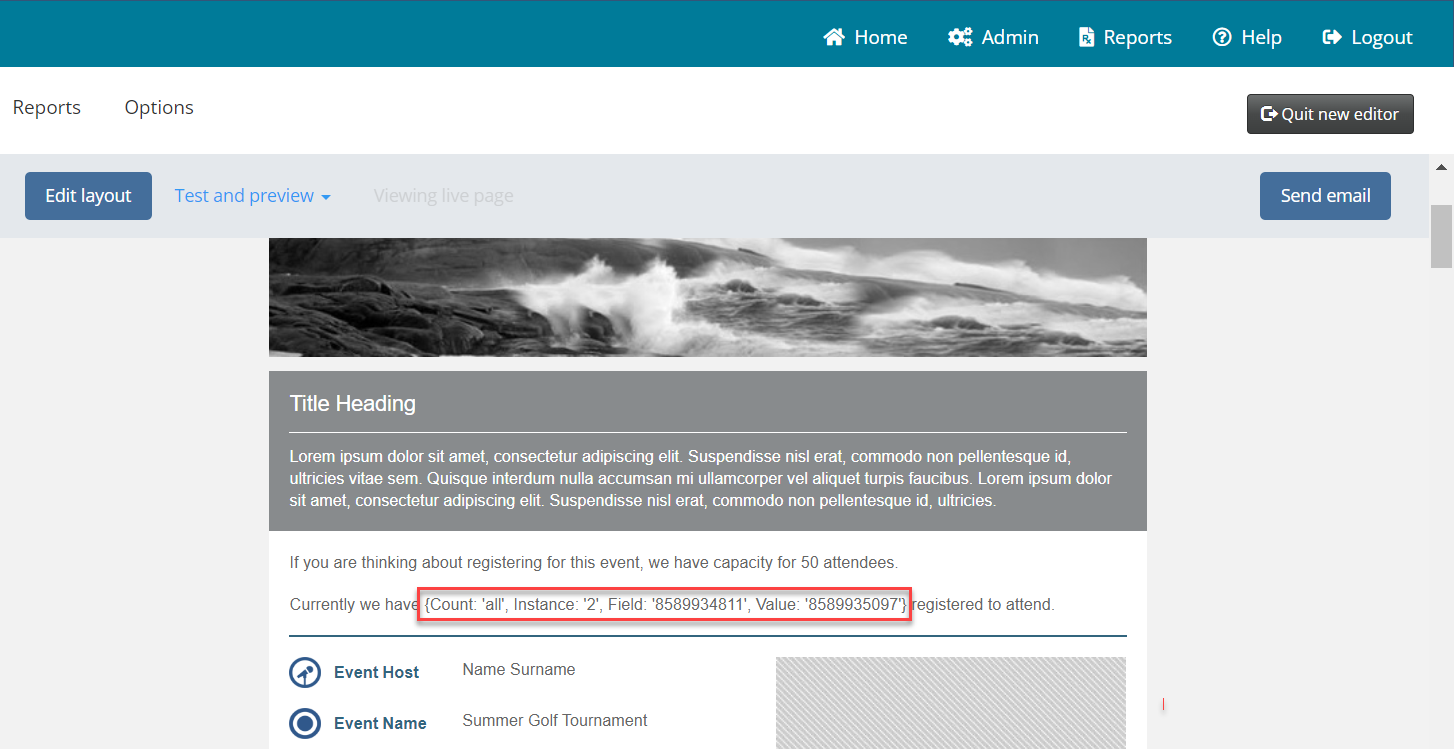
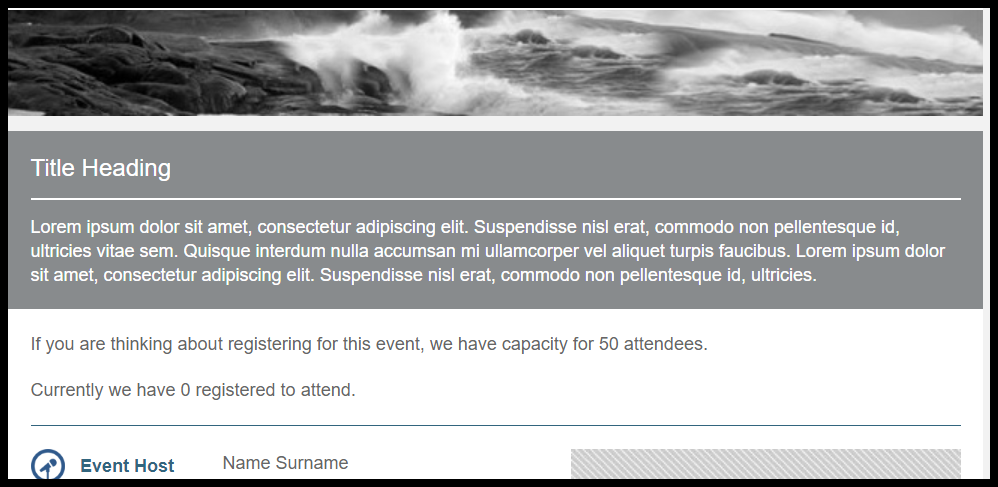
This will insert your variable onto the page. In this example, we have added the text "Currently we have" before the variable and "registered to attend" after the variable. This indicates that we are expecting to leave the number visible for attendees. However, it is also possible to just delete the whole line before mailing out the campaign and not share this information with attendees.
To see the count working, Save the page and click on View.
Image 5: The page in View
Using the Count Variable Generator to Limit Form Submissions
To limit form submissions, you need to build some Form Logic which says “show the RSVP field until the number of Yes responses reaches x number” or, “as long as the RSVP Yes responses submitted are less than capacity”.
You should use the Form Logic Wizard to generate the whole line for you.
The Count Variable Generator does not replace the Form Logic Wizard; it simply adds a further tool to the Wizard for when you want a quick count of responses to a form, which you can place anywhere in the campaign.