Note: The new-look Campaign Editor is mandatory for all users from 30 September 2024
Scroll to the end of this article to read the Q&As.
Introduction
We have released a newly-refreshed and updated appearance of the Campaign Editor screen and it is now in use for all clients.
Why?
We wanted to update the User Experience on the screen; to make it clearer, easier and more intuitive to use, and to give the screen a smoother and more modern appearance.
We have refreshed the “look and feel”, not the functionality of the buttons and links. Every feature (except Test Email, now renamed View as Contact but working as before) continues to be named, and work, as it previously did, but the appearance and layout of the screen and where you will find each feature will now be different.
Access
It is enabled at Admin.Roles.VxR Campaign Editor

Summary of changes
No features have been removed from the Campaign Editor; however, many individual options have been moved to more logical places on the screen.
- Common tasks have been grouped - we hope more intuitively - to put all the planning, layout and preparation in one place, then the checking and testing tasks together, and then the sending.
- Folders remain as previously laid out - Compose, Landing Pages, Uploads, Date folders (once a mail has been sent). Users can rename, or create new, folders as before.
- Campaign Summary is now in the top menu, between Lists and Reports, renamed Summary.
Pages Updated
The list is as follows:
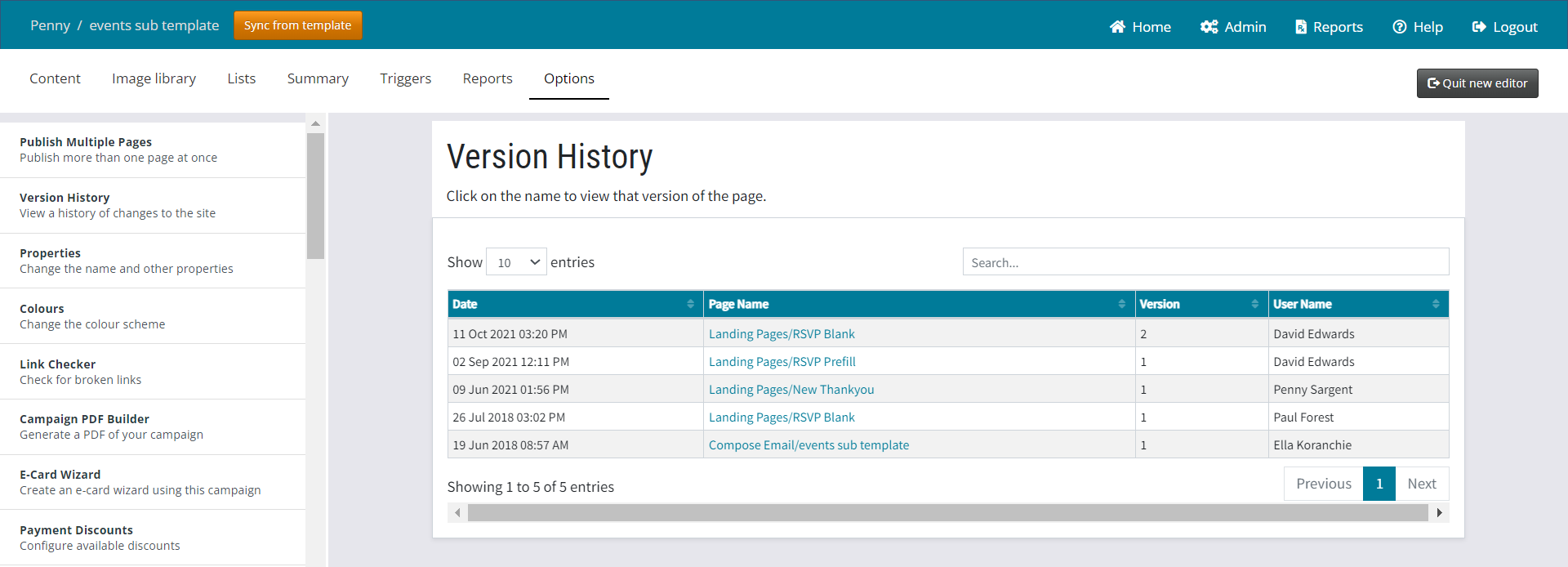
Campaign version history (campaign > options > version history)
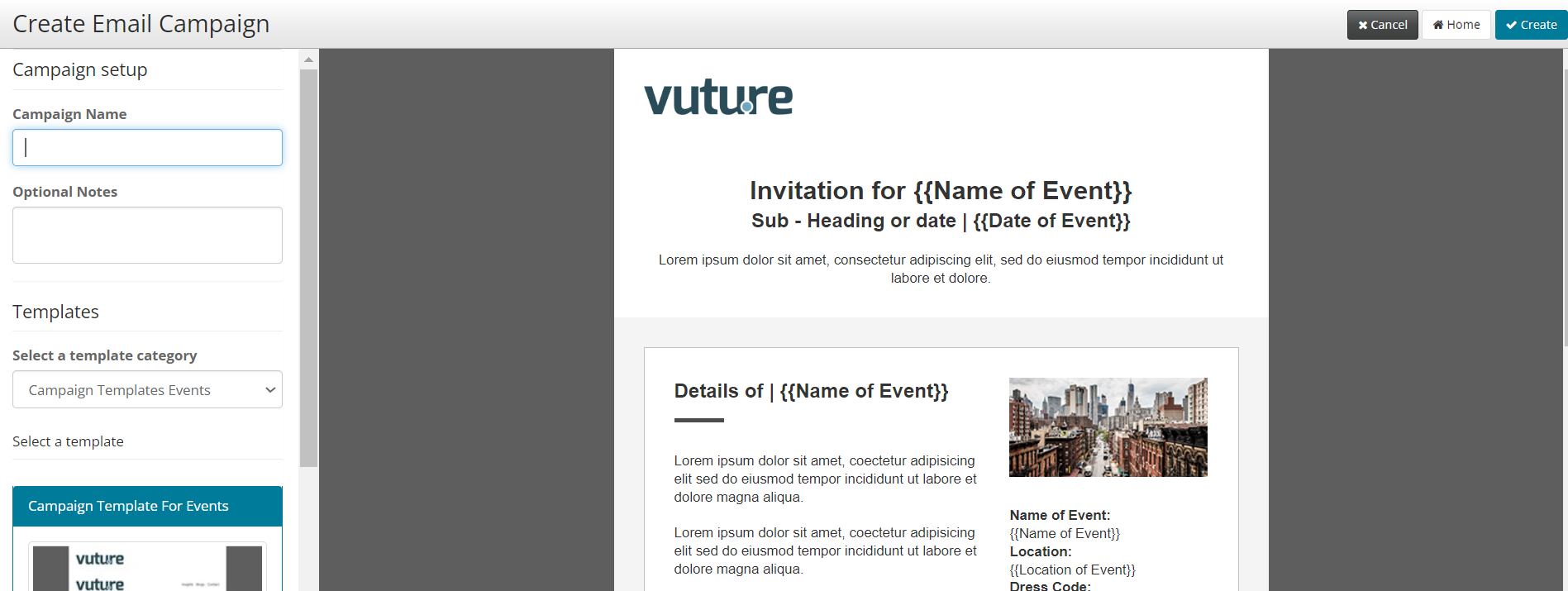
Create campaign (screen on clicking new campaign)
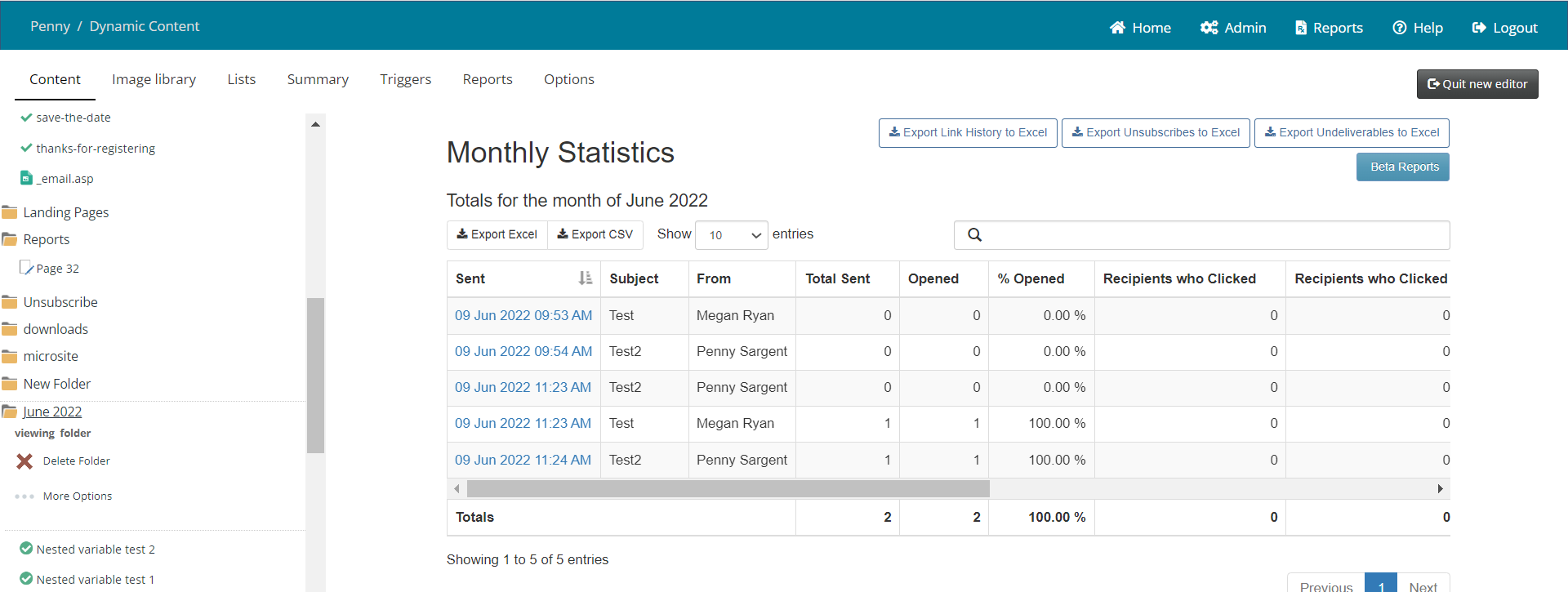
Email monthly stats (in campaign view when clicking on a month folder)
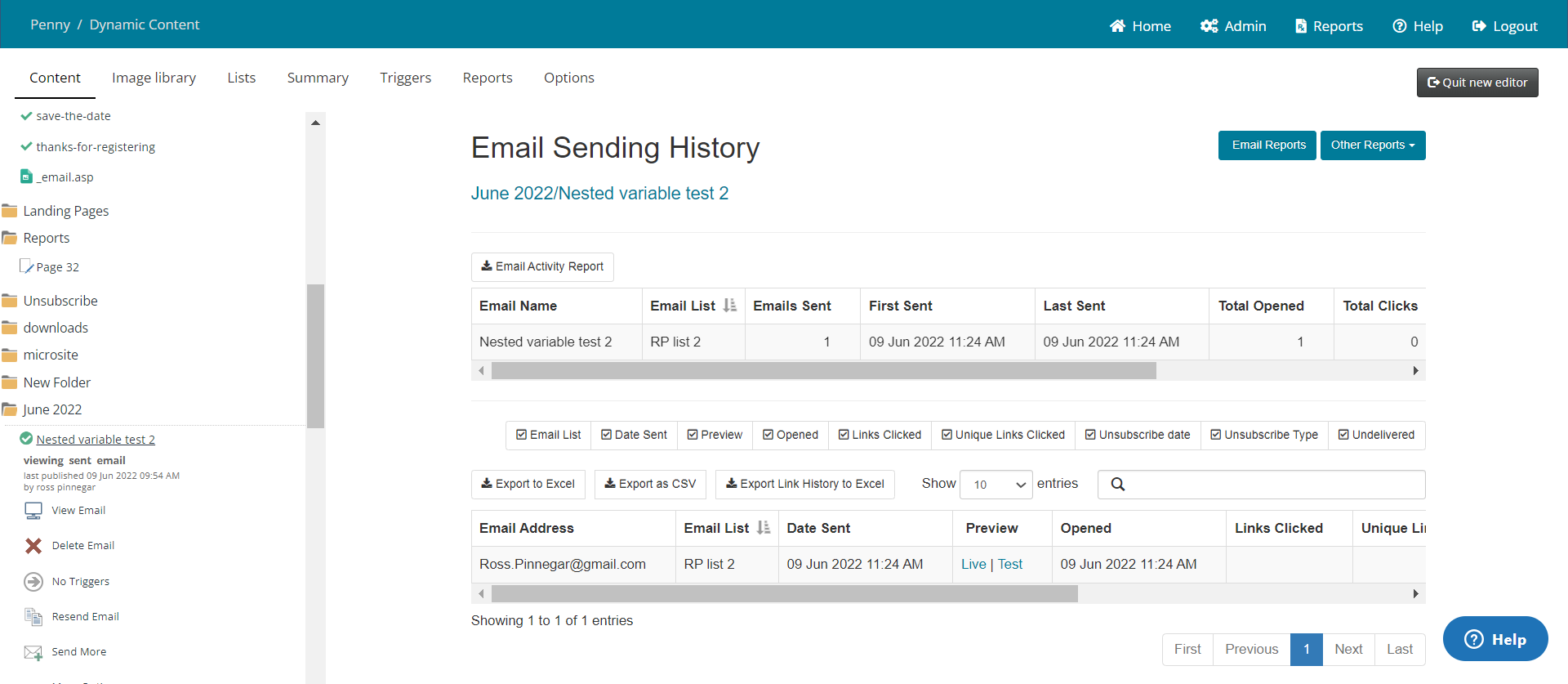
Email sending history (in campaign view when clicking on a sent email)
Select layout (campaign > select layout)
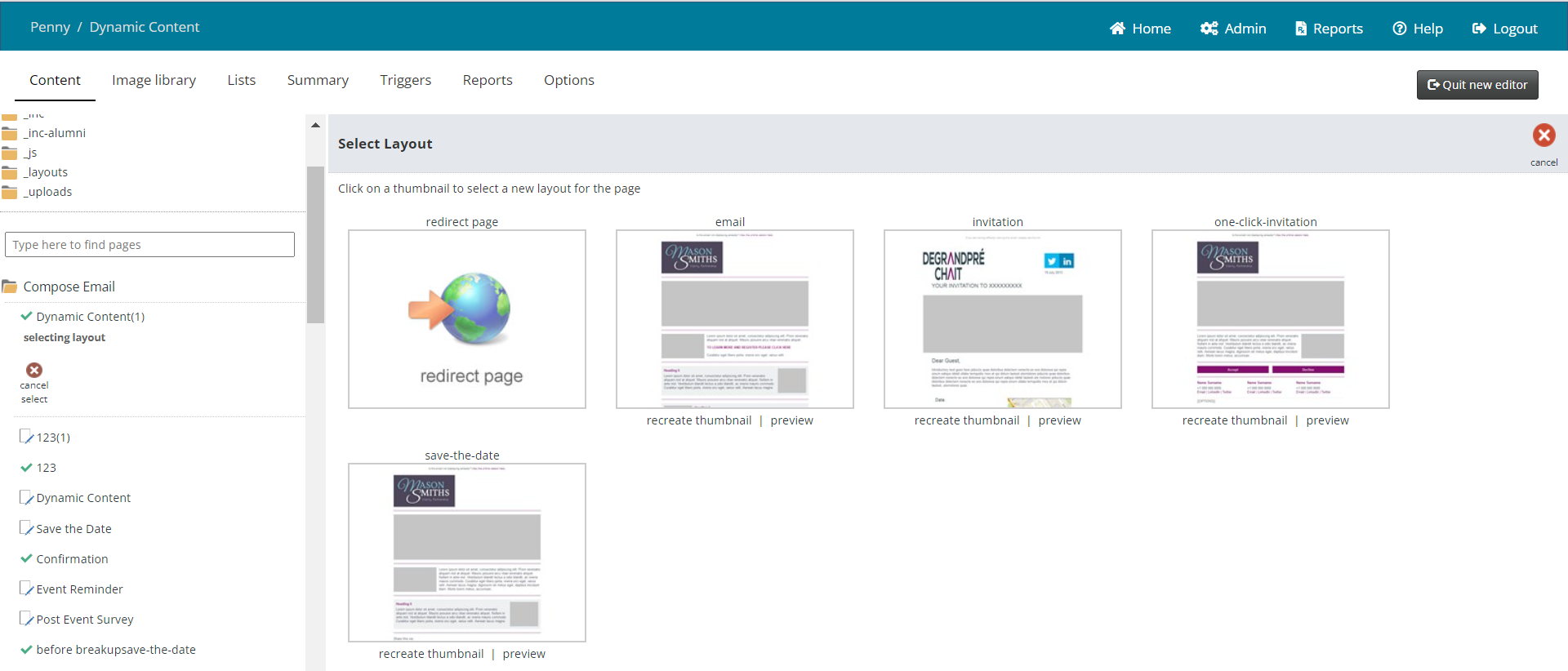
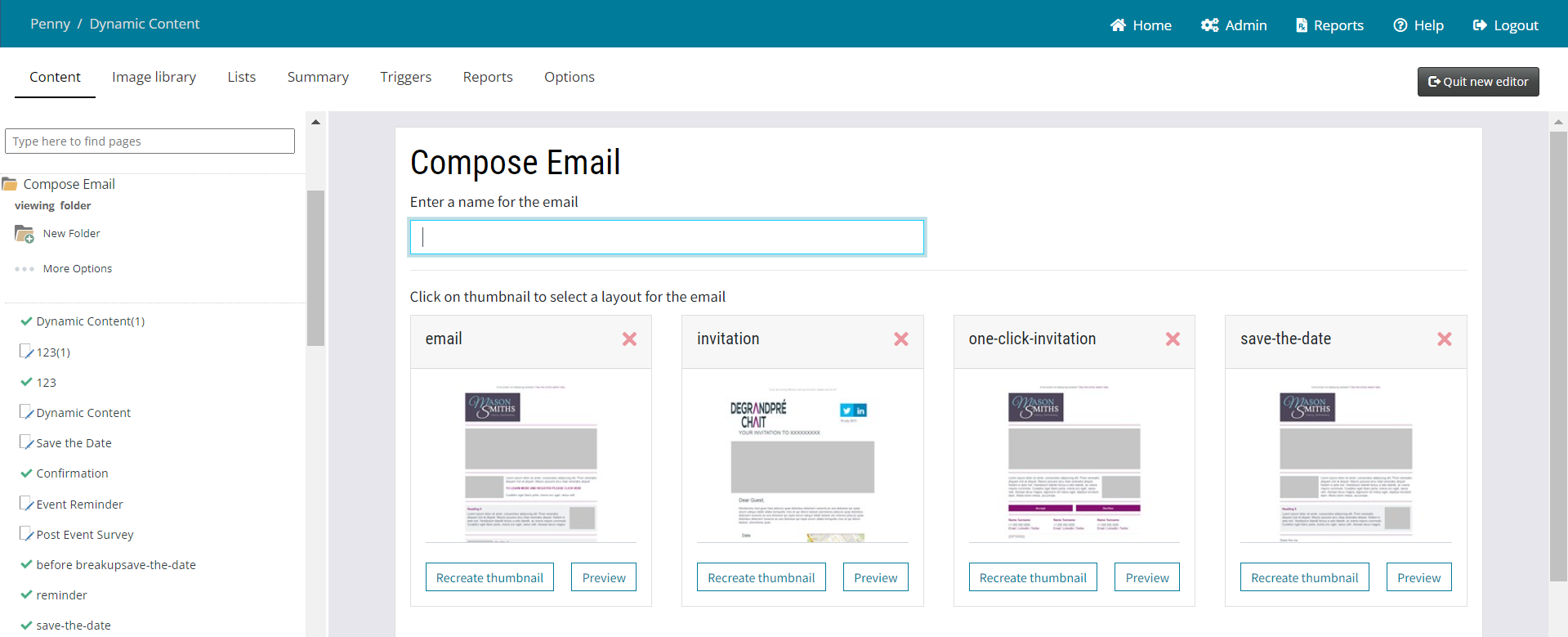
View stats (campaign > page > view stats)
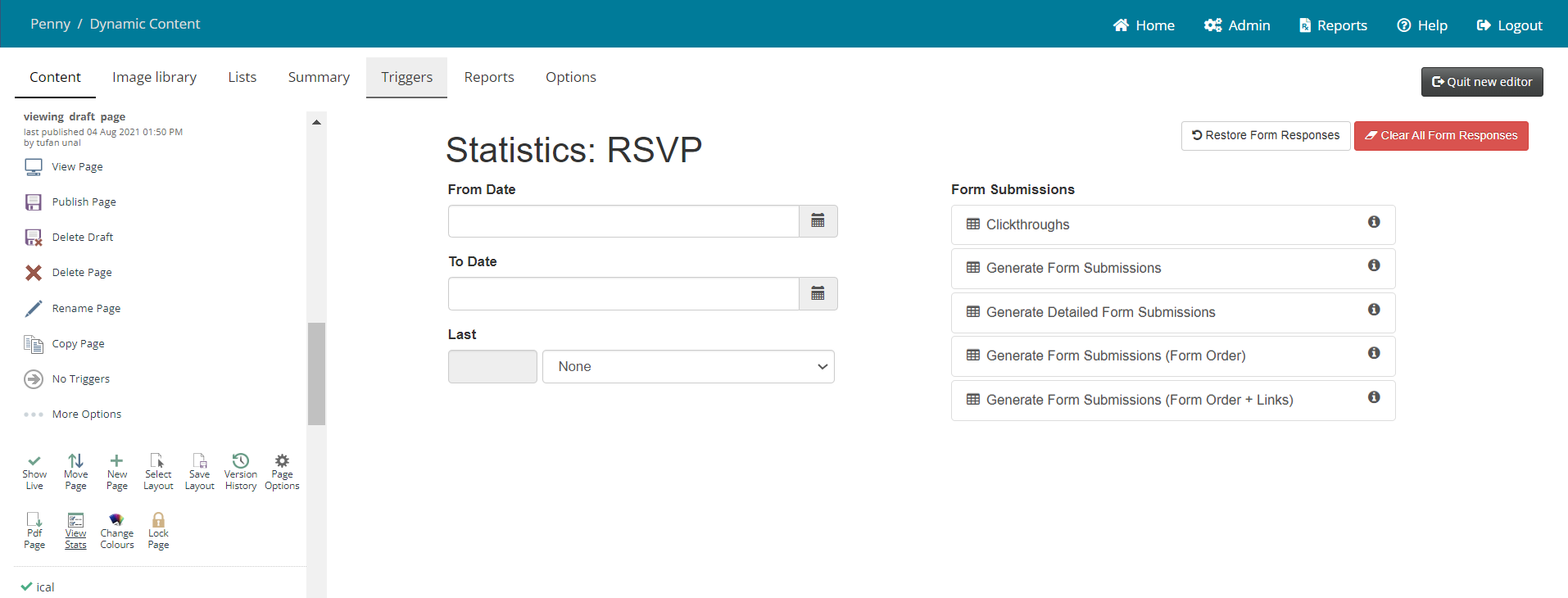
Further pages will be delivered as the work continues.
Getting Started
Start in Content. This is where you will build your campaign, move snippets around if required, and add or edit content.

We have moved the Text Editor to allow inline editing directly on the email page, simplified the text icons and separated the creation of an email from the testing and sending functions by adding new menus. See more below.
Content
The Content area is where users will create the email, add and edit text and links, and generally prepare the email for checking, testing and then sending. The familiar folder structure of Compose Email, Landing Pages and Sent emails still exists. However for quicker access we have included only the most frequently used icons at the top and put the rest of the icons under …More Options.
The Edit Layout icon has a new position at the top of the current page, alongside the new Test and Preview menu.

Test and Preview
Test and Preview allows the user to:
- See the email in a browser (View Email). There are now options to preview the email in different formats:

The email will open in a new tab in your browser. Simply close that tab to return to editing your campaign.
- See it as a contact would see it (previously called Test Email, the only icon to be renamed).
- Send a test email internally, to check the flow of pages
- Check all the links on the page.
These are all functions which existed previously, but they were scattered around the screen.
Published and Draft Emails
Published emails are indicated by a green tick icon, and emails which are still in draft have a pen on a page icon, both indicated in red below:
Editing Text - Inline Editing and Spell Checker
Clicking on any block of text will open the new Inline Text Editor. The Editor will open each time a text snippet is clicked.
Note: To save time, you can edit the text in multiple text boxes then save them all in one go with the "Save content" button. Clicking "Cancel" will then lose changes across all text areas since the last Save.

The controls in the new text editor are the familiar tools which closely mirror those in Word and other text editors.
Spell Checker
There is an option in Vuture to enable the built-in browser spell checker. For Chrome this gives the squiggly red lines under mis-spelled words without users having to click a button.
Prerequisite for the built in Browser Spell check
Ask your CSM to enable: Admin>System>EditOptions>Enable Browser Spellcheck
Note that this is a global setting so it will apply to all containers and roles.
Note: the browser spell check uses the settings and dictionary that are configured in the user's browser. Vuture does not therefore have any control over that.
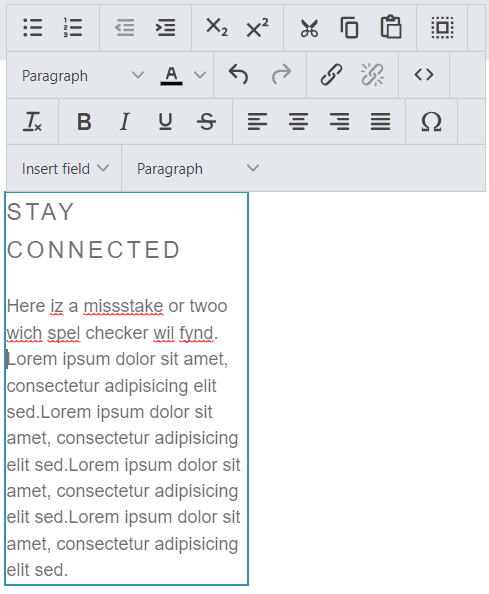
The red underlining in the image below is the browser spell check in action. Note that the spell check is not picking up the Lorem Ipsum filler text, only the newly added words at the top. It has also not detected every mistake. This browser feature from Chrome is an aide, not necessarily always 100% complete, and results may vary from browser to browser.
Copying and Pasting
When copying and pasting text into a text snippet, you may find it helpful to use right mouse click and Paste. Either one of the following:
Right click > Paste, or ctrl +V to paste with formatting
Right click > Paste as plain text to paste without formatting
The first option will replicate the old paste from Word function, and carry over most formatting from the source. This is typically not desirable when pasting onto a Vuture page because it may give unexpected results. It is generally safer and more reliable to paste as plain text, paste without formatting, and allow the Vuture settings to format your page.
Depending on whether you are using a Mac or a Windows machine you may get the option to Paste as Plain Text (Windows response), or to Paste and Match Style (Mac response). These mean the same thing.
Alternatively, to paste as plain text you can use the Paste icon in the Text Editor. The first time you use it you will be asked to Allow the Paste function in the browser.
Choose to Allow. This will then Paste as Plain Text.
If you choose to Block, you could still use the mouse right click option and the keyboard shortcuts (Control+C and Control+V) which will work.
Once completed, there is a Save content button at the top left, or Cancel, to back out without saving changes.
Adding and Editing Links

Highlighting any word and then clicking on the Link icon will open the simplified Link Editor.

Entering an email address as a link will generate a helpful message offering to add the mailto: prefix. Click Yes and the email address will be prefixed automatically.
The view will change from this URL shown below:

Via this message:

To this new URL (shown below), with the required mailto: added for you:

Note: When creating a hyperlink in your text, the words you choose to hyperlink will look like this mailto:penny.sargent@vutu.re If you experience any difficulty in ending the line of linked text, so the underlining is including the space after the address, for example, try clicking the right arrow. This will "jump" your cursor out of the hyperlink and allow you to keep typing, unlinked.
Personalising Emails
Personalisation fields can be added to the email by clicking on the Insert field icon.

Testing and Checking
Once you have composed the email, all the recommended “preflight checks” are together, under the Test and preview dropdown menu:

Most of the features and options, while they may have moved around the screen, are named as they were before. However, we have renamed one previous option - Test Email has been renamed As contact. This is because the option allows you to preview the email as a named contact will see it, so Test and preview As contact is clearer than Test Email.
We have added a device-level preview to preview an email as it will render on specific devices.

This will make it easier for you to check that your design is optimized for all scenarios.
User Experience - Look and Feel
The icons on the left hand side have been updated so they better reflect their function, and are cleaner and easier to spot. The grid of page level functions has been switched to a list to make the key ones easier to find.
The remaining icons have been collapsed behind the ‘More options’ button so that the number of page level options isn’t quite as overwhelming.
Reporting
For newer users, on the old screen it wasn’t obvious that you needed to scroll to a send email folder to find the in-campaign reporting data.
We’ve changed that now, and lifted the Reports area to the tab at the top of the page. Clicking on the Reports tab will bring the user to the latest sent email folder. This will better signpost where the data lives.
Sending the email
The updated send screen v2 remains as before except for the addition of type ahead searches added to the list drop down on the Send Email screen when picking a filter. This will make it easier and quicker to find the correct filter. We have also added the type ahead search when creating a filter, to find the correct list.
FAQs
|
Q. Does the multi-device view remove the need for a Litmus account?
A. That would be your decision. The multi-device view is a preview tool built by Vuture, based on screen resolutions (sizes). Please be aware that it is not an inbox preview, because different email clients render emails in different ways. Therefore using a service to preview emails in different inbox providers is still valuable.
|
|
Q. Is the old Stats icon now replaced by the new Reports item?
A. Yes. Items from the menu item (at the top left of the screen, was called Stats) can now be found under the Reports menu.
|
|
Q. Is the filter still the same on the sending screen?
A. Yes. Filters have not changed in the new Campaign Editor screens except we have added a Type Ahead search for the drop down list of lists.
|
|
Q. Is Send Sample still available?
A. Yes. No functionality has been removed.
|
|
Q. Check Links - how can we tell if there's a problem?
A. The link will be marked in red. This functionality has not changed.
|
|
Q. Is the Send More still available? If yes, where is it located?
A. Yes it is. No functionality has been removed. It is located as before, in the Date folders along with Resend.
|
|
Q. Will you eventually remove the option to jump between the old and new editor?
A. Yes. This happened on Monday 30 September 2024.
|
|
Q. How does the "reports" section now work? I used to pull specific dates and I can't seem to see how to get to that same screen now.
A. Reports work in the same way as previously. Clicking on a Date folder takes you to Monthly Statistics. Clicking on a sent email takes you to Email Sending History.
|
|
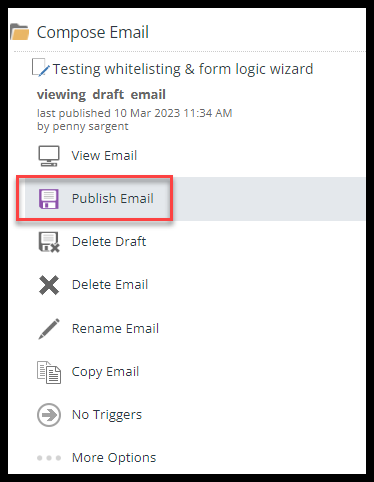
Q. Is there still going to be a Publish tab?
A. The Publish Email icon remains where it was before. To see it, click on an unsent email, make any change and save the change. Publish Email appears as an option in the Compose folder here
|
|
Q. Has the Reports screen changed?
A. No, we have just made it easier to navigate to.
|
|
Q. When will the changes happen? Is there a date?
A. The rollout of releases varies as we do it gradually across all our instances. The main changes to the Campaign Editor pages will be available when release 13.7 is rolled out to your firm’s instance. The extra changes - to the Inline Editor - will be available in release 13.8. There will be further improvements following after that.
|
|
Q. When doing the editing on top of the invite...is it possible to do it on the HTML screen?
A. No editing functionality has changed, so you can still edit the HTML of emails if you wish.
|
|
Q. Is there going to be an option to have a banner running across the entire campaign, rather than amending every page individually?
A. That isn’t in our plans at the moment, but there is a workaround to dynamically replace an image across a campaign.
|
|
Q. Will we have control as to which user roles have access to this and when, or will it be launched platform-wide from day zero?
A. Yes it will be controlled by your Roles.
|
|
Q. When will the old editor option be turned off?
A. On Monday 30 September 2024
|
|
Q. If you want to link to an email address will the hyperlink box recognize that?
A. Yes. If you enter an email address it will ask you if you want Vuture to insert the necessary “mailto:” prefix for you.
|
|
Q. What tool is Vuture using for the preview - Litmus?
A. It’s a preview tool built by Vuture, based on screen resolutions (sizes). Please be aware that it is not an inbox preview, because different email clients render emails in different ways. Therefore using a service to preview emails in different inbox providers is still valuable.
|
