Introduction
Only profile images can be uploaded into an alumni profile page in a Vuture alumni website.
Alumni website admins do not use the Edit-Profile-Image form page for uploading profile images to alumni profiles on behalf of alumni. That image upload form is for logged-in alumni only.
Instead, alumni website admins must upload alumni profile images to the alumni contacts’ (read only) Vuture User Account in the Vuture admin area. Specifically, Vuture/Admin/Containers & Users.
Steps for alumni website admins uploading a profile image on behalf of an alum:
#1. Log in to your Vuture platform. (Not the alumni website) e.g. https://clientname.vuture.net
#2. Use the top header navigation to navigate to Admin/Containers & Users.
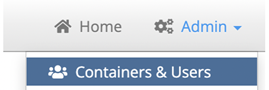
#3. In the Container listing pane on the left hand side, select the container populated with the imported alumni contacts. This will be labelled something like Alumni Microsite Access Control Folder or Alumni Microsite Access Control Folder - Alumni

#4. Allow the list of alumni contacts to load into the right window pane. This may take up to 30 seconds depending on the number of alumni contacts. Be patient!
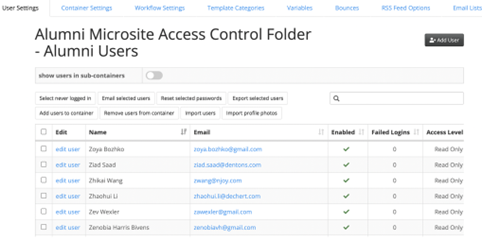
#5. Use the Search field to filter the list to find the specific alum contact you are looking for by adding their name or email address. This may take up to 30 seconds depending on the number of alumni contacts. Be patient!

#6. Click the Edit User link to the left of the alum contact’s name to access their Vuture user (read only) account page.
#7. Once the User account page has loaded, scroll-down the page until you get to the Profile Photo section.
#8. Select Choose file button to select the source image from your image source (drive/desktop)
IMPORTANT:
For Alumni sites. The profile photos MUST follow these parameters:
- Allowed image formats are JPG,JPEG,PNG,GIF,BMP
- Minimum image dimensions should be 400px * 400px
- Maximum image dimensions should be 1200px * 1200px
- Maximum image size should be 5 MB
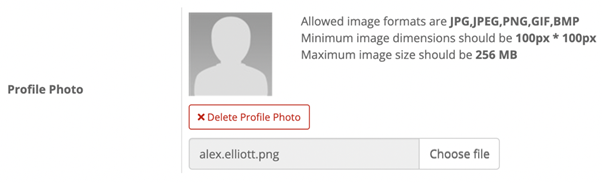
#9. When you can see the name of the image in the choose file field, click the Save User button at the top or bottom of the User page.

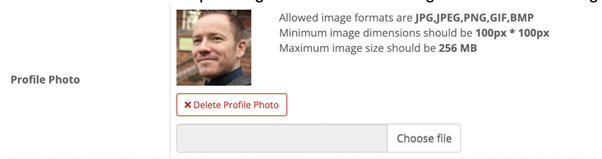
#10. Once more, open the alumnus Vuture User profile page and confirm the image has been saved into the image display. – This image is now used in the alumni site.
#11. Log into the alumni site front-end site and use the directory search to confirm the alumni contacts profile page is loading in the directory results and profile page.
BULK UPLOAD PROFILE IMAGES
There is also an option to do a bulk upload of profile images for the customer. However, the customer is required to first resize and crop all profile images to 400px X 400px and to save each image, named as the alumni contact’s alumni email address; e.g. alex.elliott@vutu.re.png
