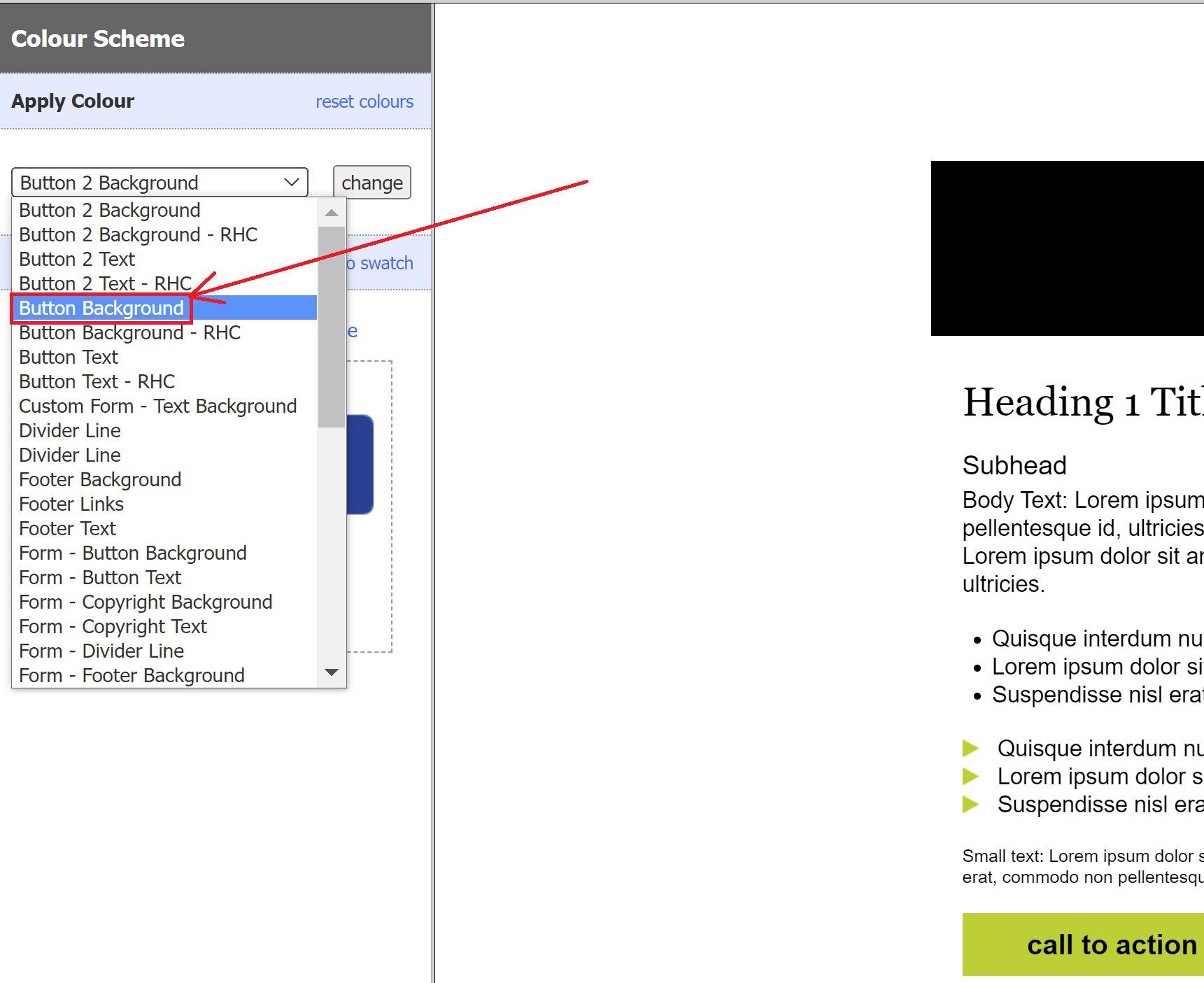
If you are trying to change the colour of an element on your email or landing page, but cannot figure out which option in the drop down list relates to the element in question, you can follow the steps below to identify which option in the list to pick.
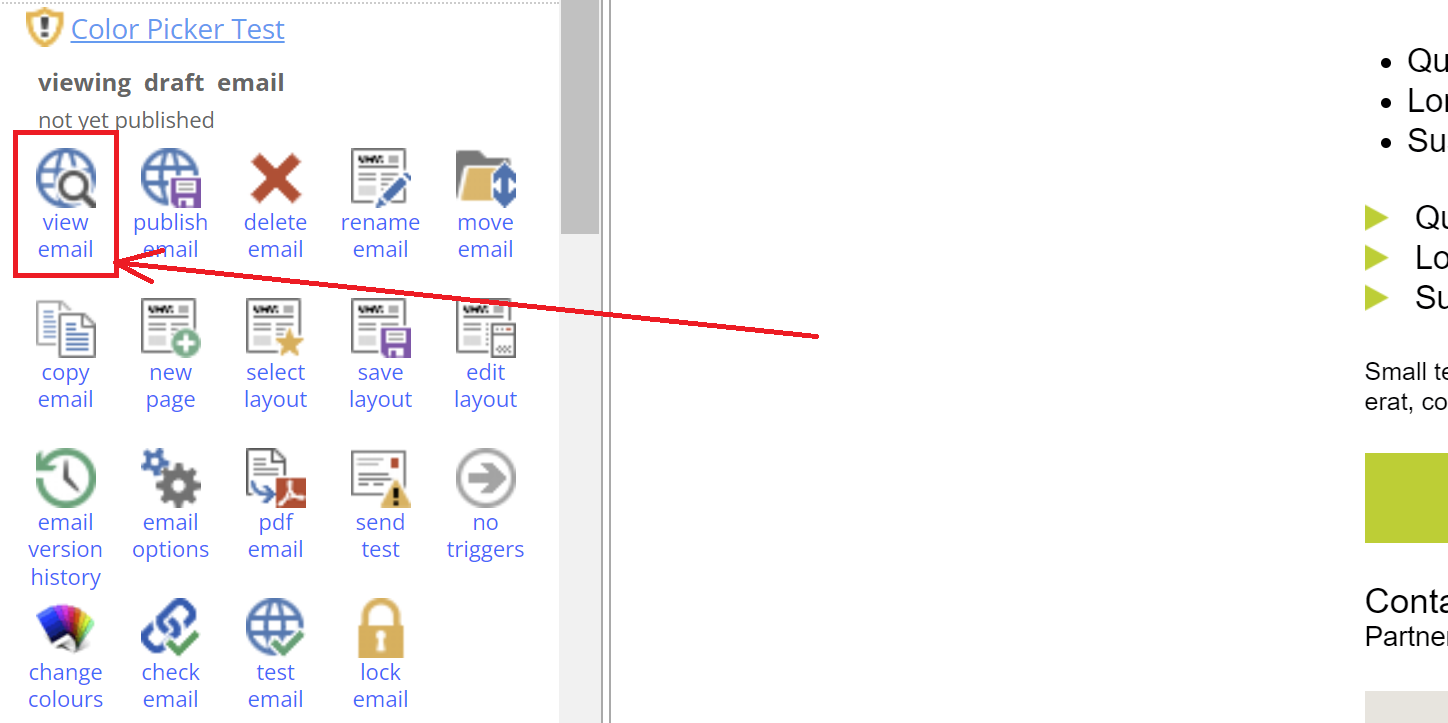
1. First, view the email or landing page online using the 'View Email' button ('View page' for landing pages).
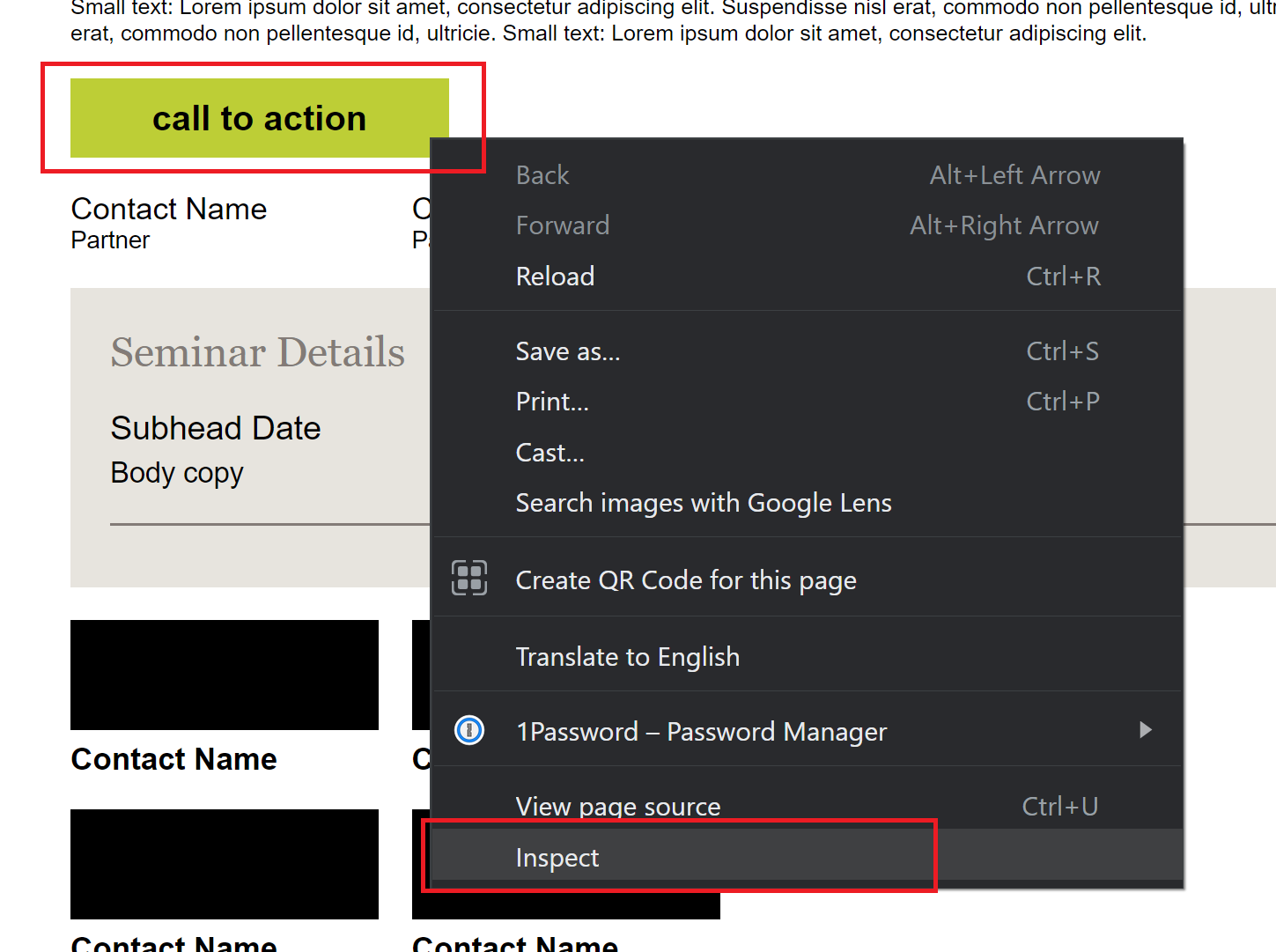
2. Once online, navigate to the item where you are trying to change the colour, right mouse click on it, and then click 'inspect' (in the example below, I am right clicking on the 'call to action' button's green background):
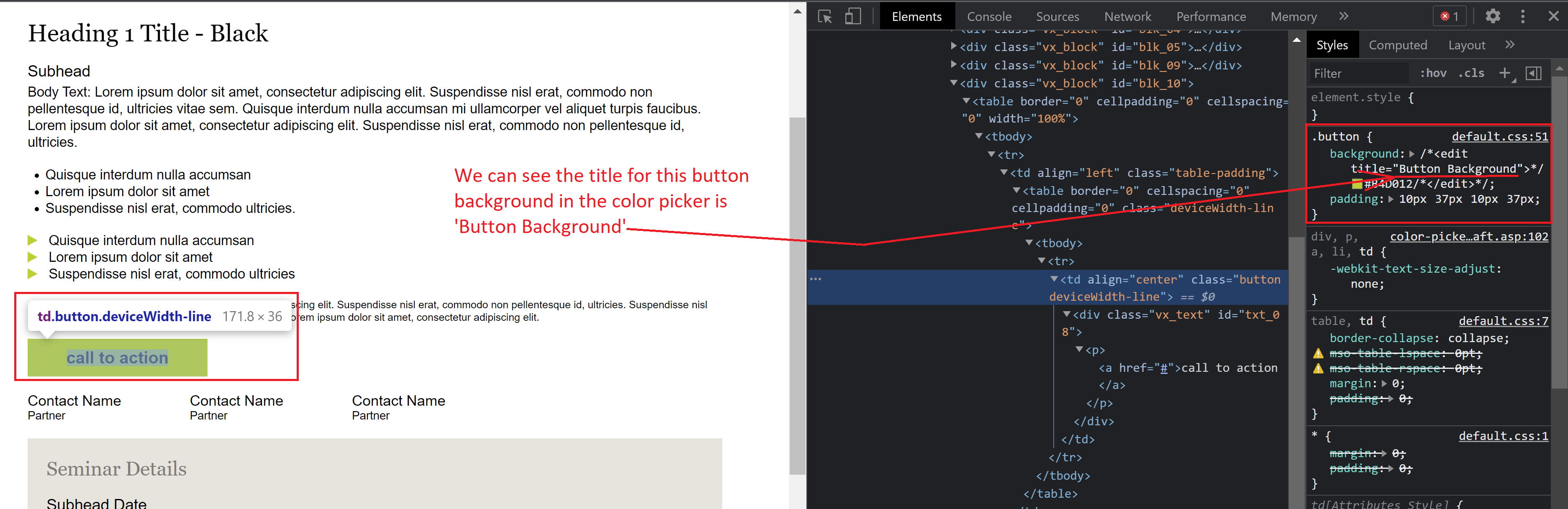
3. This will open up the HTML and CSS, with the cursor in the correct place on the page. We can see here a section with the text: 'background: /*<edit title="Button Background">*/#B4D012/*</edit>*/;'
(You could open this image in a new tab for better quality.)
This text has a small green square that is denoting the colour, and the text 'Button Background' is the option that you will look for in the colour picker list. Use the little x to close the Inspect page and close the Online view. Now return to where you were editing the page.
Looking at the screenshot below, the option 'Button Background' is in the colour picker list. You can now select this option to change the colour: