When we first introduced Form Logic for forms we tried to keep things very simple and easy to use. However there are occasions where you might want to use slightly more advanced Form Logic and here are some examples.
1. Negative response to one question hides the next question.
You have two fields on your form; for example RSVP and Food Preferences. If the contact responds negatively to the RSVP, you would like Food Preferences to disappear.
(Note: this particular example is more typically handled the other way around; if a contact responds Yes to RSVP then the Food Preferences question would appear. However, just for this example we will use the first scenario.)
In the Conditional Rule box for the second question, enter the following: FieldName != 'value'
like this, where this example has used VxForm_Accept-or-Decline for the Field Name:
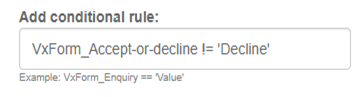
In English, this means; "do not show this field if the value of Accept-or-Decline is Decline" The code elements are exclamation mark and equals sign.
Note: Be aware that when writing a conditional rule for a negative response, your rule will look for something which is not present, and that will include no response given/no value selected. So for example, if the rule is “show this field if the response is not Decline”, the field will be shown if the response is not Decline but also if there is no response at all.
To prevent this, it is possible to check for null values using the extra piece of code: && Conditional Field Name != null
For example, adding the null check to the condition
VxForm_Accept-or-decline != 'Decline' && VxForm_Accept-or-decline != null
will mean ‘do not show this field if the value of Accept-or-Decline is Decline or, if no option is selected
This can be used with includes as well.
For example:
['Decline'].includes(VxForm_Accept-or-decline) && VxForm_Accept-or-decline != null
Remember, you can now use Copy and Paste, instead of Inspect, to discover and use the underlying values of the fields you need to create a Conditional Rule.
2. Joining two pieces of Form Logic with And or Or
Joining with And
Sometimes you will want a third question to appear if the contact answers Yes to q.1 AND q.2.
For example, if the contact answers RSVP = Yes and Will you be staying to eat with us? = Yes then the third question covering Food Preferences should appear.
The Form Logic which would be inserted into the Add conditional rule box for the third question in this example would be something like this, where the Field Names and Values are exchanged for your field names:
RSVPFieldName =Yes && StayingtoEatFieldName =Yes
The && indicates that they both have to be true for the Food Preferences field to appear.
This piece of code will work for Fields which are different; so in this example the "RSVP" field is different from the "Staying to eat?" field.
Joining with Or
Using OR in the conditional rule, you will need to be in the same field for the values, unless you introduce the use of brackets (see later example below).
For example, you could ask the contact in q1 Which City are you in? If they answer London OR Paris then the second question Which Euro workshop would you prefer? will appear. If they answer New York OR Chicago, the alternative second question Which US workshop would you prefer? will appear. This is using OR as an option in the same field each time - the City field. For this example, the possible values in the City question could be:
- London
- Paris
- New York
- Chicago
The conditional rule for the Which Euro Workshop? field would therefore be approximately:
FieldNameCity == 'London' || FieldNameCity == 'Paris'
where FieldNameCity is whatever your field name is called.
And the conditional rule for the Which US Workshop? field would therefore be approximately:
FieldNameCity == 'New York' || FieldNameCity == 'Chicago'
These value options are given as a list, each value separated by two pipe symbols (the straight vertical lines). You can of course have many more than two values in your example. As an alternative, for multiple choice questions, see Section 3 below.
3. Using Includes
Includes is a term that actually means (in non-techie English) "are included in". So the common English phrase would be: Any one of Value, Value, Value or Value are included in Field Name".
This is particularly useful for Radio Button or Check Box questions, e.g. RSVP.
Includes only works on one field at a time but checks multiple values. So an example question with multiple answers could be RSVP? with Yes, Maybe, Perhaps and Totally as possible answers. This would require a conditional rule as follows for the secondary question:
['Yes', 'Maybe', 'Perhaps', 'Totally'].includes(VX_form_RSVP_ListName)
In this example, the second question would appear, as long as the contact gave any one of the Yes, Maybe, Perhaps, etc possible answers.
Note: Do not forget the . before the word includes.
4. Checking responses from two different fields
This requires the use of || which means "OR" plus the use of brackets to separate the fields.
In this scenario there are two separate questions:
RSVP to In Person Seminar? and
RSVP to Online Seminar? with Yes/No possible answers to each question.
If the contact answers Yes to either question, the third question Are you bringing a guest? should appear.
In English this would be, "If the answer to q1 is Yes OR IF the answer to q2 is Yes then show q3.
The conditional rule on the third question would therefore look something like this:
( ['Yes'].includes(Online_FieldName) || ['Yes'].includes(In_person_FieldName) )
where the field names are your own.
Brackets around the entire line are required; square brackets and single quotes are required around values; Pipes between the two different fields and brackets around the field names are also required.
Alternatively you could check against two lists of possible values:
( ['Yes', 'Totally'].includes(Online_FieldName) || ['Yes', 'Totally'].includes(In_person_FieldName) )
This checks two different fields for multiple values, so if Field 1 has Yes or Totally OR Field 2 has Yes or Totally, then q3 would appear.
