File Will Not Load
Quite a common issue is when a user has not saved an image file correctly, as the correct file type. For example, if they save a PNG file as a .jpg it will not upload to the Vuture platform.
Solution: If the file fails to upload, change the file extension from .png to .jpg or vice versa and attempt to upload again.
If you prefer to check if the extension is correct rather than just changing the file extension and seeing if it works now, this error can be spotted by opening the image in an image viewer program like IrfanView which tells you it is incorrect. Alternatively, you can follow the detailed instructions below.
Checking the hex in a file header to find out the correct file extension.
You can find out the correct file extension by using a free hex editor, such as this one.
The below example is an image that has a .png file extension but should have a .jpg file extension.
If we upload the Image ‘SOF.png’, we can see the hex code:
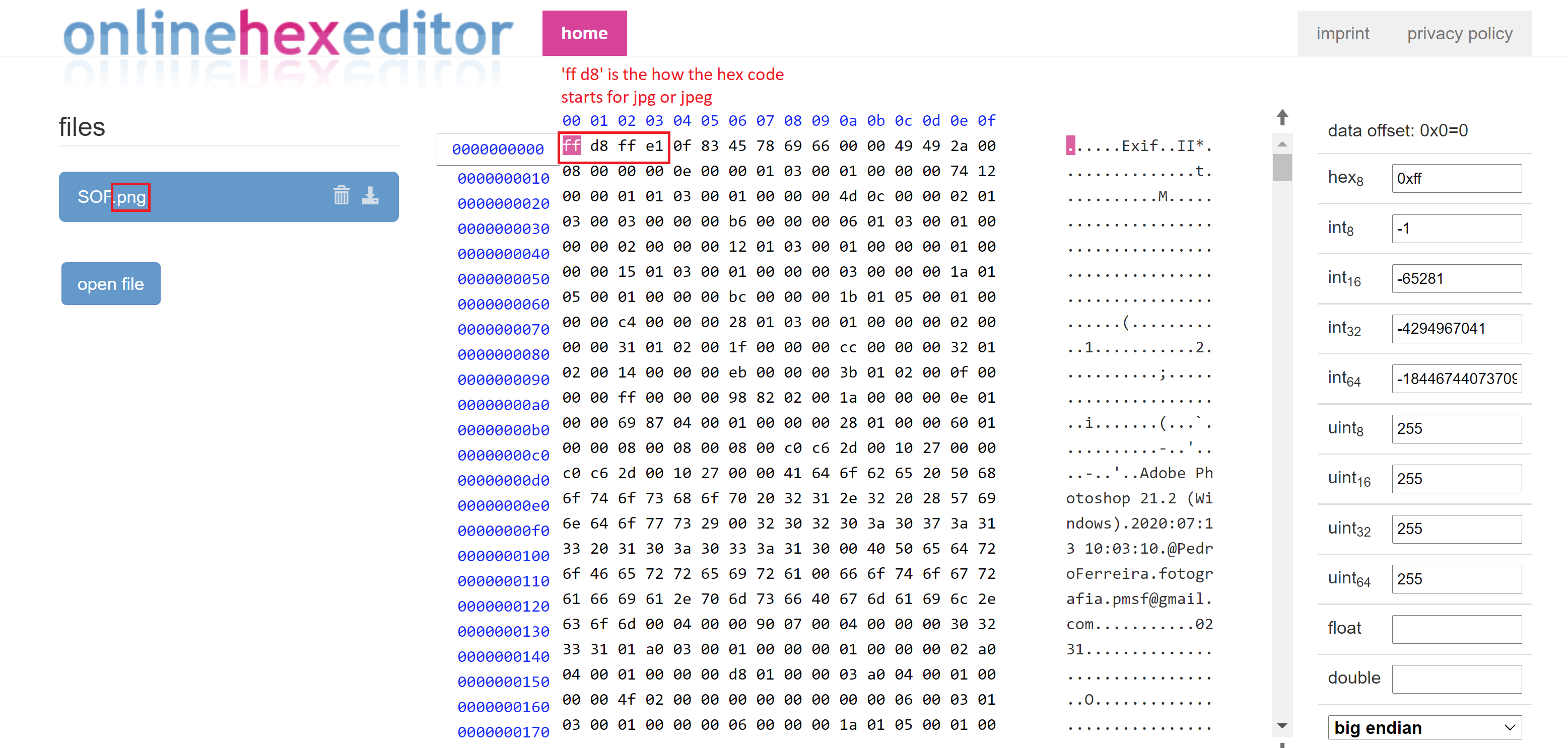
Above shows that this ‘.png’ has the hex code ‘FF D8 FF E1’, if we look at a list of file signatures, we see that ‘FF D8 FF E1’ denotes a .jpg or.jpeg file extension.
If we look at the hex code for an actual .png file, we see the following:
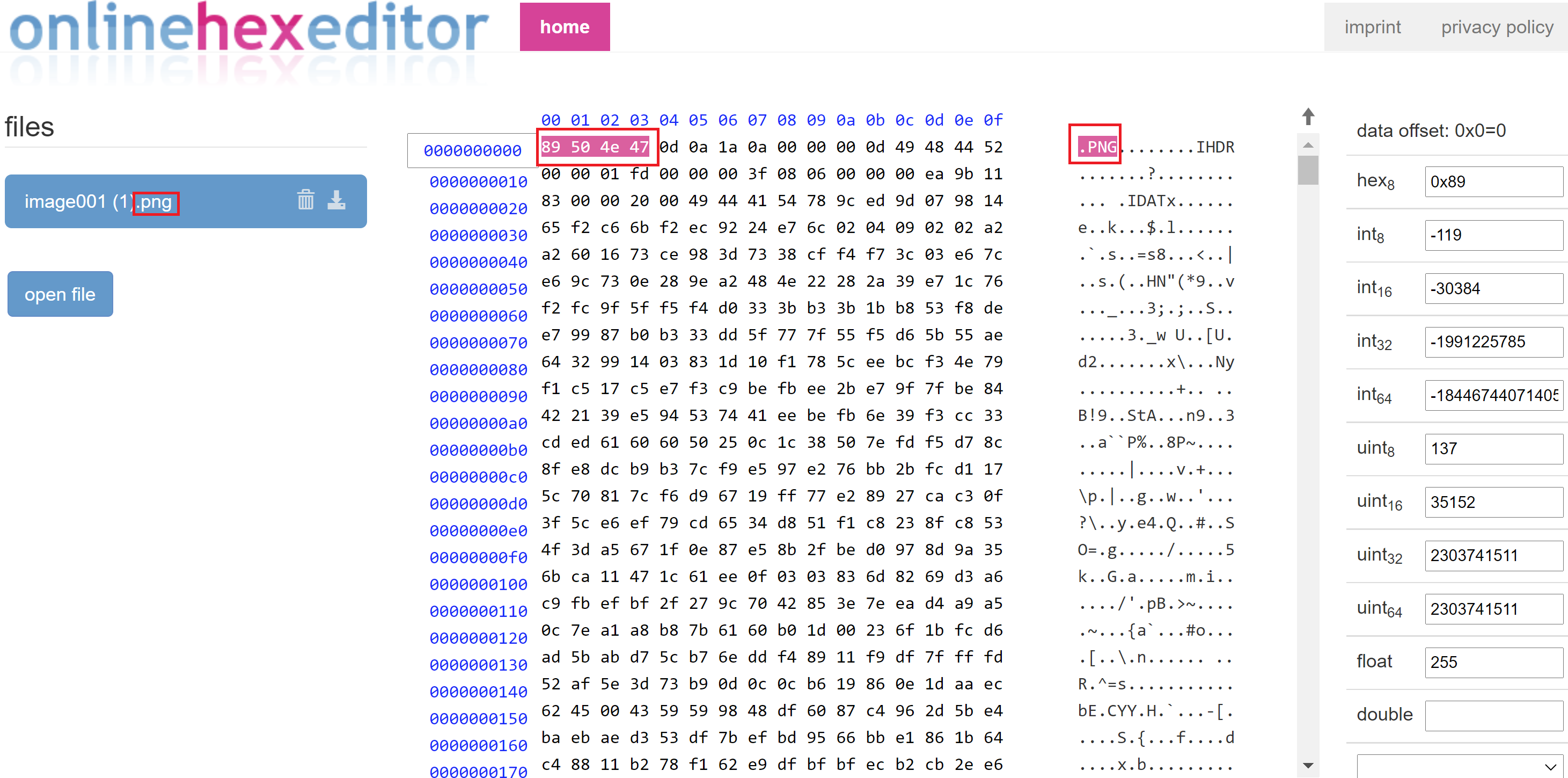
Using the above hex code editor, we can check what the file extension is supposed to be, and advise the client that the extension was changed and what the file extension should be (also advising to avoid renaming file extensions).
'FF D8 FF E1' means file should have a .jpg file extension, while '89 50 4e 47' means a file should have a .png file extension.
