Introduction
Vuture pages, particularly those containing detailed reports of your mailing activities, often need to be kept secure. Or, you may want to share a different type of page that has been uploaded to a Vuture campaign, but keep it secure internally. We wanted to make it easy for you, once you have built a page and are ready to send it out to your internal stakeholders - to secure that page and keep it reserved for your intended audience only.
Once the Secure Page option has been switched on for a certain page it will only be readable by a user who is logged in to Vuture. The page could still be forwarded to any recipient outside your firm, but it will not be readable unless the reader is first logged in to Vuture.
This article contains instructions on how to navigate to Page Options, and how to toggle the switch to enable or disable the Secure Page feature.
Prerequisites
You will need to ask your Client Success Manager to enable the config at: Admin.System.PageOptions.Secure Site Page
And the Role at Admin.Roles.LandingPages.Secure Site Page through Page Options
If you want to share secured pages with internal stakeholders, you will also need to create a Vuture username and pw (or use SSO) for all of them first. You could assign them a Read Only role, and they do not need to be trained Vuture users. (Note: Ensure that your Read Only role does not have Releases enabled. The Release Notes could interrupt the display of your page.)
CRMs
The Secure Page feature works for all CRMs and standalone.
Price
There is no charge for enabling this feature.
Process
You will be using Page Options and Secure Page.
-
Build your page. Save and Publish. Typically this will be a Report Page but any page in an email campaign will work for this, including uploads, and any emails in the Compose Email folder.
-
Navigate to Page Options. There will be a new tab along the top row - Secure Page.
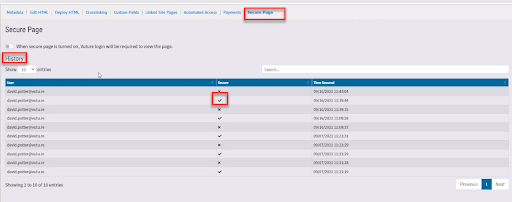
3. Selecting the Secure Page tab shows the Secure Page settings screen and allows you to toggle the security requirement between On and Off. The toggle is above the word History on the left. The current security state is indicated by the check mark. The History of the page is listed to indicate when the page was secured and by whom (the logged in user’s email address).
4. Toggling the security to On changes the URL of the page.
It will change from something like this:

Which is the “View Online” link
To something like this:

Which is a secured page.
If the user is already logged in, they will appear to see the page as usual.
If they are not already logged in, instead of opening the page, clicking the link to open it will now redirect the reader to their Vuture login page, with the additional message:
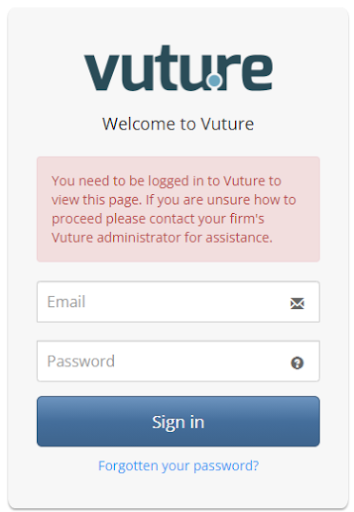
On entering their credentials, the reader will then be automatically redirected to the page they were originally trying to view.
5. If you switch off the security on a page, the URL will revert to the original.
Single Sign On (SSO)
If you have SSO set up and your reader is passed to the login screen, there will be a Single Sign On link below the password box. This will redirect the user to the page they are trying to view.
FAQs
Q. Can I use this feature to secure a page when I send it out to my clients?
A. No. This feature is for sharing secured pages with logged-in users of your firm’s instance only. So you will need to give all your firm’s partners or other readers a Vuture login. They will not need to have any Vuture training (except for the login process) and their Role can be limited to Read Only. (Note: Ensure that your Read Only role does not have Releases enabled. The Release Notes could interrupt the display of your page.)
Q. Can I use this feature on any type of page or must it be a landing page?
A. You can use it on any type of page in the email campaign. Click on Page Options to see the new tab.
Q. What if my reader is already logged in to Vuture? Will they still be redirected to the login screen?
A. No. A reader who is already logged in will be taken directly to the secured page.
Q. We use SSO at our firm to log in to Vuture. Can I avoid more passwords and use SSO for the partners with this feature?
A. Yes you can. When you send a secured page link to a partner who has read only access, and they are not currently logged in to Vuture, clicking the link will take them to the login screen. At this point the SSO link will log them in and display the page.
Q. Can we make all the attorneys at our firm Read Only users of Vuture? Is there a limit on the number of users we can have?
A. Yes it is ok for you to set up all your attorneys as Read Only users, ideally using SSO. We support up to 10,000 users per firm. You should contact us if you want to use more than that.
