The Webinar Setup Tool was developed as a way to establish that webinars have been set up correctly in the Vuture instance, that all required integration data has been entered, and that the necessary processes have been enabled.
It has been made available to clients, as a secure way of entering Client Key and Secret Key themselves. They do not now have to share this information with Vuture staff.
To set up ON24:
Enable ON24 for your Instance
Start by asking your CSM to enable ON24 in your instance. They will need to navigate to Admin.System.Forms and check the box at Display ON24 Integration URL text field.
Access the Setup Tool
Navigate to Home.Admin.Webinar Setup
Selecting the webinar Vendor will display some useful information about the required areas for the configuration to work correctly. It will then ask the user to enter the Auth type, the API key and Secret key. On saving the entered information, the user will be able to validate that these fields are correct.
Note that in the image below, the user is advised to add an Attended Activity Type to the client's system in the Metadata Manager. This applies to connector CRMs only.
For InterAction clients, the Attended activity type is added in the normal way, using drop downs in the Form Editor.
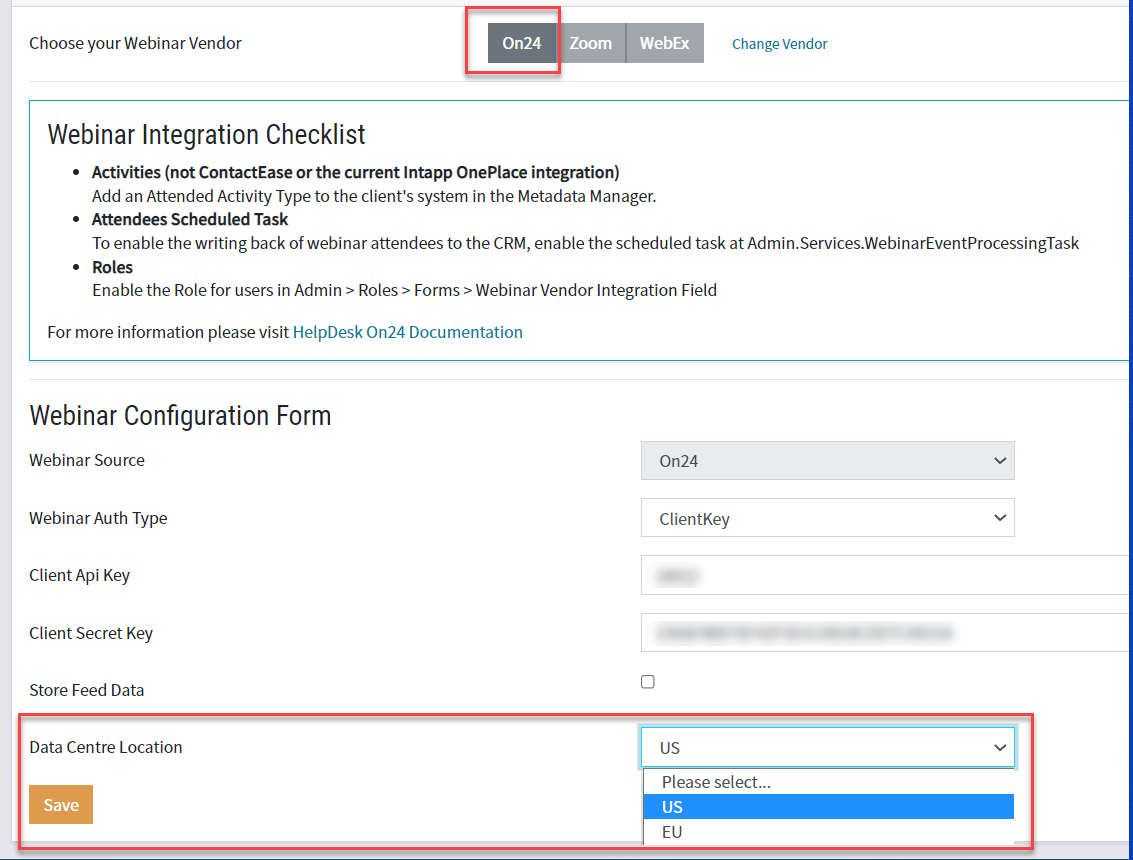
For ON24 as the Vendor:
You will require a:
Client Api Key and
Client Secret Key
These are obtained from your ON24 Account Manager.
Store Feed Data: Check this box to enable Vuture to store the xml feed which is downloaded from ON24 after each event. This data will only be used to investigate if clients report an issue with client activity writing back to crm.
Data Centre Location: ON24 have decided to differentiate between their US-based and EU-based customers and have made a change to the way they display the URL for European clients.. The difference comes from where the customer data centre is located. All EU Data Centre-based customers will now have a .eu in their URLs. Vuture has therefore added a location selector to the ON24 set up screen.
To see this change, in your instance navigate to Admin.Webinar Setup and choose ON24 as the vendor. You will then see the Data Centre Location selector at the foot of the screen.
For Vuture Client Success Managers and Project Managers: When setting up a new client with ON24 if their data centre is in the UK or in Europe they will now need to have their location set as EU.
Enable ON24 Integration for your client's Vuture Instance
Ask your Vuture CSM to check the box for 'Admin.System.Forms.Display ON24 Integration URL text field'. This provides the product to your instance.
Now ensure that you have completed the other tasks as listed in the image of the Integration Checklist above - the Activities, the Scheduled Task and the Roles. See below for help if needed.
Further Tasks:
Activities (not for ContactEase or the current Intapp OnePlace integration)
Add an Attended Activity Type to the client's system in the Metadata Manager. If the client already has an Attended Activity Type entered in their config (for example, an InterAction client using the Events App) you will not need to add a new Activity Type unless the client wishes to differentiate between Event Attended and Webinar Attended.
Tracking Attendance: It is only possible for Vuture to track (and write back activities for) attendees who register via a Vuture Form. Any users that register for the webinar directly through the webinar provider using a generic audience link, will not have an attendance activity written back to the crm. Their attendance will be recorded in the webinar provider's reports.
Note: it is not currently possible for the IA integration to have both Activity Types. However, if you already have Event Attended, the fact that it is a webinar can be made clear in the Activity Summary.
Scheduled Task - Ask your CSM
All webinar tasks for recording webinar attendees have been combined under one task now. You do not need to set up separate tasks for ON24 and Webex for example. The task you need to enable is at Admin.Services.WebinarEventProcessing Task. The default time for this task to run is 6am.
If you need help there is an article here covering how to enable Scheduled Tasks.
Note: If you have more than one webinar provider integrated with Vuture, the new combined webinar task will run in sequence, one webinar provider at a time, to avoid overloading the system.
Role
Edit the role at Admin.Roles.Forms.ON24 Integration URL Field. This will allow the users to see ON24 as a webinar provider on their Vuture forms.
