Introduction
The Email Sent trigger is a new trigger which adds to our Email Automation capabilities.
Known as the “wait trigger” during development, it will allow you to set up a campaign, send out an email and (for example) instruct the workflow to “wait one week from receipt” before sending a reminder email.
This trigger condition is for IA, Dynamics, Salesforce, ContactEase and standalone, plus Intapp, OnePlace, Fibre and Dealcloud.
Triggers are a premium feature so please speak to your Client Success Manager if you would like to be able to automate your campaigns.
Implementation
If you already have triggers in your platform, the new Email Sent trigger will be added automatically once it is released and once your platform is deployed to the new version. You do not need to enable anything further.
Why Did We Do This?
Lots of email automation programmes require a series of emails, one followed by another. Previously, you had to specify a filter to cause the action to send the next email in the series. An example filter might be; send another email if the previous email was opened. Now, regardless of any actions taken by the contact, you can send subsequent emails in a series, at intervals set by you (the sending intervals must be in whole days).
Prerequisites
- The Email module
- Triggers v3 enabled
Restrictions and Best Practice
We encourage you to work with lists that contain accurate, up to date information.
We also encourage you to set the frequency of the “sweep” across your lists, looking for new contacts to send to, to be no more often than once a day. This is because, every time you set the trigger to sweep your list, it searches for duplicates, suppressions and missing email addresses. This is potentially going to cause a heavy load on the processing in your system. A sweep set for the most frequent possible interval, which is every 30 minutes, would continue all day, all night, and all across the weekend and it could impact other processes happening on your database.
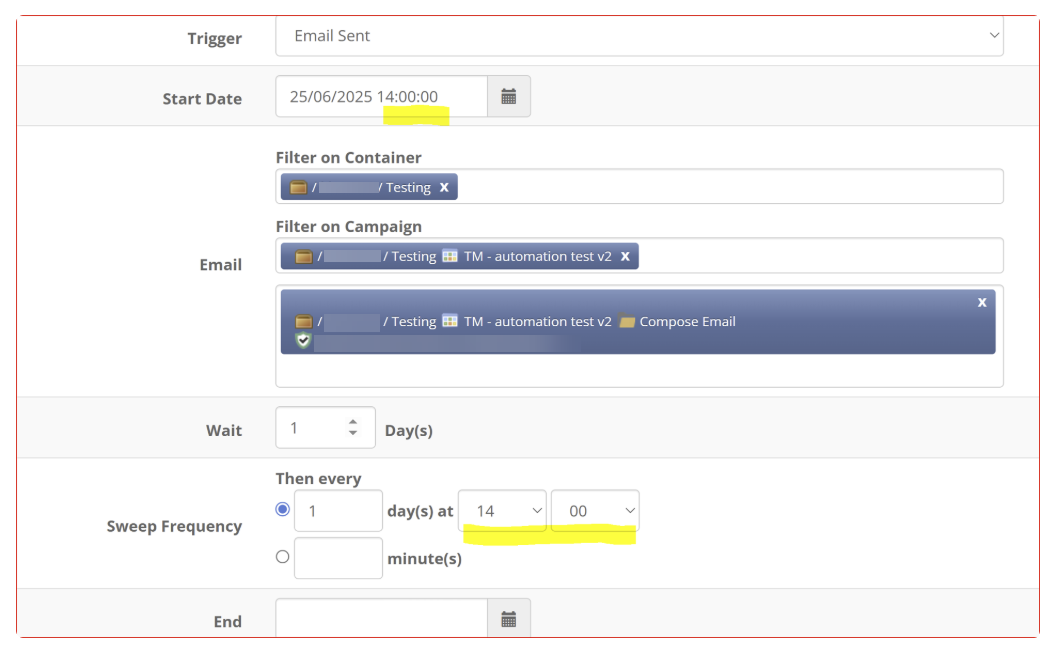
Ensure you enter the Sweeping frequency time to start at the same time as the Start Trigger time, plus one day, so that the sweep happens every day. The example image below has the timing set correctly, with the Sweep Frequency set to take place every one day at the same time as the Start time, plus one day. You could, if you prefer, choose any time past the start time, such as 2.30 or 3 in this example.
How Does it Work?
The new Email Sent trigger will behave in a similar way to the existing Recurring trigger. It will “sweep” a list, looking for contacts who have been sent a certain email. If it finds a new recipient who has been sent the initial email, it will fire the new email to them, after the pre-set wait in days.
The Recurring trigger (which is already in general release) works by making an initial sweep over an entire list followed by the use of filters to identify contacts who have opened, clicked or RSVP’d, or been newly-added to the list, for example. Users are recommended to use the Recurring trigger for the first step in a Welcome campaign, followed by the Email Sent trigger for subsequent steps.
Using the Recurring trigger, everyone added to the mailing list will get email One. Subsequent steps will need the Email Sent trigger - to send email Two at a set number of days afterwards. Contacts who are added to the list at odd times after the campaign has started will automatically receive email One under the Recurring trigger. After the set number of days they will then receive email Two under the Email Sent trigger.
Examples of how you could use the Email Sent Trigger
Example 1
Send a Welcome email to a list of contacts. Wait “3 days” (or as configurable by you, in whole days) and then send them a further email.
If new contacts are added to the list during the intervening 3 days they can first receive the Welcome email and 3 days later the second email. This will allow for contacts to be added to a Welcome process at any time. They do not have to be in the mailing list from the beginning.
Example 2
Following a white paper download or web visit, send a 3-stage lead generation campaign in an attempt to push the contact to the next stage of the client journey.
Example 3
Create a multi-stage onboarding or post-engagement journey after a contact takes a desired outcome. What should the contact know about the service you’re offering? Is there further information or documentation which might be useful?
Setting up an Email Sent Trigger
Setting Up
You will access the Triggers area from within your current campaign as usual.
Best Practice: Have all the emails ready built. It is much quicker and easier to set up the new trigger if the emails you will need already exist.
Trigger Name
Give your new trigger a name that makes it clear what it is doing. It will be easier to manage multiple triggers if they are clearly named; so rather than just Email Sent, you could name it Send Follow-Up Email Two, After 3 Days, for example.
Enabled
Leave the new trigger Not Enabled until you are confident that you have completed the set up correctly. The new trigger will fire once immediately you enable it, so you need to be sure you have selected the correct list and the correct email to send.
Trigger
The new trigger - Email Sent - will be in the drop down list of available triggers.
Start Date
You will be asked to specify a Start Date. However, bear in mind that all recurring triggers fire once, immediately they are enabled, and then wait for the start date to start the “sweep” looking for further email recipients to send to.
Email from which to Measure the Days Elapsed
This is NOT the email you are triggering to go out now; it is the email that was originally sent to the contacts x days ago. You will be asked to specify the Container, the Campaign and then the exact Email which was sent x days ago. This is the date which the trigger will use as the starting date. The original, or starting email, can be an email from another campaign. The user will only be able to see, and select from, the email campaigns to which they have access.
Wait
Specify how long, in days, Vuture should wait after sending the above email, before sending the next email.
Sweep Frequency
After the set number of days has elapsed, Vuture will start sweeping the list, looking for contacts to mail. This sweep can happen every day, or every hour or every 30 minutes. However, bear in mind the warning above, about sweeping the list. This will keep going, all day, all night and all across the weekend too. If you set it to sweep too frequently it may impact the performance of your system.
End Date
Set the end date for when you want the trigger to stop. You can set this far into the future, but it is not good practice to leave it running forever.
Action
The only available Action with the Email Sent trigger is to Send Email to Matches. “Matches” is the contact whose email address matches that on the original email list. This means that any new contacts joining the program must be added to the original mailing list and sent the first email, Email One, from there. A standard Recurring Trigger can manage this process for you.
Email
The follow up email or Email Two, can only be selected from within the current campaign. Email One, or the original email, can come from anywhere in the platform to which you have access, including the current campaign if you wish.
From, Personalised From, Reply To and Subject Line are all standard parts of the email sending process.
Send Confirmation Email
This setting controls whether an Email Confirmation Email should be sent to the user who set up the trigger. When a recurring trigger is set up in Triggers Version 3 you can select the frequency of the Email Send Confirmation messages you receive from the Vuture platform.
There are three options and they must be defined for each recurring trigger created:
- Always send: This will send an Email Send Confirmation message to the Vuture user every time the trigger is fired, regardless of how many recipients actually received the email - including "zero" recipients. (Note: this could become tiresome and fill up your Inbox!)
- Send when at least one recipient: This will send an Email Send Confirmation message to the Vuture user every time the trigger is fired, if at least one recipient is going to receive the email. (Note: this is likely to be a good choice for most people.)
- Never send: You will not receive an Email Send Confirmation message when this recurring trigger is fired. (Note: you can still check the Campaign History page if you choose this setting, to see emails going out.)
Save
Click on Save to complete the setup process and return to the Triggers List screen.
FAQs
Q. Can a contact unsubscribe from this process after they receive the first email in a series?
A. Yes. A contact who unsubscribes will be added to the suppression list and not sent any further emails in the series. The exact process will depend on the suppressions you have set up for your use. For example, you may have a single Global Unsubscribe from All Mailings list or you may have Unsubscribe From This List as well. Vuture will honour whichever you set up.
Q. Can I set up multiple Email Sent triggers to create a multi-step campaign? For example, send the initial email on Day One. Three weeks later, send Email Two. Three weeks after that, send Email Three, and so on. Is that possible?
A. Yes it is possible. Create the first trigger (a Recurring Trigger) to send the initial email - Email One. Create the second trigger (an Email Sent Trigger) where the trigger causing the action is Email Sent (identifying Email number One as the email that was sent). Create the third trigger where the trigger which causes the action is Email Sent (identifying Email number Two), and so on.
Q. If I set the trigger to wait for 7 days after sending an email, and then send another email, does the 7 days start counting from Email Sent or from Email Opened?
A. The count begins from the day the Email was Sent.
Q. Since the count is in Days, not Hours or Minutes, does the count in days work with days of the week or exact multiples of 24 hours from the initial email was sent? So if I sent Email One at 12 noon on day one, would the trigger send Email Two at exactly 12 noon on day X after the specified wait period?
A. The exact time when the second email is sent will depend on the sweep frequency that has been set to check to see if there are new contacts to send to. If you have the sweep set to every 30 mins - it will first wait for the "wait period" and then check every 30 mins to see if any contacts have been sent an email more than 1 day ago and if there are, it will send the email.
Q. If the trigger runs, but there are no contacts who meet the condition, what will happen? Will the user receive reports showing zero sends? Or see zero sends in the front end Trigger History screen?
A. If there are no contacts who meet the condition, the user will not receive a notification. The system will generate an entry in the trigger history so that the support team can troubleshoot effectively.
Q. Can I send recurring email campaigns using triggers from different crms? For example use InterAction for Email One and standalone for Email Two?
A. No, this is not possible. The trigger will break.
Q. Can this trigger be set up for the scenario in which a follow up email is sent to recipients who have not opened a previously sent email (such as a welcome email) with a specific time frame rather than a specified date?
A. No, the Email Sent Trigger is unable to have filters applied to accommodate this scenario.
