Introduction to List-Specific Personalised From in a Dynamics Email
By default, all emails are sent using the From Address which you select from the drop-down on the Send Email screen. However, with this new feature for Dynamics, you can choose to personalise the From Name and Address that is displayed in the recipient's email client.
The From Name option is known as the Sponsor and you can now set up list-specific List Sponsors for each list you mail. This List Sponsor feature adds to the existing Contact Sponsor which is the Sponsor in Dynamics specific to each Contact.
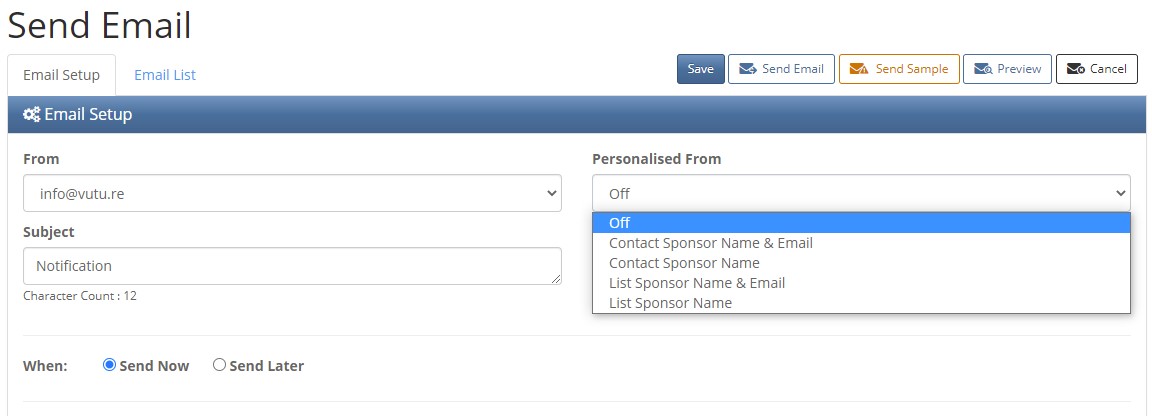
This means that on Send Screen v2 you will see the From box and also the Personalised From box. The Personalised From box will contain the following four options:
- Contact Sponsor Name
- Contact Sponsor Name & Email
- List Sponsor Name
- List Sponsor Name & Email
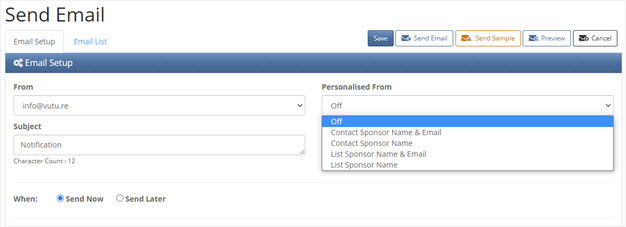
The Sponsors are first set in the Dynamics database and then pulled through to the Vuture mailing. Users can set a different Sponsor for each contact, and for each contact on a list.
Prerequisites
● Dynamics v2 integration with Vuture
● Send Screen v2
● Next to the From Address on Send Screen v2 is a drop-down field called "Personalised From". In order to see the Personalised From drop-down field your CSM should enable "Admin.Roles.Emails.Personalise on From Name" for your Role.
Why did we do this?
In Dynamics, sponsors have been typically associated with contacts. We wanted to allow Vuture clients to send emails “from” the relevant stakeholder appropriate to each mailing list. For example, an Oil & Gas mailing could go out from the senior Oil & Gas partner to some contacts on the list and from the junior Oil & Gas partner to the rest of the contacts on the list. By adding a new custom field to the integration this is now possible.
Configuring the List Sponsor
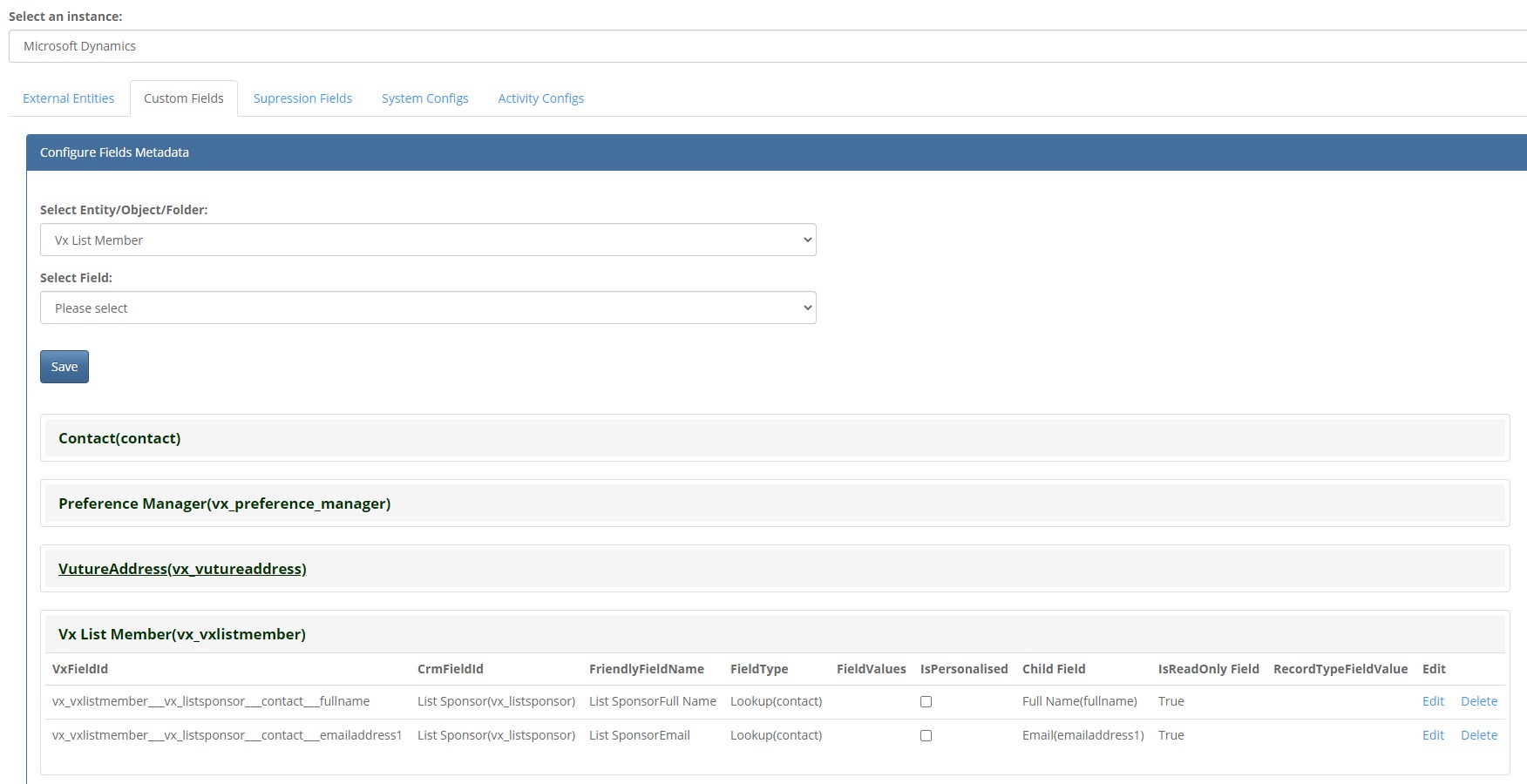
The sponsor field will need to be imported through the External Entities Tab in Vuture’s CRM metadata tool by Support or by your CSM.
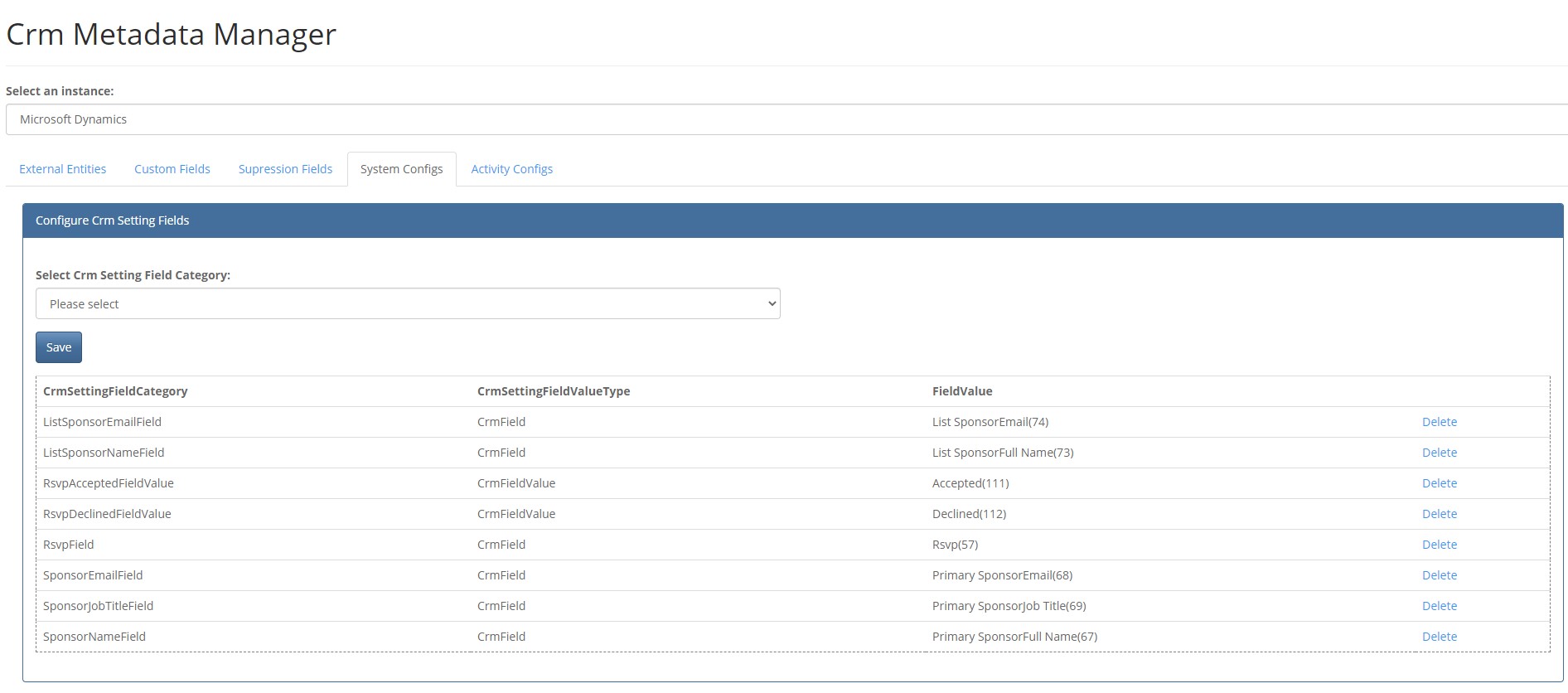
It will then be available to configure on the Systems config tab in the metadata tool.
Once it has been configured, the options for List Sponsor Name only and List Sponsor Name and Email will be displayed in the Personalised From drop-down on the Send Screen, along with Contact Sponsor Name and Contact Sponsor Name and Email .
Sending an Email "from" a List Sponsor
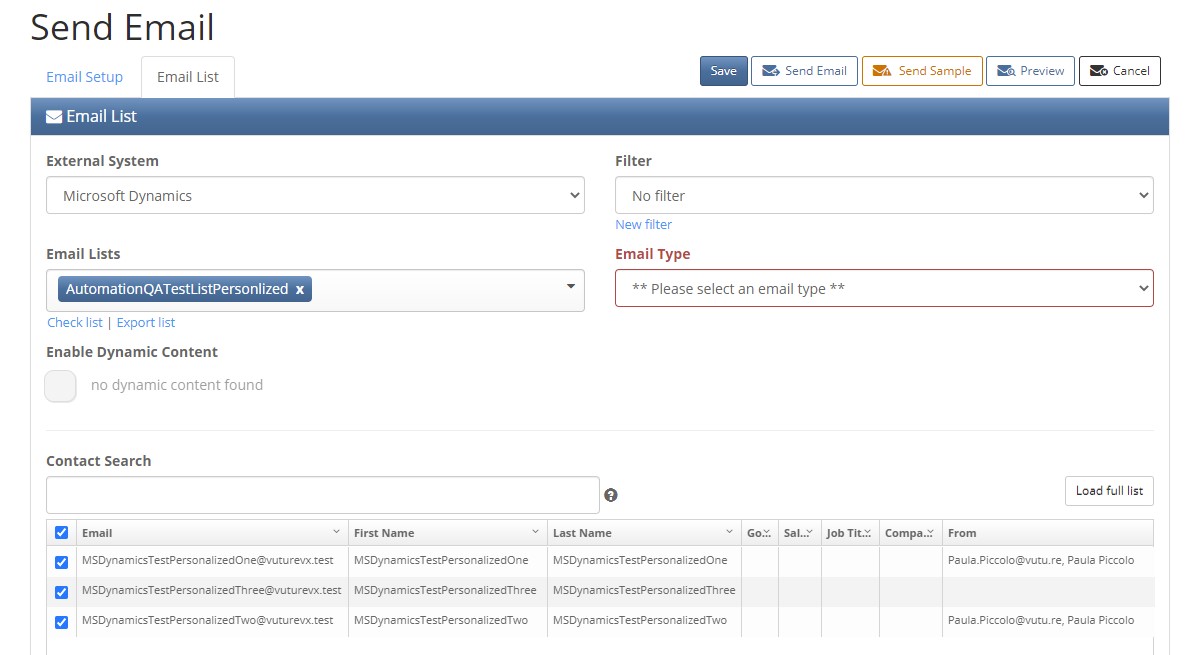
In the Email Send Screen, first select List Sponsor from the Personalised From drop-down. Select a mailing list. When navigating to the Email List tab, you will now be able to see the sponsor for each contact in the From column in the contact grid.
Sending with an empty List Sponsor field
If List Sponsor is selected, but the contact does not have a sponsor associated with the list, the mailing will default to the From address selected on the Send Screen.
For Vuture Staff Only - the Metadata Manager Process
In the Metadata Manager, select Dynamics CRM, System Configs
In the Custom Fields tab, select Vx List Member, to find the List Sponsor. This should already have been created by the client in their Dynamics CRM.