Besides manually entering one or more emails to receive a CC or BCC copy of the email you can enter one or more OnePlace fields which will be looked up on Send. Any email addresses in that field for each contact will be added to any manually-entered CC or BCC.
Note that since this is a real CC/BCC, copies will be exactly the same as the original and will include all tracking codes linked to the original recipient. This means that if the copies are opened they will register an Open against the original recipient. Clicking on a link to a landing page or form will record a Link Clicked and pre-populate the landing page or form with the original recipient's details.
Enter one or more OnePlace fields in CC or BCC
You can specify one or more additional fields for CC and BCC which will be looked up for each contact on Send. Email addresses found in these fields will be combined with any manually-set CC or BCC.
This functionality is controlled through a role-based feature. Your Customer Success Manager can enable the feature for selected roles using the setting "Admin.Roles.Emails.Manage CC and option based on additional fields"
Once this is enabled you will see two extra fields on the send screen for CC Fields and BCC Fields when you select a OnePlace list. Enter a comma separated list of Contact field IDs into either or both of these fields.
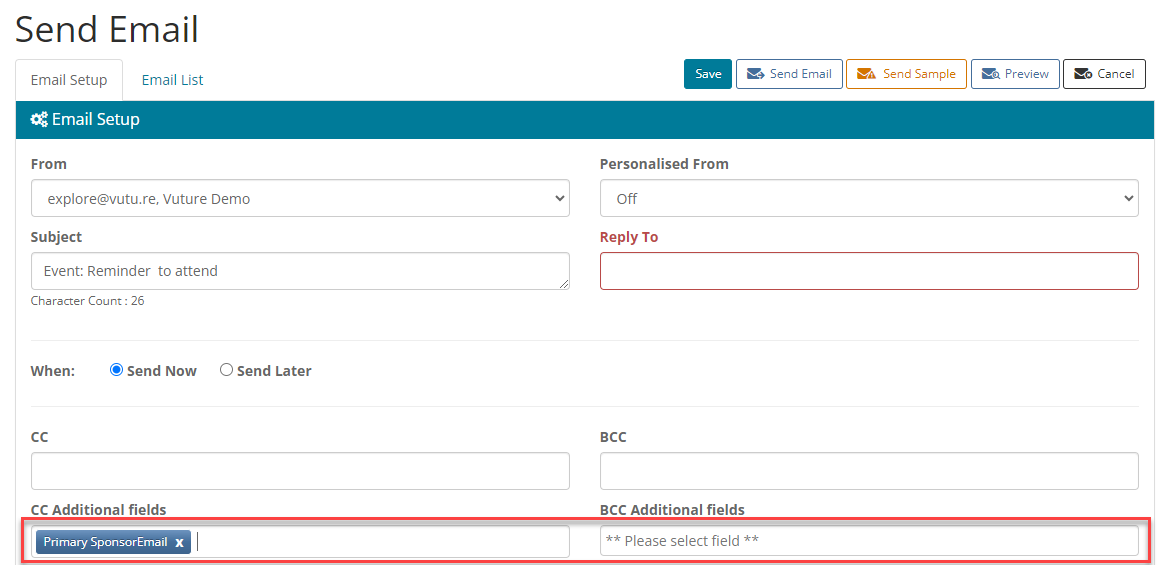
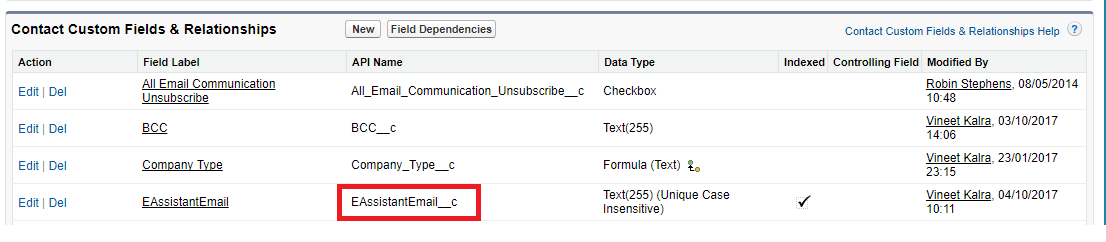
You can get the required IDs from your OnePlace instance, in the example above we used Primary Sponsor Email and the example below EAssistantEmail