Overview
Form Logic allows you to build Vuture forms that react to your contacts’ responses, hiding and displaying later questions, depending on their response to earlier questions.
You create this behaviour by adding a Condition to the next field you want your contacts to see. The Condition ensures that they will only see that field if they respond in a specified way to the previous question.
For example, if a contact responds RSVP yes, they will see further questions, or if a person has dietary requirements they could then see the list of diet options to choose from.
Contents
Requirements
You will need to have Forms v2 enabled in your system (your Client Success Manager can do this at "Admin.System.Versions.FormEditorVersion2") and for your role, as well as have "Admin.System.Forms.Force validation script" enabled, to see the extra boxes in the Form Editor.
Please contact your Client Success Manager if you're unsure about your current settings.
Your browser can be Chrome, Firefox or IE. If you use Internet Explorer, please ensure that it is version 9.0 or higher.
Instructions - Showing another field when someone RSVPs Yes
Please watch this video for a full overview of how this works with ContactEase:
Start in the usual way with the first question:
- Build a form (it can be Prefilled or Blank). The contact fields (First Name, Last Name etc) are typically on your form already, as part of your template.
- Add a field to ask a question – For example, “RSVP?” and include its values for the responses (Yes and No).
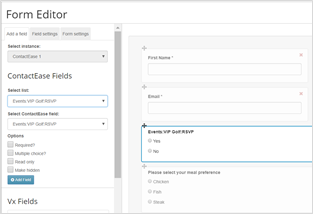
- Add the secondary fields you want to appear, depending on the answer to your first question. (In this example; if they RSVP Yes, then you could follow up with “Which meal choice would you like?”)
- Add the conditional rule for when this secondary, or follow up, field should appear. In English: “If the answer to the question; “RSVP” is “Yes”, then ask; “Which meal choice would you like?” (that is, make the Meal choice field appear)
In ContactEase forms, the conditional rule for this example VIP golf event would be:
CE_Subscription-Events:VIP Golf:RSVP == 'Events:VIP Golf:RSVP:RSVP Yes'
Insert this into the "Add conditional rule" box for the Meal Choice question.
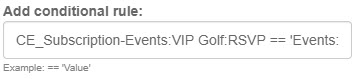
Three Elements are Required for the conditional rule above:
-
Conditional Field Name,
-
Operator (for example, '==')
- Response/Field Value
So that the the conditional rule is: Conditional Field Name == 'Response/Field Value'
Conditional Field Name == 'Response/Field Value'
Best Practice: It will help you to open Notepad and build your form logic statement in there. Copy it over into the correct Conditional Rule box when complete. This is because it is not always possible to see the entire line once it is placed into the box on the form - so it is easier to build and check it in Notepad first.
(Do not use Word instead of Notepad. When copying and pasting from Word it is sometimes possible to bring over unwanted elements in your code which may break your conditions.)
1. Finding the Conditional Field Name
Each field has a conditional field name which is displayed in the Conditional Field Name box when you click on that field. See the image below:
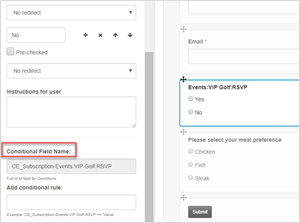
2. Finding the Operator
Below is a list of commonly used terms. For the example in this article, to display another field when RSVP is Yes, you will use the "==" operator.
|
Operator
|
Meaning
|
|
==
|
Equal to
|
|
!=
|
Not equal to
|
|
<
|
Less than
|
|
<=
|
Less than or equal to
|
|
>
|
Greater than
|
|
>=
|
Greater than or equal to
|
Important: The conditional rule must use the database value for the field, not what you write into the Label for clients to see on the form. For example, the question RSVP could have response values of Yes and No, or Accept and Decline, on the form for the clients to use. For ContactEase, the database value of this example RSVP = Yes is actually ‘Events:VIP Golf:RSVP:RSVP Yes’. When writing your conditional rule, you must use the database value. Do not use the label that the clients see on the form.
3. Finding the Response or Field Value
Finding the field value can be done in one of two possible ways. You could use "Inspect" but we wanted to make it easier so we have introduced Copy and Paste to the forms as an alternative.
Using Copy and Paste to find Field Values
When you use the Copy option, Vuture will find and copy the hidden Value of the field to the clipboard. From there, you can paste it into your Conditional Rule.
The Copy option is under the two pages icon, next to each field:
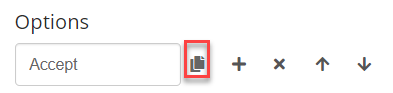
Please note, it is the "hidden value" that the feature is copying. This is not necessarily the same as the words that the client will see.
Alternatively - Using Inspect to find Field Values
For detailed instructions on using Inspect to find a field value, please click here.
Or use these instructions:
In the form, first select the correct question and then right click your mouse. The last option in the drop-down menu is Inspect. Click on Inspect.
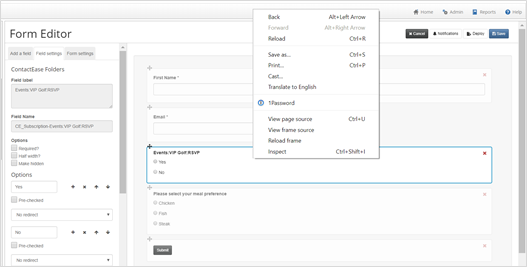
You will be able to see the underlying html on the page.
You may have to click on the right facing arrows to open up more text. In the image below, I clicked on two right facing arrow heads (ringed in red) to make them downward facing arrows and open up the text dealing with the yes response.
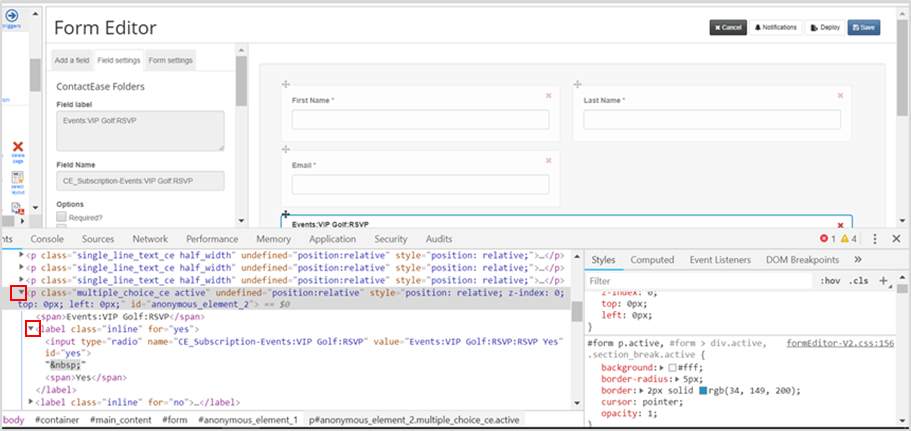
The value is given as value = Events:VIP Golf:RSVP:RSVP Yes. You will need this whole value line, inside single, straight quote marks.
Having identified and copied and pasted the value, use the little x at the top right of the Inspect screen to close it.
Writing the Conditional Rule
You now have all the elements you need to write the conditional rule into the second question Conditional Rule box:
Conditional Field Name == 'Response/Field Value'
CE_Subscription-Events:VIP Golf:RSVP == 'Events:VIP Golf:RSVP:RSVP Yes'
This means: If the RSVP question has the answer of Yes, show the second question (i.e. Meal Choice).
To Test this:
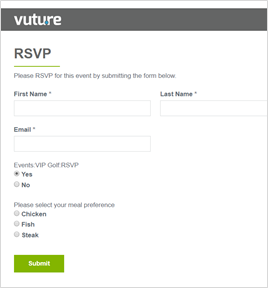
Save your work, Publish the form and do View Page (you do not have to send this to yourself to see it working).
Answering Yes to the first question generates the second question:
Common mistakes when writing conditional rules
If your conditions are not being met in the form (for example, the secondary field is not hidden when it should be), you may have made one of the following common mistakes:
-
Case Sensitivity: Variables and function names are case sensitive. Please make sure you have added the correct name and/or field IDs and used the correct upper and lower case
-
Mismatching quotes, parenthesis and curly brackets: Make sure any statement which opens with a parenthesis, ends with a closing parenthesis.
-
Use the correct assignment operator. For example: '= >' is not the same as '> =' The first of these two examples is incorrect, and it will break the condition and consequently the form.
-
Extra commas, semicolons or other punctuation characters: Every character has an interpretation in Javascript, any unnecessary additions will modify your condition
-
Do not use inverted commas ( ’ ). Use single quotation marks ( ' ) in your condition. Make sure the mark is straight and isn't tilted or curvy in any way.
-
Do not use special characters in your crm field names.
Special characters are: "!"#$%&'()*+,-./:;<=>?@[\]^_`{|}~"
If you have a problem creating Form Logic, please contact Support.
There is a copy of this article in the document attached below.
