Keywords: prefill; preview; test submission; populate; SID, troubleshoot
Why did we do this?
We wanted to make it possible for SuperAdmin users and Vuture Support to see emails and forms populated with contacts' prefill data. This is to test that forms are working correctly, for example. Previously, SuperAdmin users, or Support, would have to search out the correct SID (unique identifier) from the database before checking that a form is submitting correctly on behalf of a contact. We wanted to make the retrieval of the appropriate SID automatic and easy.
To do this, we have added 2 new Role features to the database: one which allows a preview or Test of the data only and a second which allows you to submit the data Live, as if you were the contact.
Important: In Test mode nothing writes back to CRM and in Live mode everything does.
There is now an additional column containing the two new links, on the Email History screen, which will be visible to users if they have the new Roles enabled.
CRMs
This feature will work for all CRMs which are integrated with Vuture, plus standalone.
Prerequisites
You will need to have the latest, spacelab view of the Email History screen. This can be enabled at Admin>Roles>Spacelab Pages>Email Sending History.
The following Role features must also be enabled to see the new links in the Preview column of the Email Sending History. Navigate to Admin>Roles>Emails.

The first Role shown above (Live) requires that the second Role is also checked. This Role allows users to see and interact with prefill data, by clicking links and submitting a form, for example. Any emails opened, links clicked or forms submitted by this Role will be recorded in the CRM as if the contact clicked themselves.
The second Role feature shown above (Preview) enables the "view only" or Test feature. A user with this Role enabled can see an email or a form, completed with prefill data for the selected contact, but links do not react and the user cannot submit the form. Actions taken on a form will not be tracked or recorded in the database.
A user can have just Preview enabled by itself. However, if a user wants to have Live enabled they must also have Preview.
Email History Screen
There is a new tab on the latest Email History screen, marked Preview. With this tab checked, and if the user has both Roles enabled, they will see the view below:
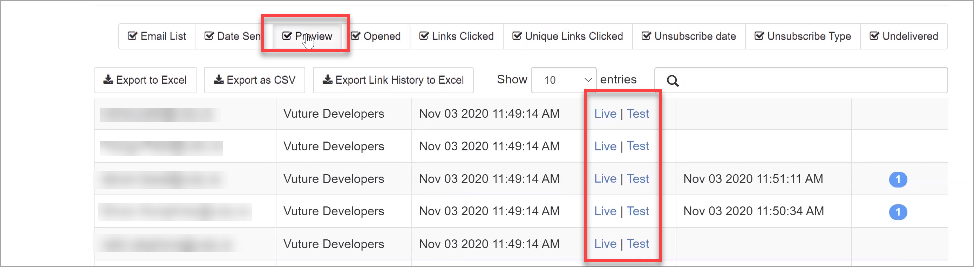
From here it is possible to select a contact, and either click Live to view, interact with, and submit the email or form as if you were that contact; or click Test to simply view the form prefilled with the contact's data.
A user who has only the Preview Role enabled for their Role will only see the Test option in the Preview column on this screen.
Warning: Please remember, in Test mode nothing writes back to CRM and in Live mode everything writes back to CRM, as if it were the contact themselves interacting with the email.
FAQs
Q. What is the SID parameter?
A. When a contact clicks on a link in a Vuture email campaign it automatically adds a parameter to the link to identify the contact.
This is in the format: sid=d2ab535a-32b9-4533-b543-d69cc0c118ba where the long string of characters is an encrypted id that identifies the contact.
