Access to a website can be restricted to a list of one or more IP addresses (Allow List), or a list of one or more IP address can be blocked from accessing a website (blocklist).
Typically you would use an Allow List if you want to restrict access to a website to a set of your firm's IP addresses, and a blocklist to block unwanted traffic from bots, denial of service attacks or other unwanted visitor.
Adding an Allow List or blocklist
From the website editing screen click on "options" at the top of the left hand panel.
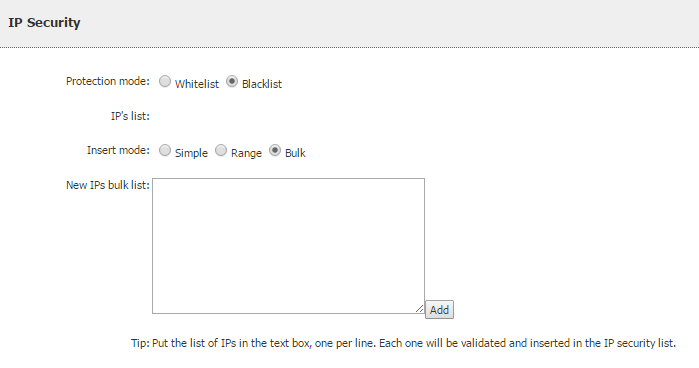
From the menu click on the "IP Security" link.
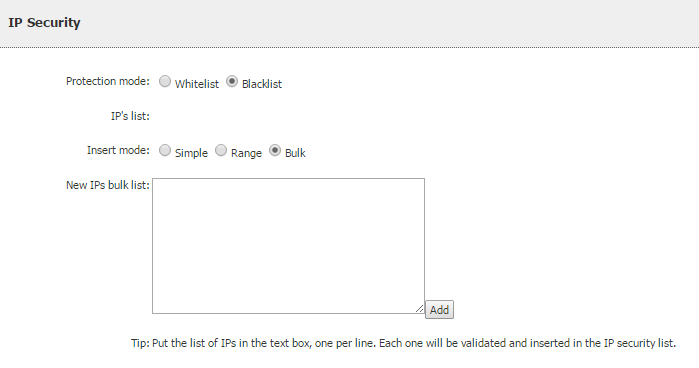
Choose the protection mode: "allow list" to only allow a list of IP addresses or "blocklist" to block a list of IP addresses.
Note that you have to choose either an allow list or blocklist and cannot combine both.
Adding single IP addresses
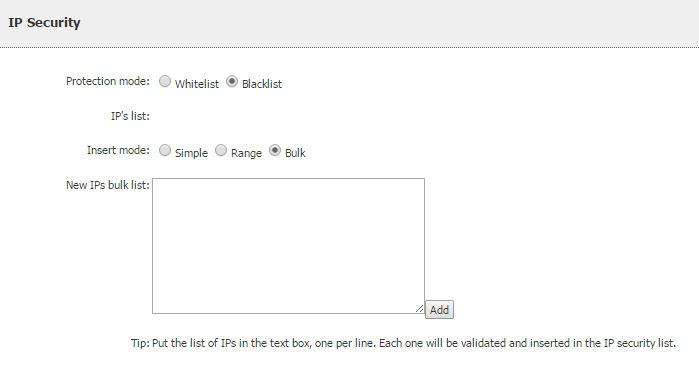
To add a single IP address to the list select "Simple" insert mode and enter the IP address and click "add". You can add as many individual IP addresses as you like. Click "remove" to remove any IP address.
Adding a range of IP addresses
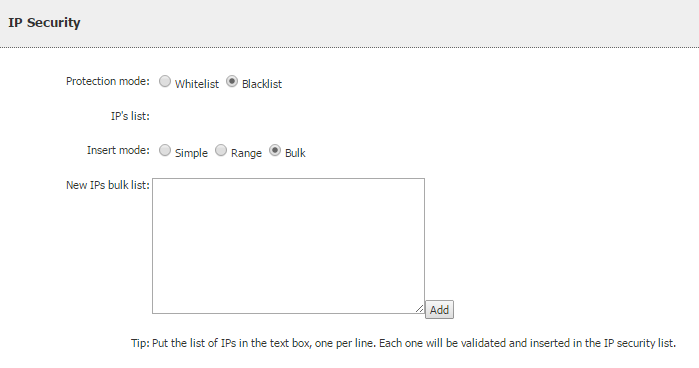
To quickly add a sequential range of IP addresses select "Range" insert mode and enter the first three octets of the IP address and then a range for the final octet
Bulk adding IP addresses
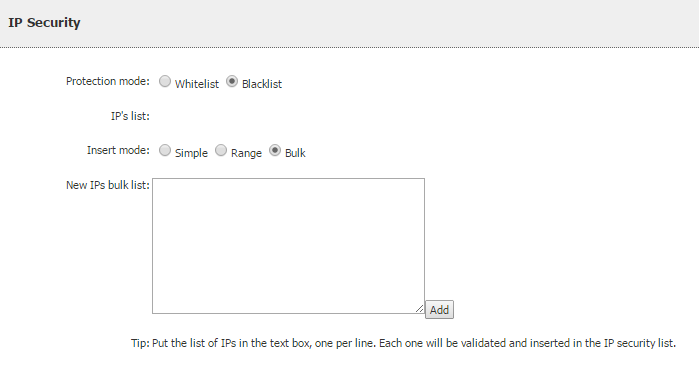
To add multiple IP addresses simultaneously select "Bulk" insert mode and paste in a list of IP addresses with one per line
IP Security FAQs
I have applied IP security but the styling has gone from my site when editing through Vuture
Non-secure sites (those running over HTTP rather than HTTPS) need to be downloaded through a secure file handler when editing in Vuture to prevent security alerts. The secure file handler uses the internal IP address of your Vuture server to load the site and therefore needs to be added to the IP whitelist. This internal IP address can be found by going to "Admin.Emails" and clicking the "internal DNS" button - please contact Vuture Support or your Account Manager for assistance with this.
