Overview
In addition to being able to notify someone via email that their contact has arrived at an event, you can also notify them via text message.
You will need to have an additional field in your InterAction marketing list. The additional field can be called something like Notify Lawyer. For each contact on the list (each invitee) you will add the phone number in this field for the person who should be sent an SMS when the invitee arrives at your event.
The steps for setting this up are:
- Set up an account with a business text messaging service such as TextMagic
- Set up an email address that arrival notifications will be sent from and configure this in Vuture and TextMagic
- Set up the phone numbers to be notified using an InterAction additional field and configure this field in the Event App
Text message notifications work by using an email-to-text message gateway to take a Vuture arrival notification email and forward it as a text message to a mobile phone.
1. Set up an account with a business text messaging service
Create an account with a business text messaging service that has an email-to-SMS gateway. In our example we are using TextMagic.
Typically, these services are free to subscribe to, and offer affordable pay-as-you-go pricing where you buy credits that can be automatically topped up using a credit card.
The service will give you a special email address format that you can use to forward an email-to -text message. In the case of TextMagic the format is 4475800000@textmagic.com where the part to the left of the "@" is the cell phone number.
2. Configure an email address to send the arrival notifications
By default, the Vuture Events App uses the email address "events@vuturevx.com" to send event arrival notification emails.
You will need to change this from the default to be able to associate it with the SMS gateway service since it must be a unique email address.
You may have already changed this email address as part of your Events App setup process but if not we recommend you change it to match your normal Send From domain.
For example, if you normally send emails from "info@marketing.myfirm.com" then you could use "events@marketing.myfirm.com" since this domain will be authorised to send emails from Vuture and will be unique to you, so you can associate it with the SMS gateway.
Your Account Manager can change this email for you by updating the system configuration “Admin.System.Events.NotificationEmailAddress”.
Once this has been set up, add this Send From email address to the allowed list in your SMS gateway service (such as TextMagic).
3. Set up contact phone numbers using an additional field
To use the functionality, create an additional field (called something like Notify Lawyer) in your InterAction Marketing List and populate it for each contact with the email version of the cell phone number or numbers you want to receive the notification - in the format required by your SMS gateway service, e.g. for TextMagic, it is 4475800000@textmagic.com
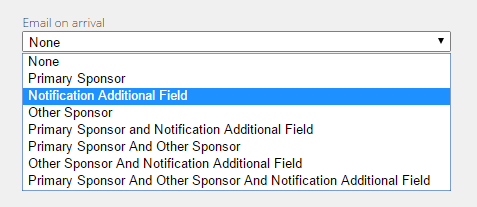
In the event configuration screen, pick one of the "Email on arrival" options that includes notification additional field:
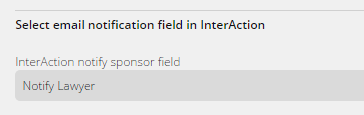
and select the correct additional field in the "InterAction notify sponsor field" dropdown:
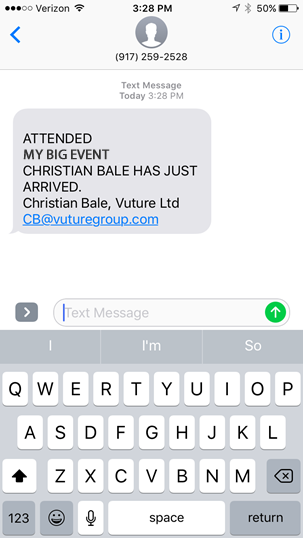
When your attendees are checked-in using the event app the system will send an email to the address in the notification additional field. This will be forwarded by your SMS gateway services to the corresponding cell phone as a text message: