Keywords: Events app; InterAction; IA; multi-crm; multiple crms
Overview
It is now possible for a firm with more than one instance of InterAction, to use the Events App in different locations, connecting each time to the correct instance of InterAction and writing back activities to that instance.
This has been made possible by moving the activities from the Events App configuration to the CRM configuration in the Vuture platform.
Please note: If you are new to the Events App, there is a full How To article here. You should follow that article before reading this one.
Why did we do this?
Several of our clients have more than one instance of InterAction CRM around the world and they would like to be able to use those instances with the Events App. Previously, it was only possible to connect a single instance of IA to the Events App at one time.
Prerequisites
Version 2 or 3 of the Events App
More than one instance of InterAction CRM integrated with Vuture
The Events App is a premium feature. Talk to your Client Success Manager about implementing this feature. The ability to connect to more than one instance of IA will be available to firms who currently have the Events App, with no extra charge.
Process
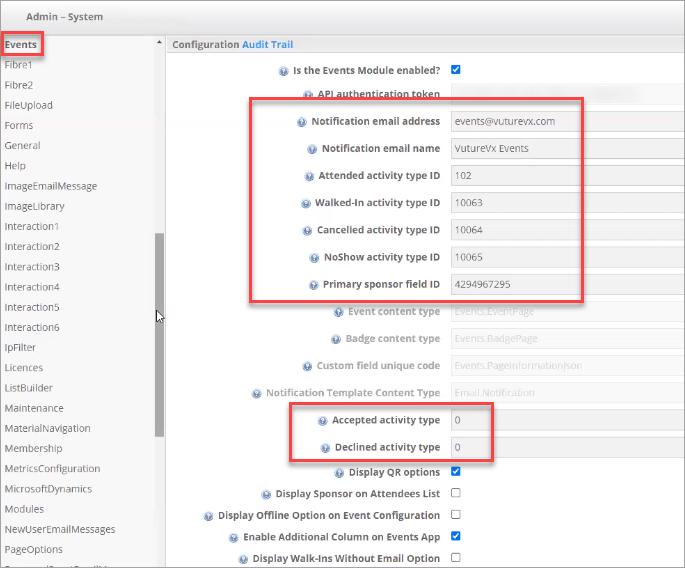
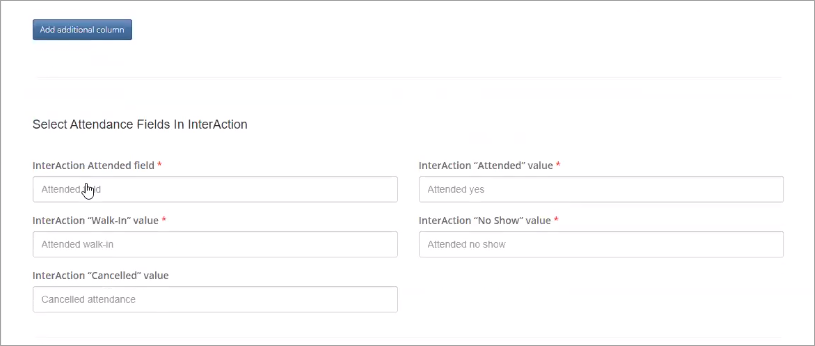
Previously, when you first took the Events App from Vuture, your Project Manager set up a "mapping" of the events activities held in your CRM and entered these into the Events App data dictionary in Admin.System.Events, like this:
Now, in the new process, those activities will have been copied across to Admin.System.InterAction1 like this:
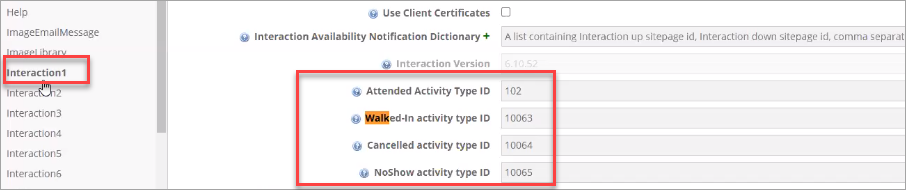
This copy process will take place on your behalf, run by the Vuture technical team. There is no action that you or your CSM need to take.
If you have InterAction2 and InterAction3 as well, for example, these values will be copied across as well; and into any other instances of InterAction you have integrated with Vuture, up to 6 currently.
Important: The Activity values may vary between different instances. BUT the Attended Activity Type ID must be the same in all instances of InterAction because the Attended Activity is also used for webinars. If you are not using a webinar integration (to Zoom or ON24 for example) then this value can also vary between instances.
Using the Events App
Once your CSM tells you that your Activity values have been copied across, go to your campaign, go to the Campaign Summary screen, and set up an event app as normal.
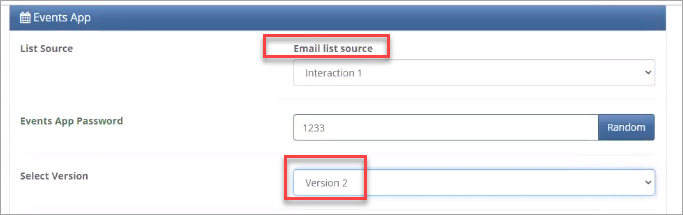
You will select the correct version of InterAction here (in this example, InterAction1) and the correct version of the Events App (v3 is the latest).
Deploy that page, and then go to the Events App URL.
Log in and create a new event as normal.
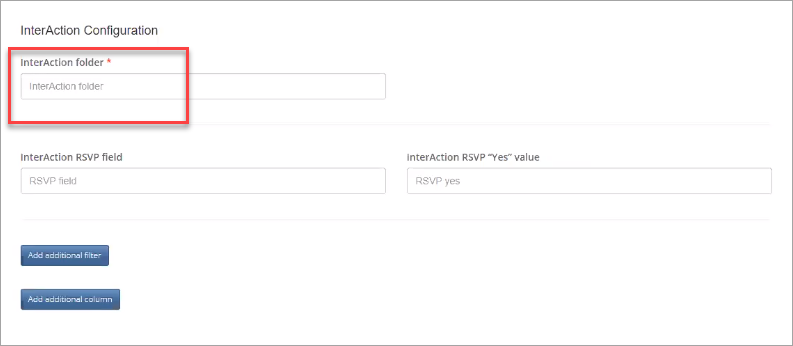
When you configure the new event, you simply choose the field values you want to use, as normal, selecting the mailing list you want to use:
and the Activity Values you want to use:
Vuture will know which InterAction instance you are writing back to, because of the selection you made previously on the Campaign Summary screen.
FAQs
Q. Are there any restrictions to using this multi-crm feature? The number of CRMs we can connect, for example?
A. The maximum number of InterAction CRMs your firm can integrate with is 6.
Q. As a user, can I set up an Event connected to one instance of InterAction and then another Event connected to a different instance. Flip between IAs in effect?
A. Yes you can. However, you can only log into one Event App at a time. If you log into a second one you will be logged out of the first one.
Q. Why am I not seeing a newly-created list in InterAction immediately, in my Events App?
A. There is some caching in effect. If you leave it for 10 minutes and try again you should see your new list.
Q. If I have more than one instance of InterAction (live and test for example) can I just ask my CSM to enter the value IDs and start using this feature straight away?
A. No. You do need to have each instance of InterAction properly integrated with Vuture. Typically this is done via a Project Manager and is a project that may take several weeks to complete. You cannot just put Activity value IDs into the fields and expect the integration to work from there. You should see the instances of InterAction you have available to you, in the drop down list of data sources.
Q. I would like to use this feature to write back Event Activities either to InterAction1 or to Standalone, using the Contacts module, depending on which Source I choose in the Campaign Summary screen. Will that work?
A. Technically it could work. However, again, you would have to use the services of a Vuture Project Manager to properly integrate both data sources first.
