Introduction
While working with forms in Vuture, it is possible to set up a custom field in OnePlace, as a Function field. This custom Function field will hold contacts who wish to be put on a waiting list to attend an event.
Setting up the field in OnePlace
The Client creates a custom waitlist field in Oneplace called Waitlist__c (function field and picklist (yes and no).
The Vuture Account Manager will add ‘Waitlist__c’ to admin > system > Salesforce > Function Invitee form fields and Save.
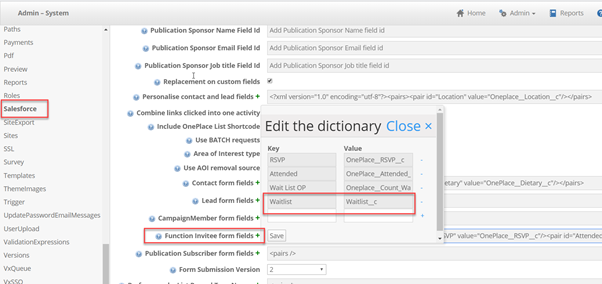
This new field will now show on the form editor.
Adding to the Vuture form
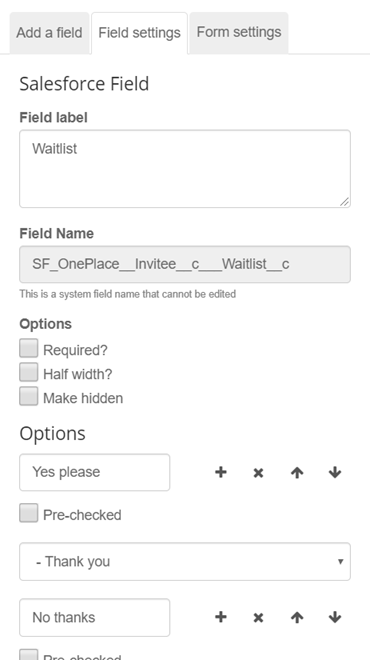
Add the RSVP and Waitlist fields onto your form in the usual way. But rather than adding a VX waitlist field, add the OnePlace Waitlist field instead.

Adding the conditional rules:
You then need to add conditional rules onto the two fields:
RSVP field example:
{ Count : 'all', Instance : '4', ListId : 'F-a060o00001ZbNAgAAN', Field: 'SF_OnePlace__Invitee__c___OnePlace__RSVP__c', Value : 'Accepted' } <= 1
Waitlist field example:
{ Count : 'all', Instance : '4', ListId : 'F-a060o00001ZbNAgAAN', Field: 'SF_OnePlace__Invitee__c___OnePlace__RSVP__c', Value : 'Accepted' } >= 1
When the wait list field shows, because the number of RSVPs has been exceeded, and the client selects Yes please, this will feedback to Oneplace as Waitlist = Yes.
Setting up the OnePlace workflow:
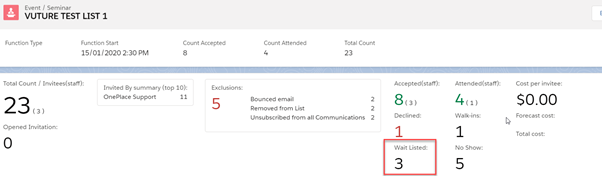
In each OnePlace function, there is an option for the waitlist count, which is generated from the RSVP field if it is set to waitlist. In OnePlace a workflow can be set up, which actions as follows:
- Client selects yes for the waitlist on the vx form
- Waitlist field is populated in OnePlace as yes
- This automatically sets the RSVP field to Waitlist
- Which updates the count in the function (see below)