Please note this is a premium feature, your account manager can provide you with more detail in regards to functionality and costs.
Overview
As well as automatically registering contacts for ON24 webinars using Vuture forms it is also possible to automatically write back attendee information to OnePlace. This works through a Vuture scheduled task that once a day (schedule can be varied) marks contacts who attend the webinar as Attended in a OnePlace Function, under the "Attended" column of an invitee.
Tracking Attendance: It is only possible for Vuture to track (and write back activities for) attendees who register via a Vuture Form. Any users that register for the webinar directly through the webinar provider using a generic audience link, will not have an attendance activity written back to the crm. Their attendance will be recorded in the webinar provider's reports.
Requirements
The ON24 functionality will need to be enabled for your Vuture instance and your role.
Please contact your Vuture Administrator or Account Manager for assistance with this.
Create a new form or edit an existing form as normal.
To connect a form to ON24 it must contain at least an email field. You can include any other fields on the form and the following fields will be written back with each ON24 registration. Any fields not on this list will not be sent to ON24 but will be recorded in Vuture and in your CRM:
| Vuture Form Field | ON24 Field |
| FirstName | firstname |
| LastName | lastname |
| Company | company |
| Email | email |
| JobTitle | job_title |
| Address1 | address_street1 |
| City | city |
| State | state |
| PostCode | zip |
| Country | country |
| Telephone | work_phone |
| Telephone_Home | home_phone |
How to set up
- Provide your ON24 Client Id and Key to your Account Manager or Vuture Support who will enter them into the system configuration settings "Admin.System.Forms.ON24 Integration Service Event Client Id" and "Admin.System.Forms.ON24 Integration Event Key". ON24 will provide you with these values.
- Enable the ON24 Event Processing Task (this will write back the attendee data to OnePlace) by letting your Account Manager or Vuture Support know at what frequency and at what time you would like the task to run. We recommend once per day outside peak hours but at a time you know your OnePlace will be available. They will set this schedule at "Admin.Services.ON24EventProcessingTask".
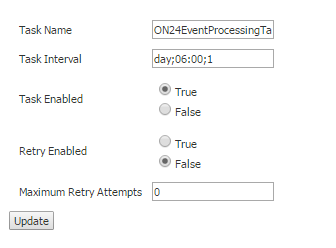
Task interval of "day;06:00;1" means run once per day at 6am. For pm use the 24 hour clock e.g. 4pm is 16:00. To run twice per day "hour:06:00;12" would run every 12 hours at 6am and 6pm. Set "Task Enabled" to "true" and "Retry Enabled" to "False". The timezone of the task interval must be set based on the client's server location.
How to use
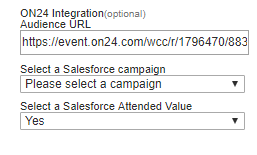
- On each ON24 Vuture form make sure you choose the "Attended" value to be recorded against the selected OnePlace function (in the "Salesforce Campaign" field) This is in addition to the ON24 Audience URL which must be entered for the event:
-
When the contact registers for the event we record their OnePlace Contact Id against their contact registration record in ON24. When the Vuture Scheduled Task runs it pulls an attendee feed from ON24 and writes back any new attendees to the OnePlace Function, setting the Attended column in the invitee table to the specified value.
-
Tracking Attendance: It is only possible for Vuture to track (and write back activities for) attendees who register via a Vuture Form. Any users that register for the webinar directly through the webinar provider using a generic audience link, will not have an attendance activity written back to the crm. Their attendance will be recorded in the webinar provider's reports.
Testing
The attendee feed is accessed from ON24 using the following URL:
https://event.on24.com/utilApp/syndication/rss.jsp?clientid={ClientId}&key={Key}&config=partner30 (this feed looks at attendees for the past 30 days).
IMPORTANT: Please make sure this feed (partner30) has been enabled by ON24
where {ClientId} and {Key} are the values provided to you by ON24 and entered in the Setup stage above.
To get the details for a specific event you can use:
https://event.on24.com/utilApp/syndication/rss.jsp?clientid={ClientId}&key={Key}&config=vuture&eventid={EventId} where {EventId} is the ON24 Id for the event you are testing.
Check in your browser that accessing this URL returns an XML data feed that shows your events and their attendees. If not then the Vuture scheduled task will not work correctly.
If you get the message "Access to this feed has been disabled. Please contact your ON24 Account Manager for more information." then please contact ON24 and ask them to enable your Vuture Attendee Feed.
FAQ
1. Do webinar No Shows write back to the Attendance field as a No Show?
Currently this does not happen.
2. Does the system mark a contact as attended if they viewed the recorded webinar after the event?
Yes, the feed includes attendees that only viewed it live, only viewed the on-demand version, or watched both.
