Filters are used to send an email to just part of your marketing list. For example, you can use Resend, and a filter, to re-send an invitation to everyone who has not yet replied, or a different filter to send a confirmation email to everyone who has replied Accept.
To set up a filter, go via the Send Email screen in your campaign.
First, prepare your mail for sending as if you plan to send it to the entire list. Complete the Subject, From and all other fields down as far as Filter List: then click on New Filter.
Note: You must select a list to filter against, before you will see the New Filter option. If there are existing filters already created and saved, there will also be options for 'Edit Filter' and 'Delete Filter'.
Naming your Filter
Do not use just “RSVP is Yes” or similar to name your filter. Use a proper naming convention to name your filter including the name and date of the event or mailing. This will make it easy to find and re-use any filters that you build. Filters can be visible across different campaigns within the container, which means that if you do not name your filters properly you could end up with "RSVP is Yes", "RSVP is Yes", "RSVP is Yes" in a long list, with no idea which RSVP is being referenced.
Campaign Filter vs Container Filter
If you select Container Filter this filter will be available from the Send Screen of all campaigns in this container. If you select Campaign Filter, it will only be available for this campaign.
Which Fields Can I Filter Against?
Currently, you can select from a drop down list of Core contact fields and a list of Custom fields. The Core contact fields are typically:
- First Name
- Last Name
- Company
- Job Title
- Email
- PostalCode
- City
- State
- Country
Custom fields
Filtering on custom fields will only work on submitted forms where the field is present on the form. Examples of custom fields would be:
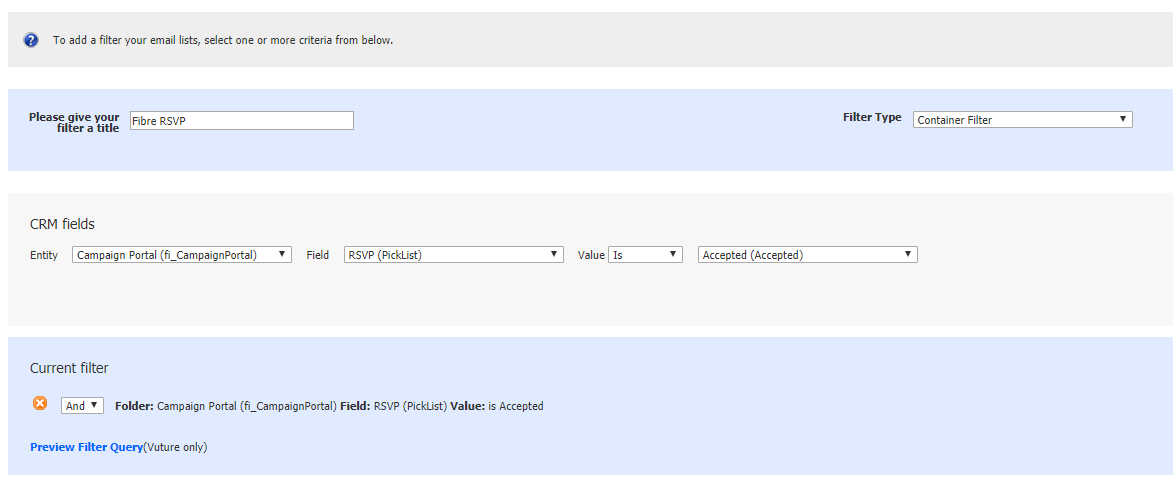
And / Or
For each filter value you select, you need to click Add. This puts the value at the foot of the screen. Once you have a value there you will be able to use the drop down arrow to choose And or Or for second and subsequent values. You can leave the first value as And.
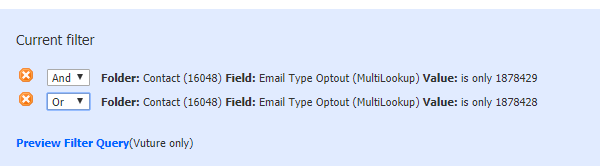
Currently for MultiLookup and MultiPickLists we do not support the option to filter out fields that have multi options selected. For example, Is not one of. Therefore, if you have a contact that has 2 options selected e.g. Option A and Option B there is no way to filter to remove contacts that have both fields. You can only filter Is Not on a contact that has one option selected.
Limitations on field filters
Note that filtering on different values for the same field works by using "OR" logic but filtering on different fields only works by using "AND" logic.
Finishing
Enter each filter item, click on Add for each one and then click on Filter at the foot of the page.
You will be returned to your Send Email page and the reduced mailing list will appear, filtered by the criteria you have used.
