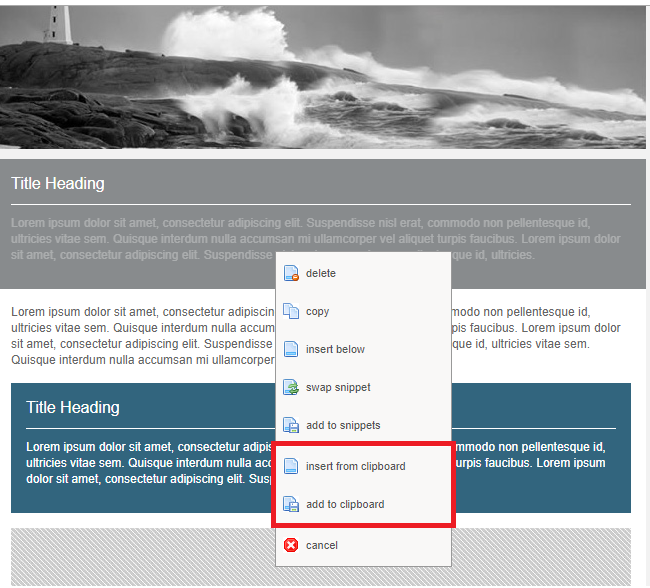
The snippet clipboard allows you to "swap", or copy and paste, snippets by adding a copied snippet into your personal clipboard and pasting it into another page. This could be a page in the same campaign or a different campaign, including across containers.
The clipboard is available through your system configuration. Please contact your account manager and they will enable it at “Admin.system.General.Enable the user-specific clipboard”.
Once enabled, you can make use of it when you are in “Edit Layout” mode in a page, by right-clicking on the snippet and either selecting “add to clipboard” or “insert from clipboard”. (See image below.) If you select the latter you will see all the snippets currently saved to your clipboard. If your clipboard gets too large to work with you can choose to Remove a snippet from the clipboard. The snippets you have copied will remain where you have pasted them.
Important: Please consider page styling when moving a snippet between campaigns. Page styling can vary from template to template and if the new template is different to the source template, it can change the way the snippet looks. An example of this would be if you copied a snippet intended for a two column layout into a one column page. This would likely have unsuccessful results.