Overview
Filters are used to send an email to part of your list. For example, to resend an invitation to everyone who has not yet replied, or to send a confirmation to everyone who has replied Accept.
Contents
You can copy the Invitation email once it has been tested and rename and reword it to create a Reminder to Register email, a Last Chance to Register or an Event Reminder email. It is recommended that you remove RSVP buttons from Event Reminders, to prevent contacts from trying to register again.
Creating a filter
- Prepare your mail for sending as if to the whole list
- Complete the Subject line
- Complete the From field and select the relevant Mailing List
- Choose the Email Type
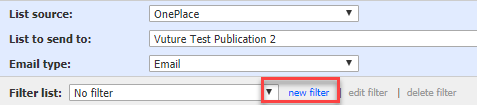
- To specify who on the original email should receive the Email Click new filter
- Clicking new filter will open the Filter create page
- Type a name for the filter using a clear explanation of what it does
Warning: Include the Campaign name at the beginning of the Filter name, as Filters are container based (unless you have a check box to select campaign based) to ensure the correct filter is selected that is pointing to the correct Marketing List.
- From the CRM fields select Function Invitee, the select from the Field, select RSVP (Picklist), then choose the desired item.
- for example: RSVP is No Response when sending a Reminder to Register email
- Click on Add on the right.
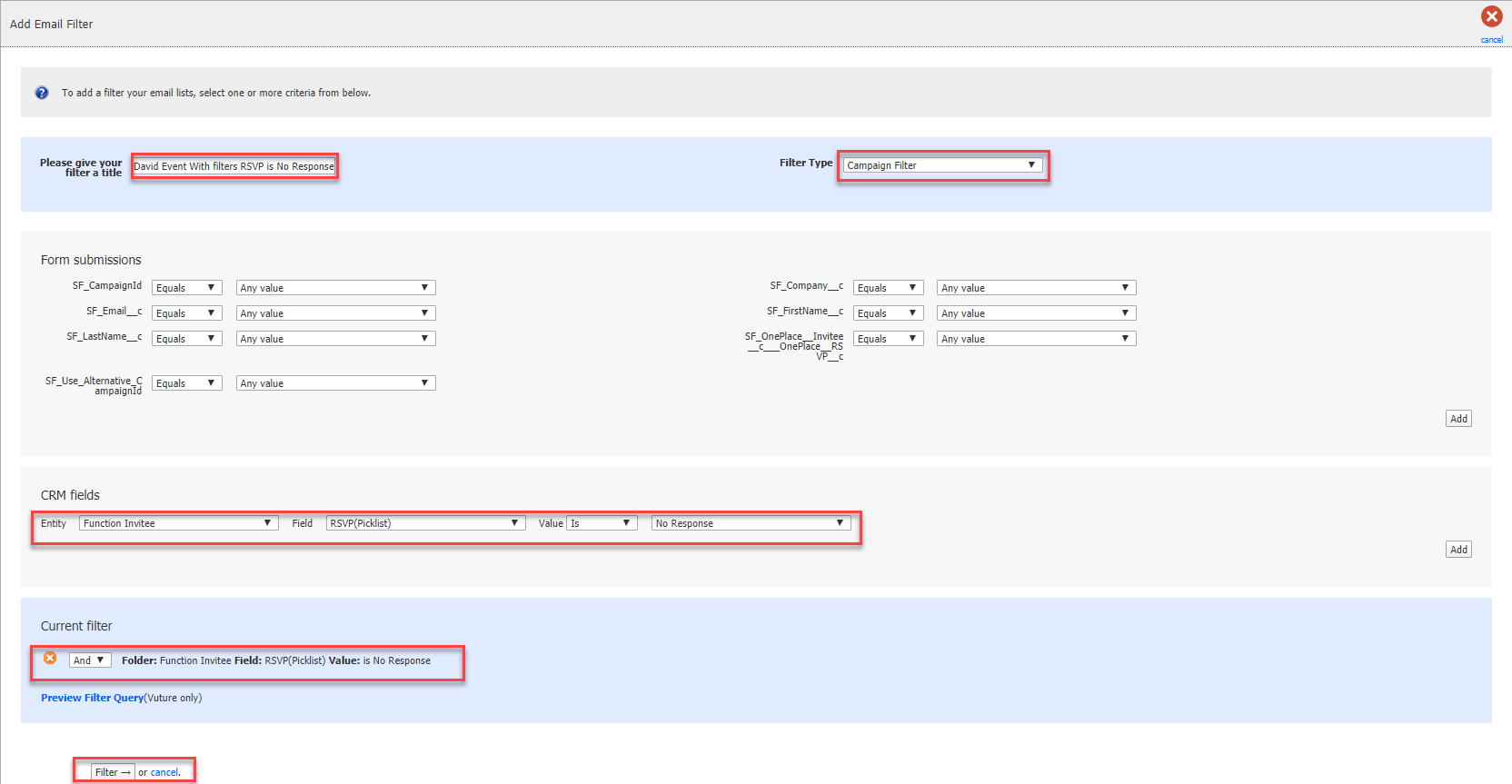
- Click Filter at the bottom left of the screen.
This returns you to the send screen, with that filter applied.
