Introduction
InterAction Folder Sync lets you connect a folder in Vuture to a contact folder in InterAction and automatically sync those contacts on specified schedule.
This is useful for the email tagging function (see this helpdesk article) as you can setup InterAction folders for tag categories such as Author or BD Contact and have these automatically update rather than having to maintain them manually in Vuture.
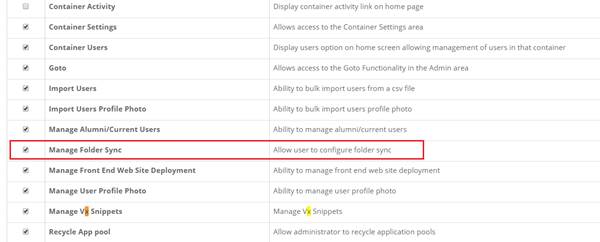
How to give access rights to Manage Folder Sync
Go to Admin -> Roles
Tick the role ‘Manage Folder Sync’ and save.
How to access the Manage Folder Sync screen
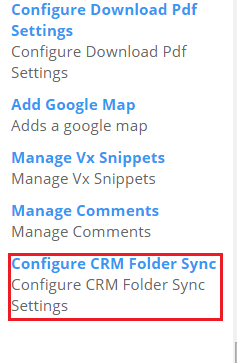
Go to the email campaign or website in which you wish to setup the sync.
Click on "options" and the top of the left panel and click the "Configure CRM Folder Sync" link:
How to setup a folder to sync
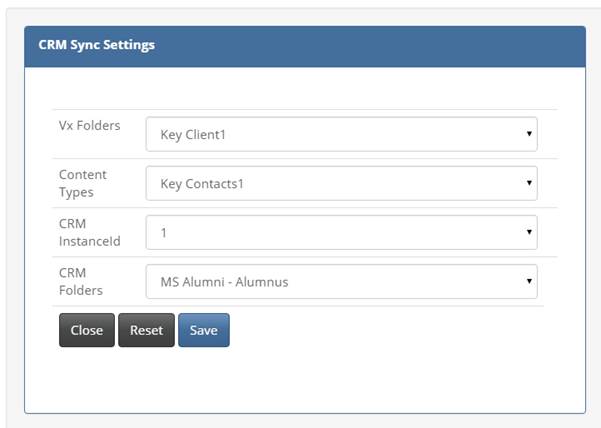
1. Vx Folders: Select a Vuture folder where all the contacts will be created as pages
2. Content Types: Select a Content Type which will be used as the content type of newly created contact pages
3. CRM InstanceId: Select the required CRM Instance (this will usually be 1 unless you have more than one CRM integration)
4. CRM Folders: Select the required CRM Folder. All the contacts in this folder will be created as pages in the Vuture folder chosen in step 1. Note that the page name will be formatted as "LastName, FirstName"
Repeat these steps for each folder you wish to sync.
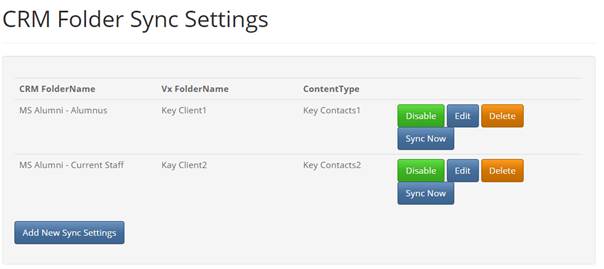
Manage sync folders
Each folder sync is displayed and you have options to:
1. Disable - this will disable the sync but keep the settings. Any existing pages will remain in Vuture.
2. Edit - this allows you to change the settings for that folder
3. Delete - this deletes the folder sync. Any existing pages remain in Vuture - these can be deleted by deleting the folder.
3. Sync Now - this will synchronise the selected folder immediately
How to enable daily sync
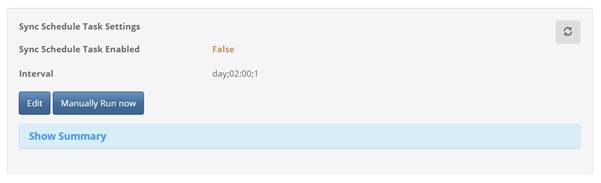
A regular sync can be setup be entering the require scheduled. Note that there is one schedule task for all InterAction folder syncs and changing this setting will affect the schedule for all.
Click "Edit" to change the settings
Click "Manually Run now" to run the sync immediately for all InterAction folders.